Management fees classified as directly recoverable expenses are charged to tenants and recovered from them through the directly recoverable management fee income paid. Once recovered, the management fee can then be paid out of the property, ensuring the cost is not borne by the owner.
The associated expense is recorded against the Directly Recoverable Management Fee expense code defined in the database, which is typically account code 6671 - Management Fees.
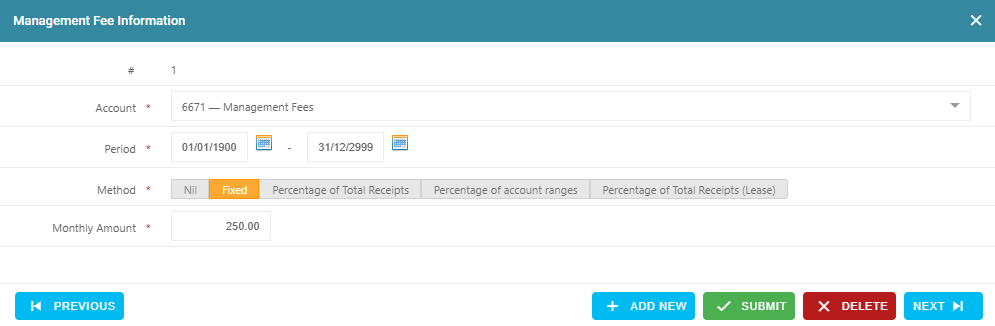
1. Setting Up a Fixed Management Fee as a Directly Recoverable Expense
This method charges a fixed monthly management fee as a directly recoverable expense, regardless of the income received for the month. The management fee is deducted from directly recoverable funds.
To apply this correctly, the setup must be completed at both the Property and Lease level.
Property Setup
Navigate to Property > Property Summary
Select the Management tab
In the Management Fees section, click the + icon
Select Account: 6671 – Management Fees
From Date
Enter the date the management fee is to commence
If this is the first management fee for the property, use 01/01/1900
To Date
Enter 31/12/2999 to allow the fee to continue indefinitely
Method
Select Fixed
Monthly Amount
Enter the GST-exclusive monthly amount
Example:
Annual fee: $3,000 + GST ($3,300 incl.)
Monthly Amount to enter: $250.00
GST will be calculated automatically when the fee is charged
Click Save.
Lease Setup
Navigate to Leases > Lease Summary
Select the relevant lease
Open the Charges and Rent Reviews tab
In the Lease Charges section, click the + icon
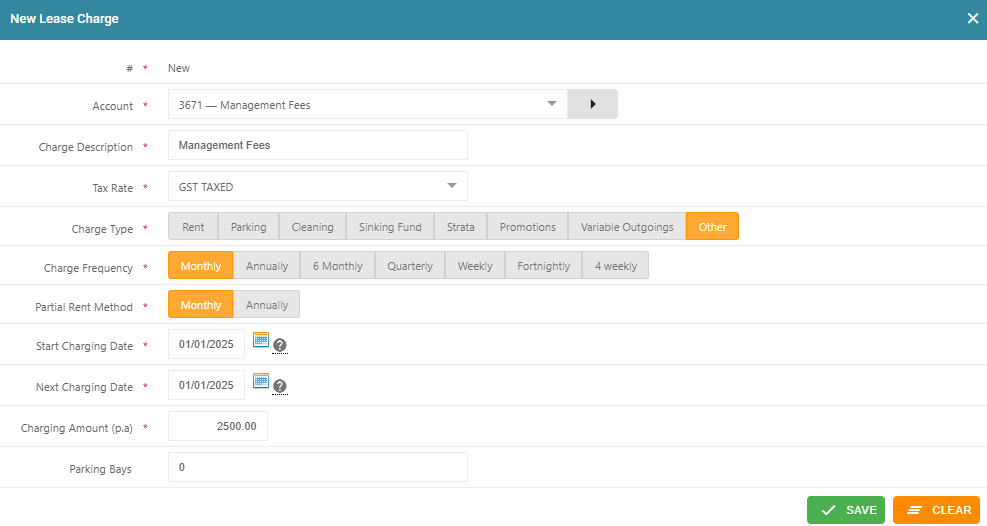
Select Account: 3671 – Management Fees
Amend the Charge Description if required
Confirm the Tax Rate (or leave as default)
Charge Type: Select Other
Charge Frequency: Select as required
Partial Rent Method
Choose Monthly or Annual, depending on how pro-rata charges should be calculated
Start Charging Date
Enter the date the management fee charge should commence
Next Charging Date
Enter the next invoice date
Examples:
Charged on the 1st of each month → 01/01/2025
Charged mid-month (15th to 14th) → 15/01/2025
Best practice: Match the dates used for the Rent lease charge
Charging Amount
GST-registered owner:
Enter the annual management fee, GST exclusive
Non-GST-registered owner:
Enter the annual management fee plus 10%
Example: $2,500 + GST → enter $2,750
Click Save.
2. Setting Up Percentage of Rent Collected Directly Recoverable Management Fee
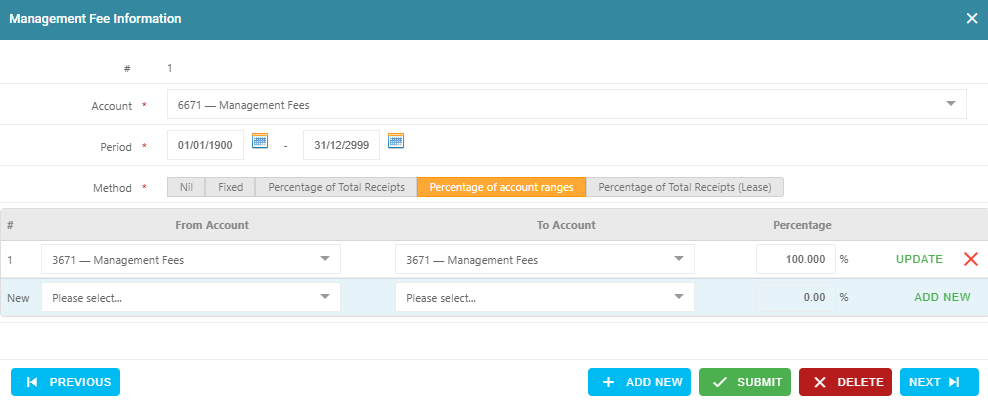
This configuration charges a management fee, calculated as a percentage against rent collected, to all funds receipted against the account code 3671. The management fee expense will be deducted from directly recoverable funds. To set this up against the property and lease, follow the below steps:
Property Setup – Percentage of Account Ranges
Navigate to Property > Property Summary.
Select the Management tab.
In Management Fees, click the + icon.
Select Account 6671 – Management Fees.
Enter the From Date:
Use the commencement date of this fee method.
If this is the first management fee for the property, enter 01/01/1900.
Enter the To Date:
Use 31/12/2999 for ongoing fees, or
Enter a specific end date if applicable.
Set Method to Percentage of Account Ranges.
Select From Account: 3671 – Management Fees.
Select To Account: 3671 – Management Fees.
Enter the Percentage:
100% if the owner is GST registered.
90.91% if the owner is not GST registered.
Click Add New, then Submit.
Lease Setup
Navigate to Leases > Lease Summary.
Select the relevant lease.
Open the Charges and Rent Reviews tab.
In Lease Charges, click the + icon.
Select Account 3671 – Management Fees.
Amend the Charge Description if required.
Confirm the Tax Rate (or leave the default).
Set Charge Type to Other.
Select the Charge Frequency.
Select the Partial Rent Method (monthly or annual).
Enter the Start Charging Date.
Enter the Next Charging Date:
Use the rent charge dates where possible to align billing.
Enter the Charging Amount:
GST registered owner: enter the annual GST-exclusive amount.
Non-GST registered owner: enter the annual amount plus 10% GST.
Click Save.
3. Setting Up Percentage of Total Receipts Management Fee as a Directly Recoverable Expense
This setup enables a property and lease to automatically charge a directly recoverable management fee based on all income receipted. Specifically, 100% of the income received under account code 3671 is allocated as a management fee at the property level. Additionally, the lease is configured to apply a percentage management fees to all tenant charges.
The management fee is treated as a directly recoverable expense and will be deducted from the recoverable funds.
Property Setup
Navigate to Property > Property Summary.
Select the Management tab.
In the Management Fees section, click the + icon.
Select Account: 6671 – Management Fees.
Enter the From Date:
Use the commencement date of the management fee method.
If this is the first management fee for the property, enter 01/01/1900.
Enter the To Date:
Use 31/12/2999 for an ongoing fee with no end date.
If the fee has a defined end date, enter that date instead.
Select Method: Percentage of Account Ranges.
Set the account range:
From Account: 3671 – Management Fees
To Account: 3671 – Management Fees
Enter the Percentage:
GST-registered owner: 100%
Non-GST-registered owner: 90.91%
Click Add New, then Submit.
Lease Setup
The below steps will need to be repeated for each individual lease that is currently attached to the property.
1. Set up Management Fee Lease Charge:
This setup creates a recurring management fee lease charge that is invoiced monthly alongside rent and other lease charges.
The annual management fee amount must equal the agreed percentage of the total annual lease charges excluding the management fee itself.
Steps
Navigate to Leases > Lease Summary.
Select the relevant Lease.
Open the Charges and Rent Reviews tab.
In the Lease Charges section, click the + icon.
Configure the charge as follows:
Account: 3671 – Management Fees
Charge Description: Amend if required or leave as default
Tax Rate: Select as applicable (or leave default)
Charge Type: Other
Charge Frequency: As required
Partial Rent Method: Monthly or Annual (for pro-rata calculations)
Enter the dates:
Start Charging Date: When the management fee commences
Next Charging Date:
Example 1: Start Date 15/01/2025, invoiced on the 1st → enter 01/01/2025
Example 2: Charged mid-period (15th–14th) → enter 15/01/2025
Best practice: Match the dates used for the Rent lease charge where fees are based on rent collected.
Enter the Charging Amount (Annual):
GST-registered owner:
Enter the annual GST-exclusive management fee amount.
Example: 5% of $50,000 = $2,500 per annum.
Non-GST-registered owner:
Enter the annual amount including 10% GST.
Example: $2,500 + GST = $2,750 per annum.
Note: The calculation base must exclude the management fee charge itself.
Click Save
2. Set up Direct Management Fee:
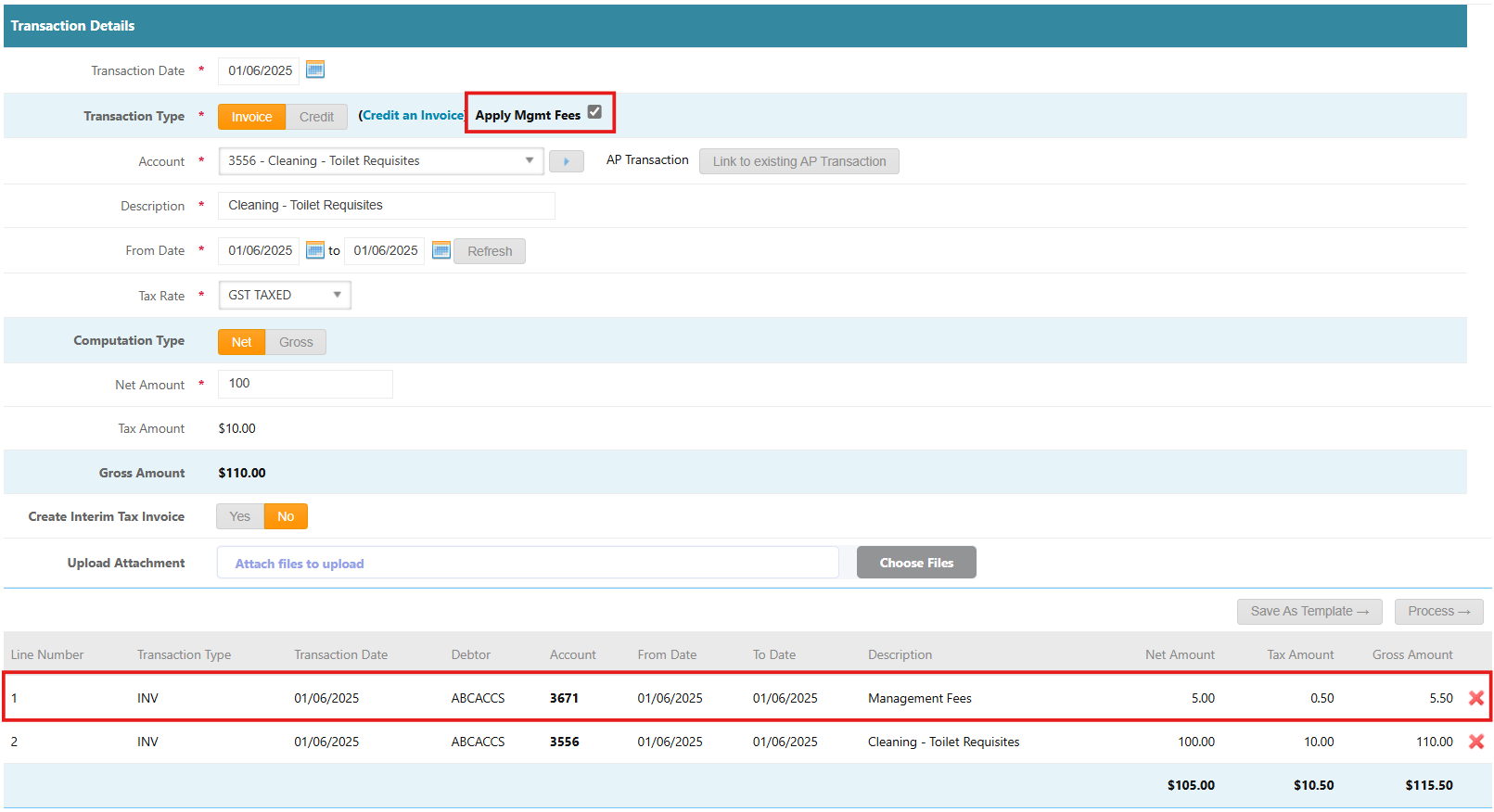
Setting up a Direct Management Fee will enable all one-off charges raised to the tenant to also automatically raise an associated management fee line at the percentage configured.
- Navigate to Leases > Lease Summary
- Select the relevant Lease from the drop-down menu
- Click on the Charges and Rent Reviews tab
- Go to Direct Management Fee section and click on the Edit Pencil for this section
- Click YES to Direct Management Fee
- Select the Account Code 3671 - Management Fees
- If the Owner is registered for GST: In the Management Percentage field, enter the percentage number of the management fee to charge. E.g. if the management fee charged by your agency is 5% + GST of total collections, enter in 5 in the field.
- If the Owner is not registered for GST: In the Management Percentage field, enter the percentage number of the management fee to charge plus 10%. E.g. if the management fee charged by your agency is 5% + GST of total collections, enter in 5.5 in the field.
- Click Save Management Fees Details

- Example of a charge raised against a Lease with Direct Management Fee enabled:
Was this article helpful?
That’s Great!
Thank you for your feedback
Sorry! We couldn't be helpful
Thank you for your feedback
Feedback sent
We appreciate your effort and will try to fix the article