Quotes
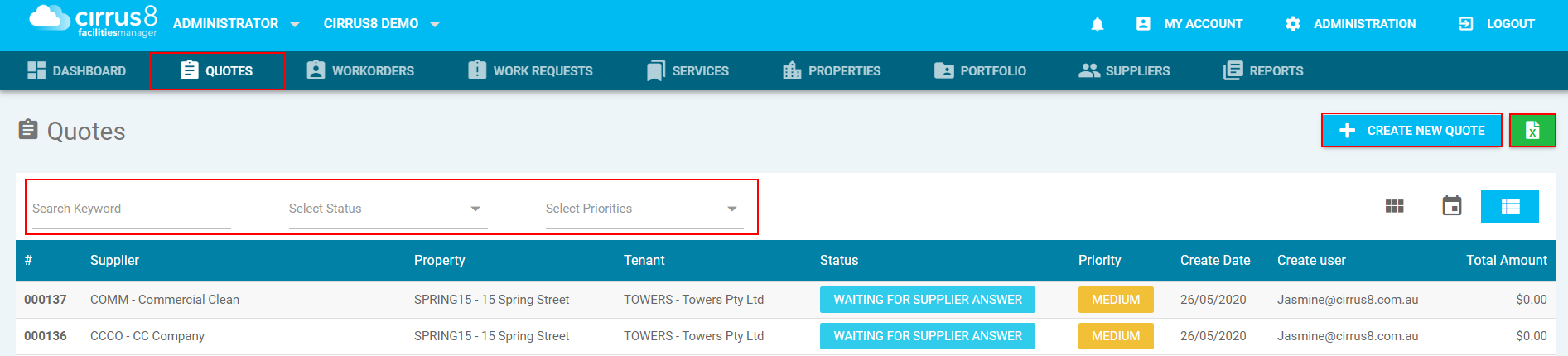
Under the Quote tab you are able to action a few different items from here:
- Create new quote - you are able to create a new quote.
- Green document with X - export all quotes to excel.
- Search filters - search by keywords, status or priorities.
- Viewing a quote - by selecting a quote this will take you through to more information.
Creating New Quotes
Quotes can be created from the system dashboard or quotes tab by clicking on Create New Quote.
Step 1 - Quote Details:
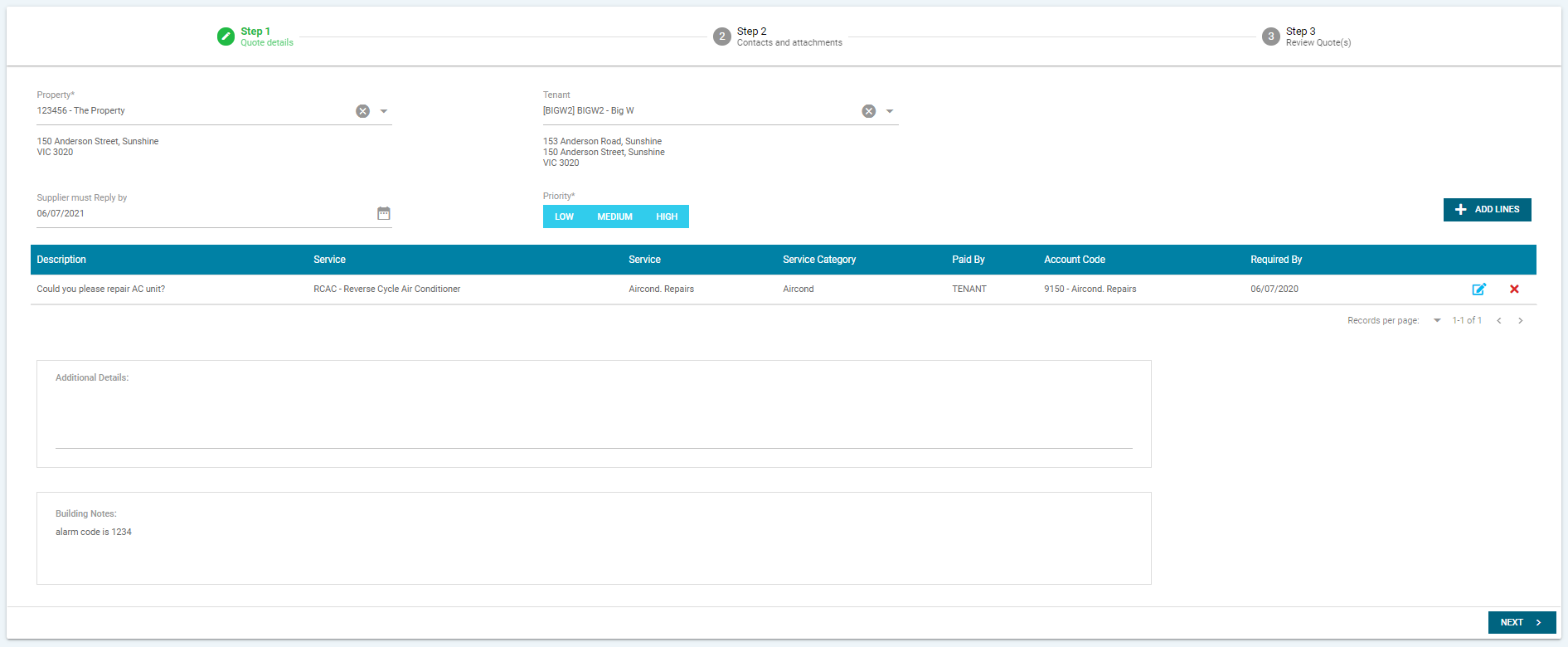
- * means this is a mandatory field and must be entered to move onto next step.
- Property - select the property form the drop down menu.
- Tenant - this is optional if the quote is specific to a tenant you can select them and their contact details will appear on the quote.
- Priority - select the priority of the work.
- Additional Details - if there is more information to expand on this can be entered here.
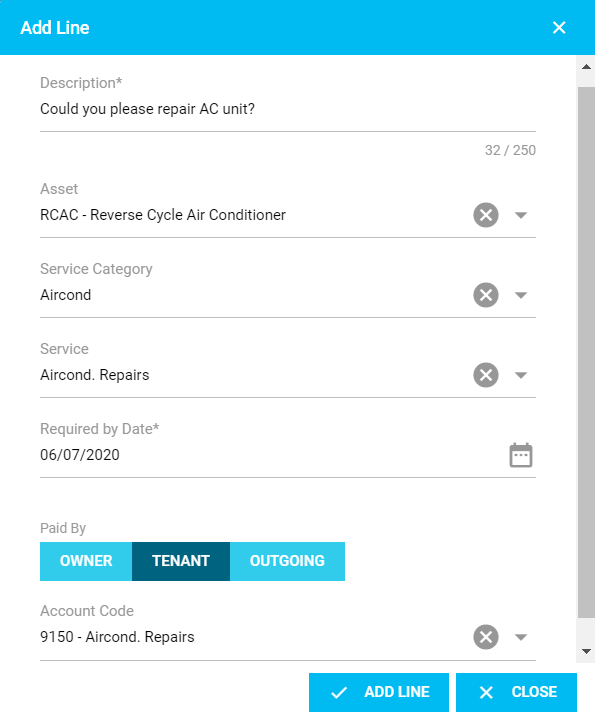
- Add Lines - this is where you can enter the details of the work to be completed/quoted on, you can add multiple lines if there is more than one item they are to attend to. A pop-up window will appear as per below.
- Asset - these can be set up under Properties. Then you will be able to select from the dropdown if there is an asset to be included in the quote.
- Service Category - this must be setup under Services, you can breakdown what service category this item applies to.
- Service - this is also setup under the Services and you can narrow down the service type.
- Required by Date - the date you require the work to be attended to by.
- Paid By - you can select if this is to be paid by the owner, tenant (directly recoverable) or falls under the variable outgoings.
- Account Code - depending on who is selected in paid by will autofill the account code, however you can override this by selecting another code from the drop down.
Once happy with the information entered you can click on Next to move onto Step 2.
Step 2 - Contacts and Attachments
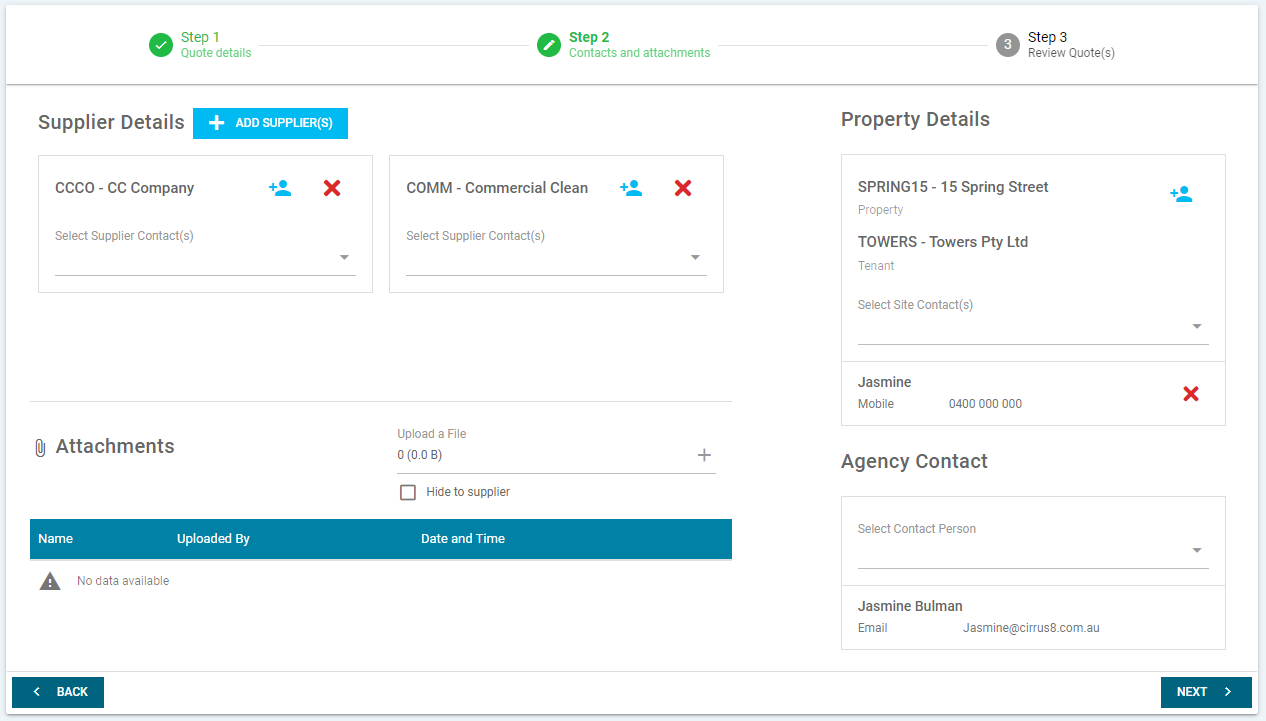
- Attachments - photos/documents can be added to the quote these can be shown or hidden from the supplier, by ticking the hide to supplier.
- Property Details - this will pull through the property information, if you have selected a tenant in Step 1 this will appear under the property details.
- Agency Contact - this will automatically select the contact creating the quote, however you can override this and select anyone from the drop down.
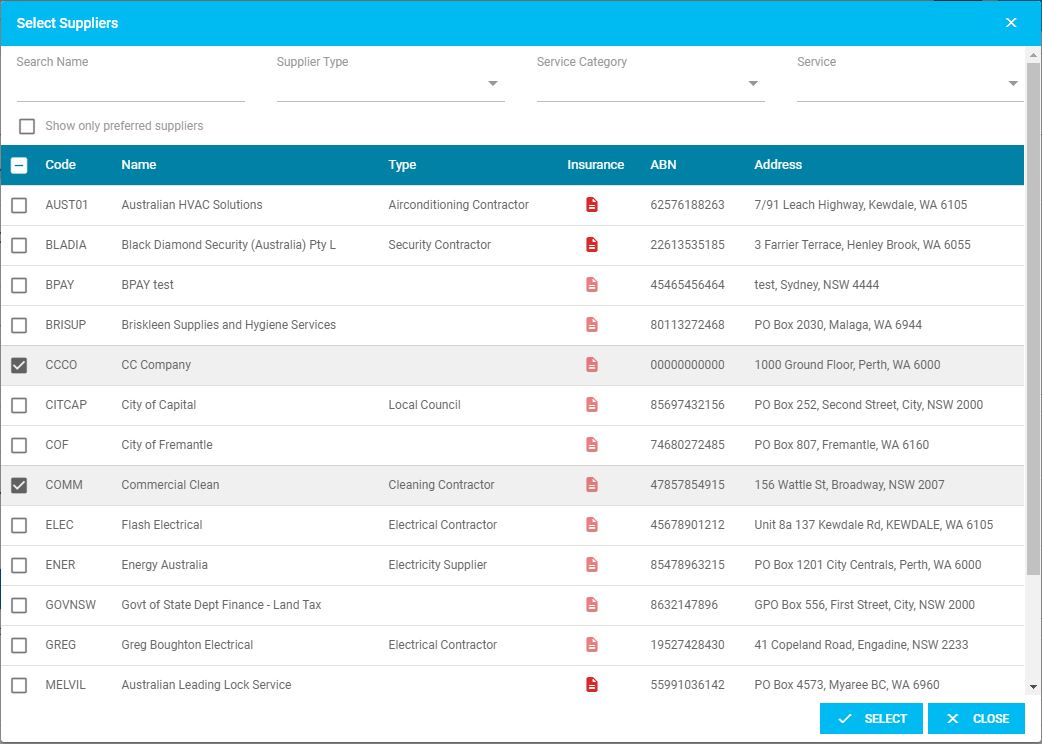
- Supplier Details - for quotes you can send this to multiple suppliers. The system will default to show preferred suppliers, however you can override this by un-ticking show only preferred suppliers. Tick the suppliers you would like to send this through to and click on select. Once the suppliers have been selected you can select the drop down to specify the main supplier contact.
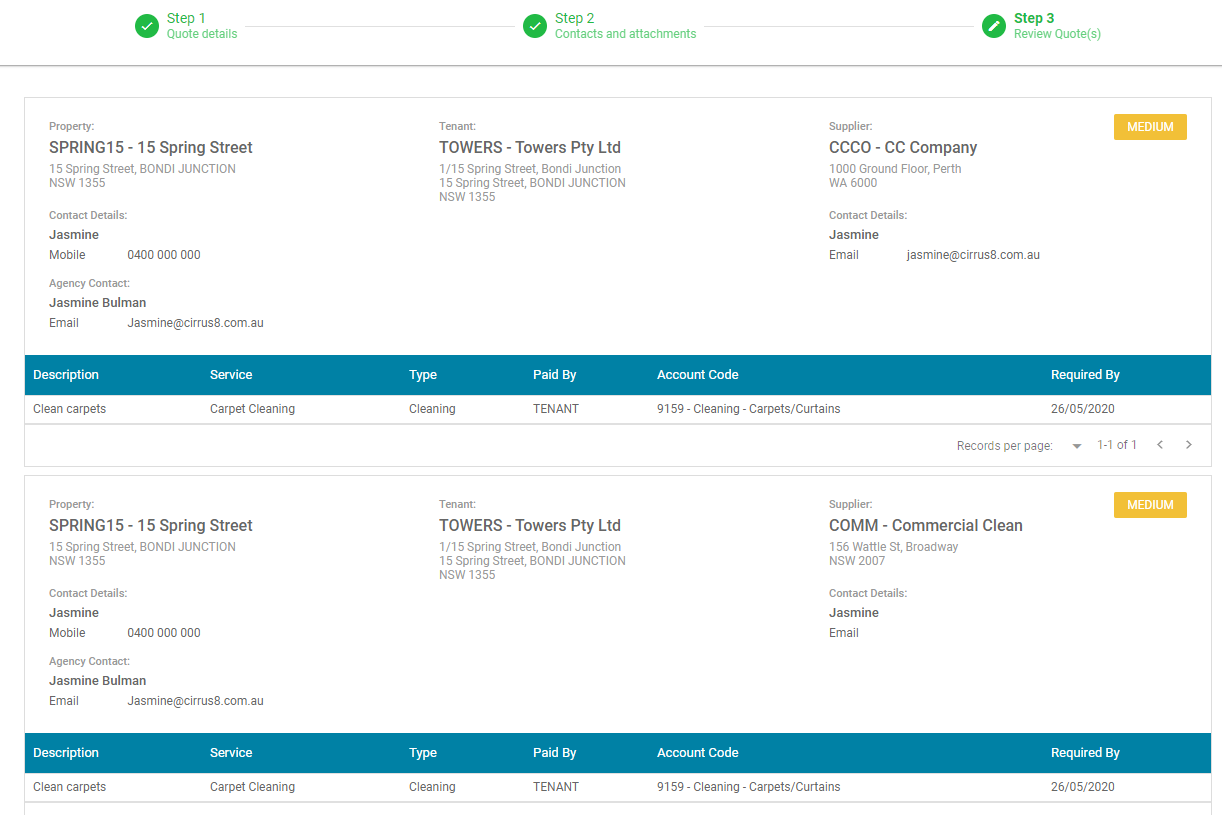
Step 3 - Review Quote(s)
- The system will then show you the quote/s you have created with a breakdown of the information entered.
- There is the option to save as draft.
- You can create or create and send email.


Viewing a Quote
Once you have selected a quote to view there are a few options you can action:
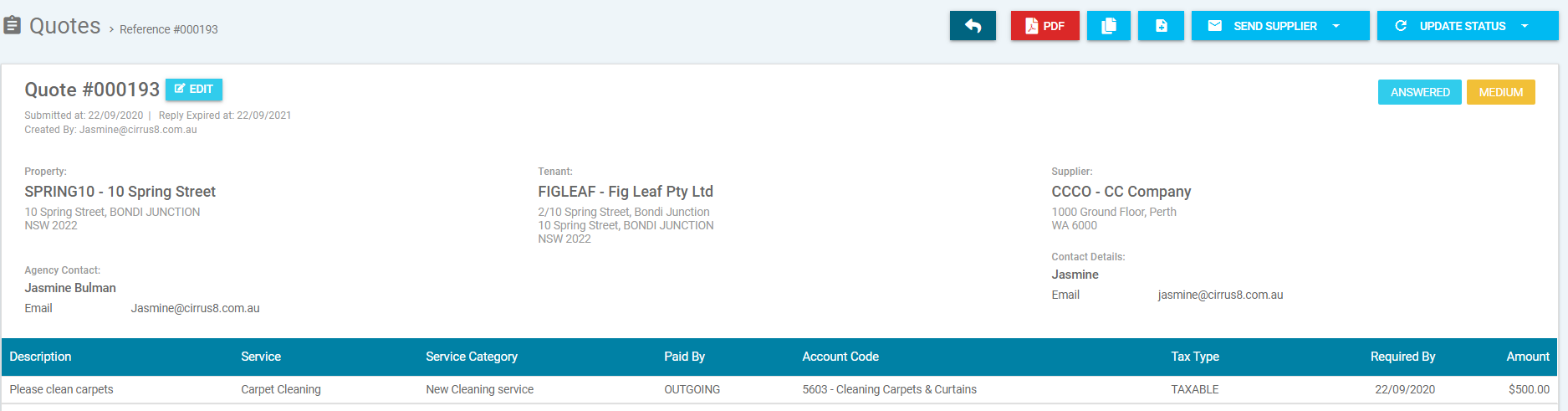
- Back arrow - this will take you back to the previous screen.
- PDF - this will download a PDF version of the report.
- Double Documents - this function will copy and create a new quote.
- Document + - this is if you wish to create a new quote.
- Send supplier
- Send the supplier a reminder email.
- Resend supplier confirmation.
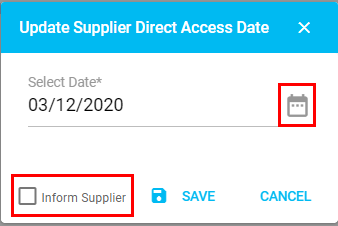
- Update supplier direct access date (this will update the supplier expiry token date - with the option to inform the supplier of the update). For example, if the quote has expired you are now able to extend the date. The below pop-up will appear and you can click on the calendar to select the date you wish to extend it through to, there is also a tick box if you would like to inform the supplier and then you can click on save to update.
- Update status - cancel or reject quote.
- Document with edit pencil - manual supplier input, if the supplier has spoken to you over the phone you are able to edit/update the quote. This will open the below:
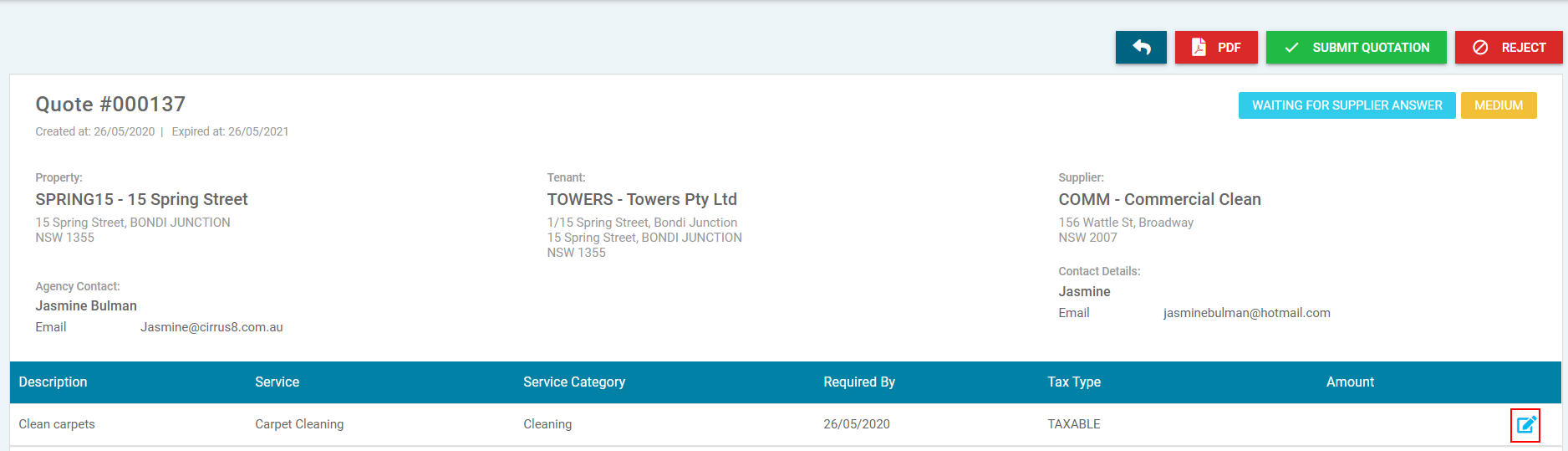
- This is the screen the supplier will see when they click on the link from the quote request.
- Back arrow - this will take you back to the previous screen.
- PDF - this will download a PDF version.
- Submit quotation - to submit the quote you first need to enter the amount of the quote.
- Reject - this is to reject doing the quote, a pop-up window will appear where you can enter your reason.
- Edit pencil - selecting this will open a pop-up where you can enter the quote amount.
- Comments - the agent user and supplier can add comments and files. If the supplier adds any comments an email notification will be sent to the agent and if the agent adds any comments the supplier will be notified.
- Attachments - the agent user and supplier can also add attachments, for example a copy of the quote. The system will log the date, time and who submitted it and will also notify the other party of any attachments added.

- Once quote has been submitted the system will update the status of the quote to answered.
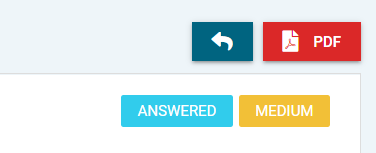
- Under update status - there is an option to create as workorder.
Editing a Quote
Once you have created your quote, if there is something that needs to be updated or there are changes in the work required you can edit the quote.
- Select the quote you need to edit and you will see the below edit button.
- Select Edit.
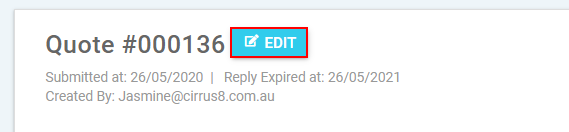
- The screen will update to allow you to edit the information on the quote.
- The property, supplier and agency contacts will open up and you will be able to update them as required.
- The information in the quote can also be updated by selecting the edit pencil. Then the below pop up will appear where you can update the description, service category, service type, required by date, paid by and account code. Then to save select update line.

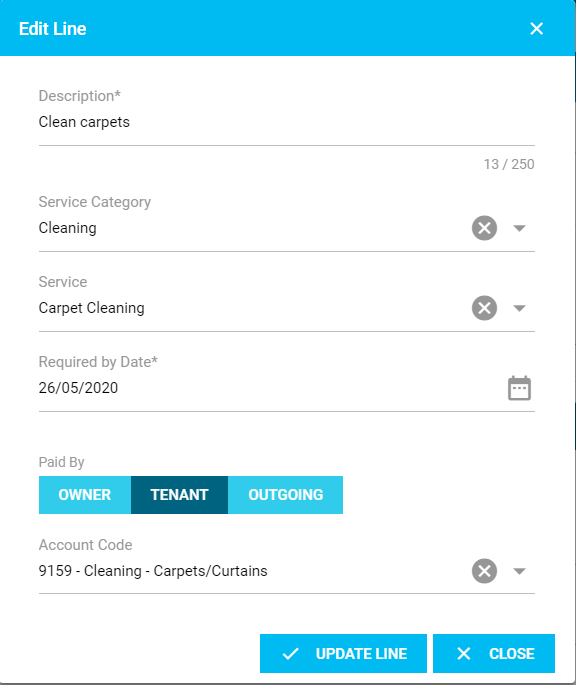
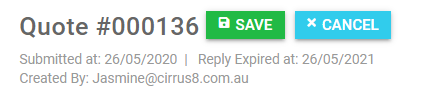
- Once all of the information has been updated, don't forget to select save. If you do not wish to save the changes, you can select cancel.
- If the quote has been closed or rejected in the system, you can re-open it by going into the quote and clicking on the below button. The system will bring a pop-up asking if you are sure you want to re-open it and you can select yes or no.

Please see workorders for next stage.
Was this article helpful?
That’s Great!
Thank you for your feedback
Sorry! We couldn't be helpful
Thank you for your feedback
Feedback sent
We appreciate your effort and will try to fix the article