The Change Company Banking Details form allows users to request new or updated banking details for a company in Rex Cirrus8.
Supporting documents, such as bank statements, cheque images or supplier tax invoices, can be attached to the request.
All requests are submitted to a nominated authoriser for approval or rejection before the banking details are updated.
Accessing the Form
Available to users with Trust Accountant or Property Manager access.
Navigate to:
Companies → Change Company Banking Details
Viewing Previous Requests
All requests are retained for audit purposes, including their approval or rejection status.
To review previous requests, navigate to:
Dashboard → Changes to Payment Details → View
When to Use This Form
Use the Change Company Banking Details form to request:
Owner Banking Details: Add or update an owner's bank account details.
Supplier Payment Method: Change a supplier's payment method, such as from EFT to BPAY.
Supplier Banking Details: Correct or update a supplier's bank account details.
Tenant Refunds: Add or update tenant banking details for credit or bond refunds.
How to Submit a Change Request
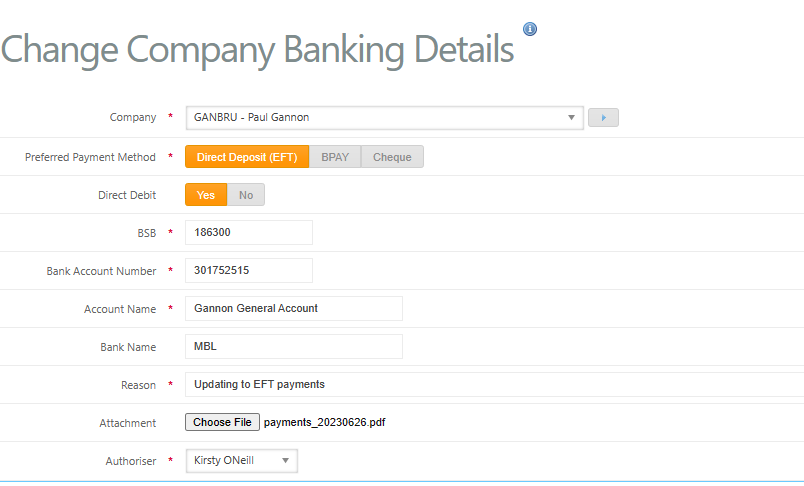
Navigate to Companies → Change Company Banking Details.
Select Company: Choose the company whose banking details require updating.
Update Banking Details: Enter the new details and complete all mandatory fields (*).
Direct Debit: Select Yes if the account requires direct debit processing.
Reason for Change: Enter a clear explanation for the request.
Supporting Documents: Attach relevant documentation, such as a bank statement, cheque image or supplier tax invoice.
Select Authoriser: Choose the person responsible for reviewing and approving the request.
Submit for Approval: Click Submit for Approval to send the request to the nominated authoriser.
Important: Banking detail changes must be approved before the updated account details will be included in a payment run banking file. All requests are retained for audit purposes.
Review, Approve or Reject Changes
The nominated Authoriser receives an email notification containing a link to review and approve or reject the requested banking detail changes.
Alternatively, the Authoriser can access pending requests in Rex Cirrus8 by navigating to:
Dashboard → Changes to Payment Details → View
The Authoriser can then review the request and supporting documentation before approving or rejecting the changes.


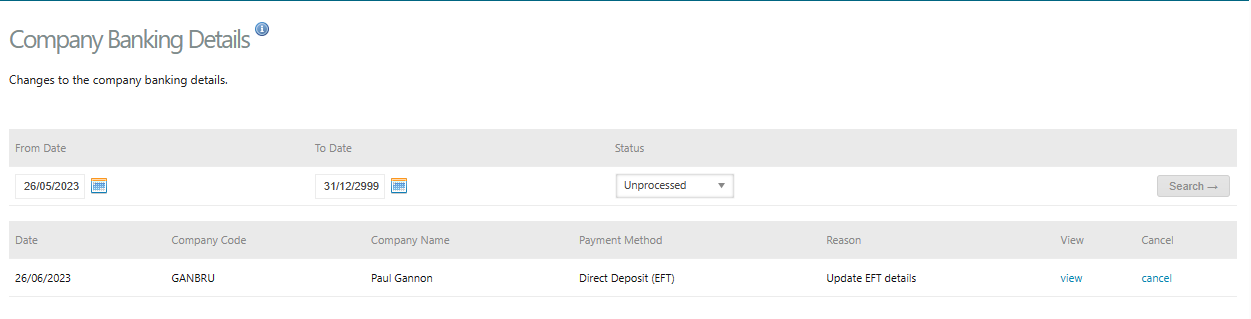
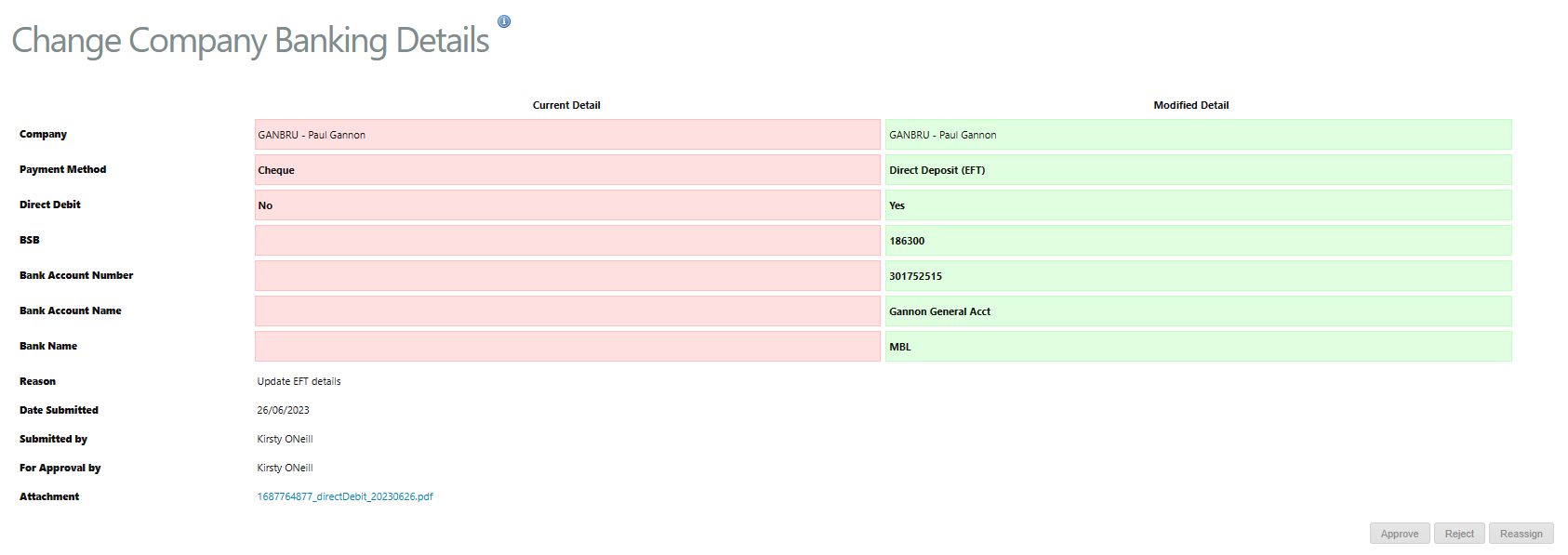
View Changes: Click View to review the proposed banking detail changes. Changes are highlighted, and supporting attachments can be downloaded for verification.
Approve: Approve the requested banking detail changes.
Reject: Decline the request.
Reassign: Assign the request to another Authoriser if the original Authoriser is unavailable.
The user who submitted the Change Company Banking Details request will receive a notification once the request has been approved or rejected.
Pending Banking Detail Changes
If a payment run is initiated before a Supplier or Owner's banking detail changes have been approved, Rex Cirrus8 will display a warning on the payment screen.
The user can then choose to:
Proceed with Payment: Use the existing, approved banking details.
Cancel Payment: Wait until the updated banking details have been authorised before processing the payment.
Viewing Pending Requests
Pending requests appear on the nominated Authoriser Dashboard.
Other users can view pending requests by navigating to:
Dashboard → Changes to Payment Details → View
Important: Always verify banking details before processing payments to ensure funds are transferred to the correct account.
Was this article helpful?
That’s Great!
Thank you for your feedback
Sorry! We couldn't be helpful
Thank you for your feedback
Feedback sent
We appreciate your effort and will try to fix the article