Stage 1: Configure Bonds in System Configuration
This setup allows funds receipted into a property to be automatically allocated to the Sales Trust.
Who can complete this:
Trust Accountant user
Navigation path:
Configuration → System Configuration
Steps
Open System Configuration.
Locate the field Parameter Type.
Select ACCOUNTS.
If ACCOUNTS is not available:
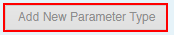
Click Add New Parameter Type.
Create the parameter type ACCOUNTS.
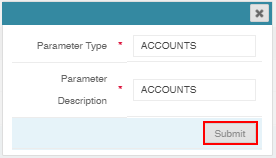
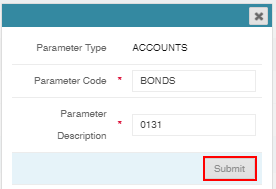
5. Add a new Parameter Code:
Enter: BONDS
6. Enter a Parameter Description:
Example: account codes for bonds such as 0131
Multiple account codes can be entered separated by commas.
Balance sheet account codes can be used.
7. Click Submit to save.
Create a ZB (Bond/Deposit) Lease
This creates the lease used to hold bond funds.
Who can complete this:
Trust Accountant or Property Manager
Navigation path:
Lease Summary
Steps
Search for the property (example: MAIN142).
Open the Overview tab.
Locate the section Bond/Deposit Lease.
Select your Bond/Deposit Property.
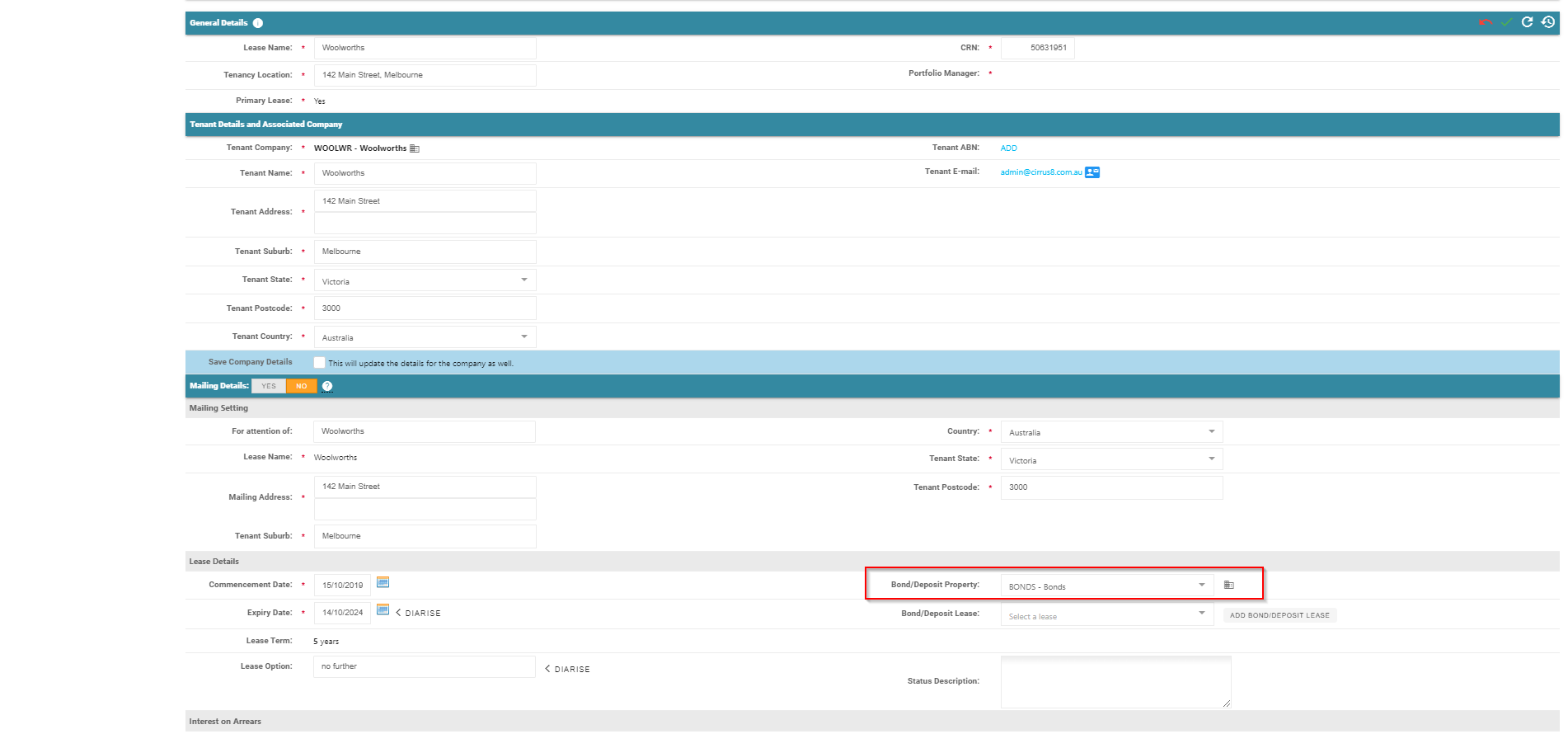
5. Click Add Bond/Deposit Lease.

6. A popup window will appear.
7. The system will automatically generate:
Bond/Deposit Lease Code
Bond/Deposit Lease Name

8. If required:
Edit the code or name.
Note: Lease code must be 10 characters or fewer (letters or numbers only).
9. Click Submit.
10. Click Save on the lease screen.
Generate an Invoice for the Bond or Bond Top-Up
An invoice must be raised before receipting funds.
Who can complete this:
Trust Accountant
Navigation path:
Accounts Receivable → Invoices & Credits
Steps
Select the property (example: MAIN142).
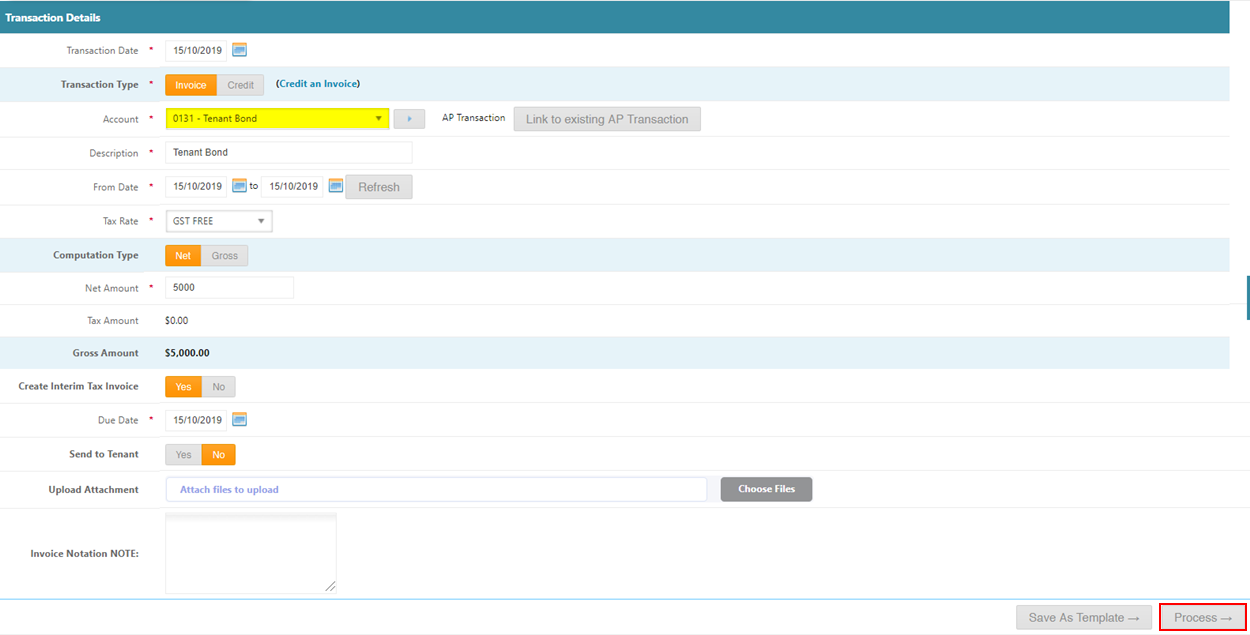
Complete the invoice details.
Ensure the Account Code selected:
Matches one of the bond account codes configured earlier.
Click Process.
Click Complete.
Receipt the Bond Payment
Once funds are received in the trust account, they can be receipted.
Who can complete this:
Trust Accountant
Navigation path:
Accounts Receivable → Receipts
Steps
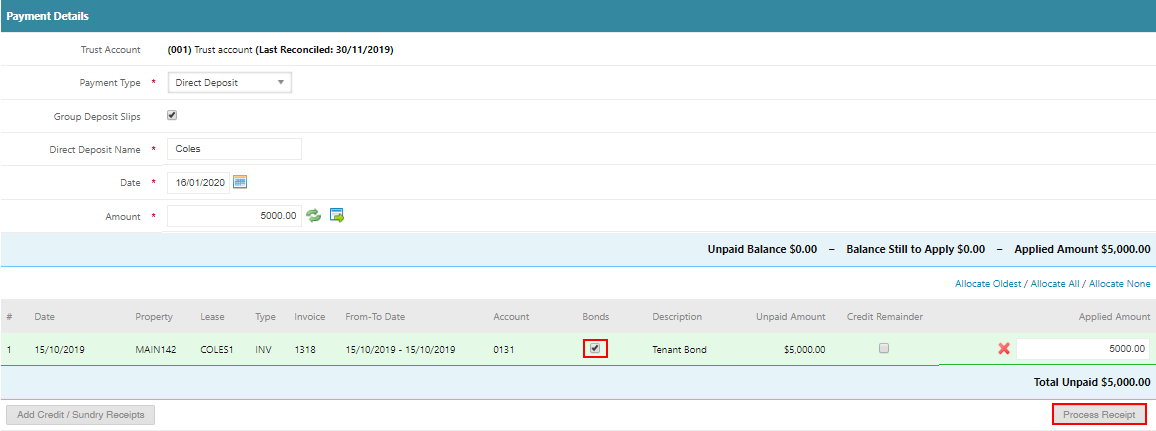
Select the property where the invoice was raised.
Enter the amount received.
Tick the Bonds checkbox.
Apply the payment to the invoice.
Click Process Receipt.
Important Note
If the Bonds checkbox is not ticked:
Funds will not transfer automatically to the ZB property.
They will remain in the original property.
Was this article helpful?
That’s Great!
Thank you for your feedback
Sorry! We couldn't be helpful
Thank you for your feedback
Feedback sent
We appreciate your effort and will try to fix the article