Month end within general ledger is used to create transactions required to correctly reflect the income or expenses relating to each period.
- For income, it looks for charges in advance and creates a journal entry and transactions to reflect the portion of income that relates to future periods based upon the transaction from and to dates.
- For expenses, it looked at AP invoices with ‘to dates’ past the reporting period and calculates the portion of expense that relates to future periods, and creates the relevant journal entry to reflect this.
Processing the month end
- Process the GL income month end journal and the expense month end journal separately, period by period.
Month end income entries
- Select Account Group: Income
- Selecting a relevant period
- cirrus8 looks for properties with amounts charged in advance, beyond the period in question.
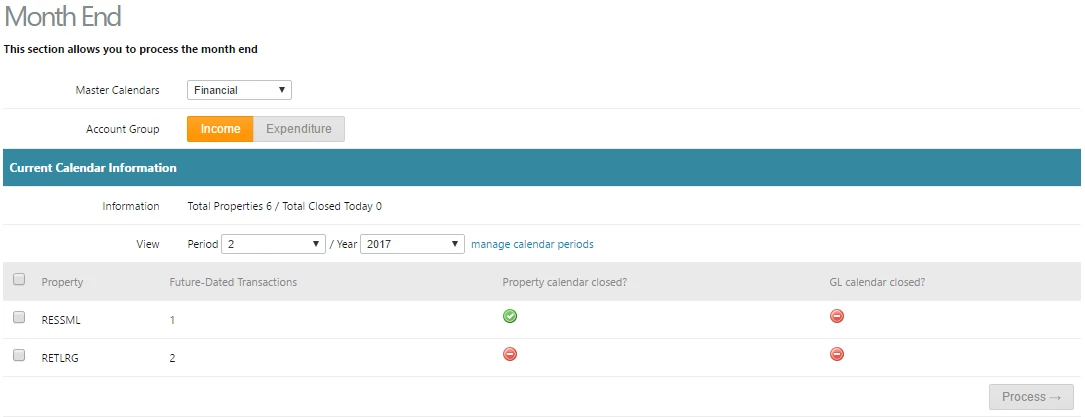
- Select the property(s) and click process.
- You are redirected to the journal view screen. Where a draft journal entry and draft reversing journal entry is created.

- Click view to see the balances journal.
- Review the entry created and the debtor the transaction/s relate to prior to posting.
- Data entry errors, can be corrected in AR Invoice and Credit Adjustment, then the month end re-generated before posting the entry.
- Click 'commit' to post the entry, which posts the original and reversing entry.

Month end expenditure entries
- Select Account Group: Expenditure
- Selecting a relevant period
- cirrus8 looks for properties with amounts entered for AP invoices or credits with a transaction ‘to date’ after the reporting period end date.
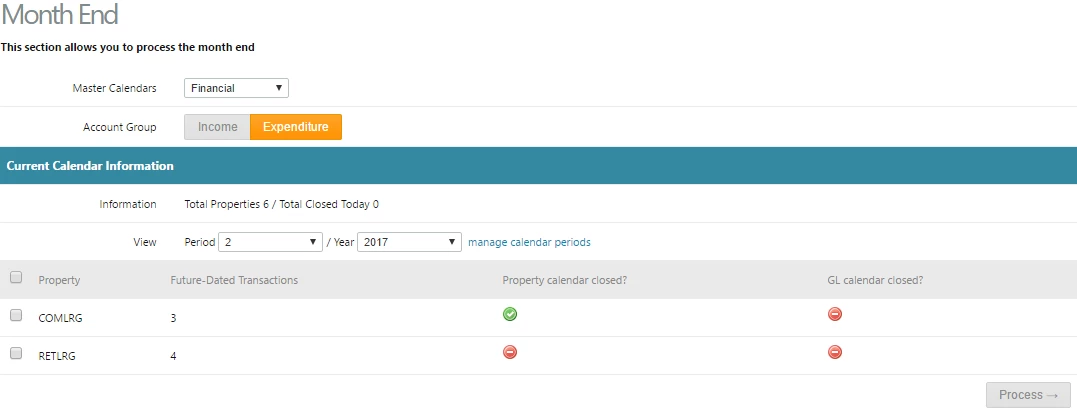
- Select the property(s) and click process.
- You are redirected to the journal view screen. Where a draft journal and reversing journal entry is created for all AP transactions entered up to the reporting period with a ‘to date’ past the reporting period. The portion of expense relating to the future, is journaled as a 'future period cost' or 'prepayment' and removed from the expense accounts via a journal.
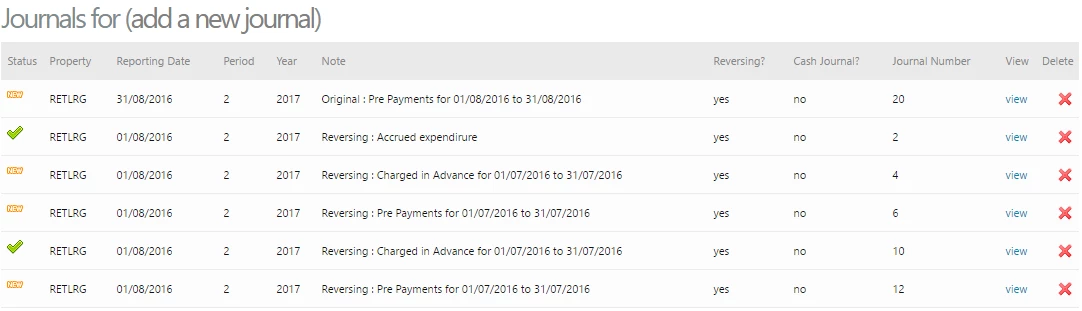
- Review the entry created prior to posting.
- Data entry errors, can be corrected in AP Invoice and Credit Adjustment, then the month end re-generated before posting the entry.
- Click 'commit' to post the entry.

Reporting
- Check the profit and loss and balance sheet reports or trial balance to ensure you have the correct figures before closing the GL calendar
Reviewing the reversing journals created
- From Journal View view the reversing journals selecting the period following the reversing period.
Was this article helpful?
That’s Great!
Thank you for your feedback
Sorry! We couldn't be helpful
Thank you for your feedback
Feedback sent
We appreciate your effort and will try to fix the article