This section can be accessed by an Administrator and Facility Manager user. Tenants registered to the tenant portal can also log a work request.
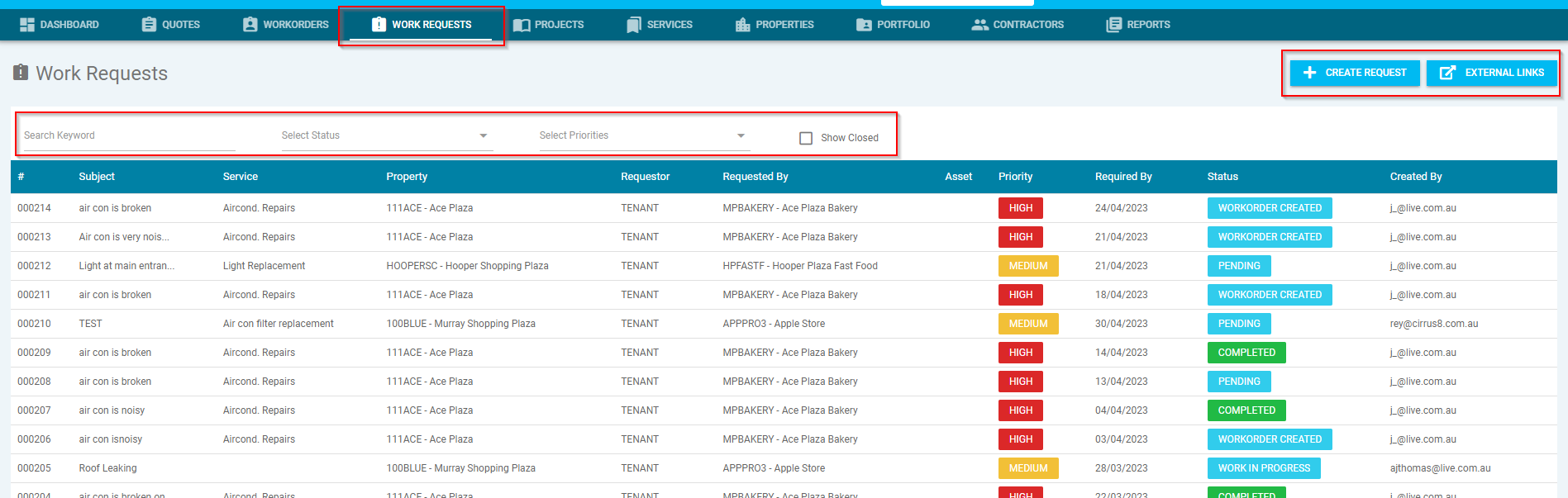
The Work Requests tab allows you to create work requests, which can be formatted to a quote and work orders, and you can select from the following options to action:-
- Create Request – This will allow you to create a new work request
- External Links – You can create an external link for the work request
- Search Filters – Search by keyword, status, priorities
- Show Closed – When the check box is selected, you can search for and view closed work requests
- Filters – This allows to filter the list of existing work requests by # (request number), Subject, Service, Property, Requestor, Requested By, Asset, Priority, Required By, Status and Created By
Create Work Requests
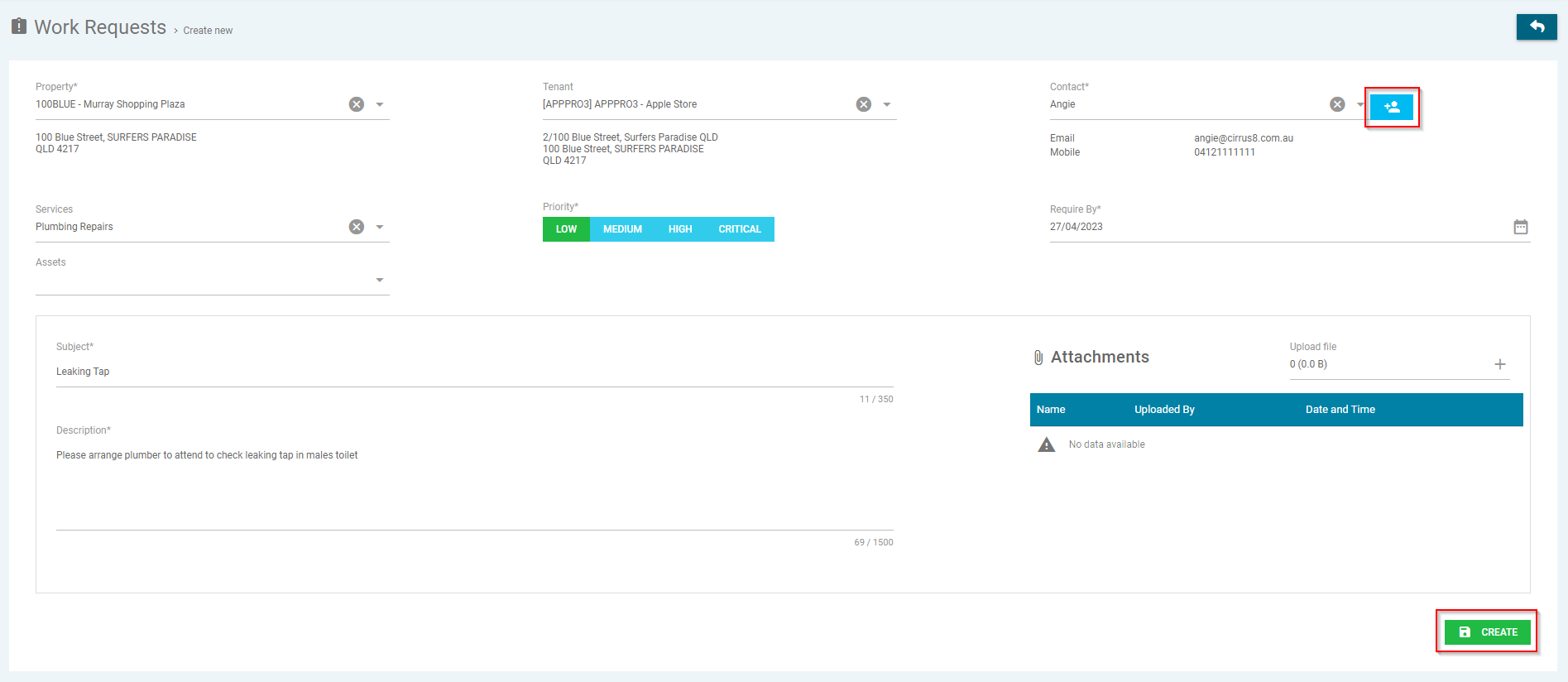
Select the 'Create Request', which will open up a new pop-up window and prompt you to action the following:-
- * means this is a mandatory field and must be entered to create the request
- Property* - Select from the drop down menu
- Tenant – Select from the drop down menu
- Contact* - Select from the drop down menu or add by clicking the add contact icon
- Services – Select from the drop down menu. If no service appears, it means no services has been entered. Click here to view Services process
- Priority* - Select the relevant priority (Low / Medium / High / Critical)
- Required By* - Enter the date you wish for the work requested to be actioned
- Subject* - Enter subject, e.g. Leaking Tap
- Description* - Enter brief description of work request, e.g. Please arrange plumber to attend to check leaking tap in males toilet
- Attachments – Add photos/document by clicking the ‘+’ button or dragging a file
- Click Create
NOTE: Where a link has not been created, tenants must be registered and have access to the tenant portal to use this function. Please contact email support@cirrus8.com.au to register the tenants to the portal.
View Work Request
By selecting the work request you wish to view, to action the following:-
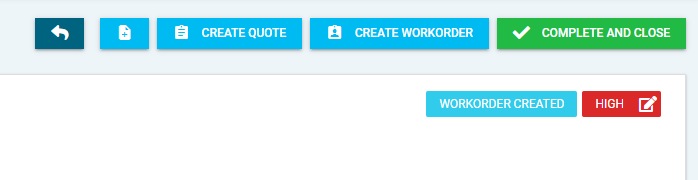
- Back arrow - This will take you back to the previous screen.
- Create New Request Icon - This allows you to create a new work request
- Create Quote - This will allow you to create a quote and populate the details in the work request
- Create Workorder - This will allow you to create a workorder and populate the details in the work request for the selected work request
- Complete and Close - This will allow you to close the work request
- Priority Icon - This allows you to edit the priority
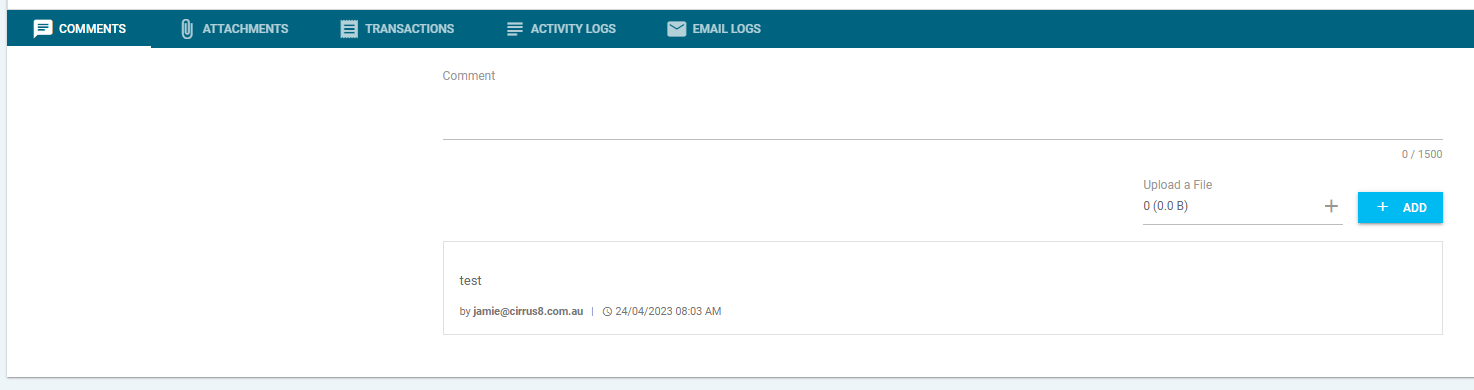
- Comments - This will allow you to view or add a comment or upload a file
- Attachments - This will allow you to upload new photos/documents
- Transactions - This will allow you to view the transactions
- Activity Logs - This will allow you to check the status and actions completed
- Email Logs - This will allow you to view and check the email logs
Create External Links & Configure Templates
Select the External Links button to create a link and a QR Code to action the following:
- Back Arrow - This will take you back to the previous screen
- Check-In Template - This will allow you to view and configure the check-in template. Click here to view the Check-In Template process
- Form Template –This will allow you to view and configure the form template. Click here to view the Form Template process
- Print Template – This will allow you to view and configure the print template for the QR Code. Click here to view the Print Template process
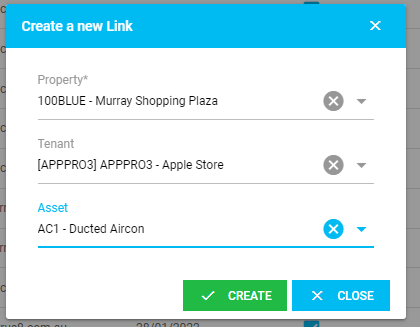
- Create Link – This will allow you to create a new external link. When selected a new pop up will appear, which will prompt you to select the following:-
- * means this is a mandatory field and must be entered to create the request
- Property* - Select the property from the drop down menu
- Tenant - Select the tenant from the drop down menu
- Asset - Select an asset from the drop down menu
- Click ‘Create’ to save the link or Close
- Search Filters – Search by keyword
- Filters – This allows to filter the list of existing by Property, Tenant, Asset, Created By and Create Date
- QR Code Functions - Select the check box to enable the relevant functions (Check-In Enabled / Check In Agreement / Documents / Registers). Click here to view the QR Code Function process
- Click the Box with Arrow icon to go to the external link
- Click the Documents icon to copy link URL to clipboard
- Click the Check-In icon to customise the check-in template for an external link
- Click the Forms icon to customise the form template for an external link
- Click the QR Code icon to customise the print template and print the QR code
- Click the red cross to delete the external link

Was this article helpful?
That’s Great!
Thank you for your feedback
Sorry! We couldn't be helpful
Thank you for your feedback
Feedback sent
We appreciate your effort and will try to fix the article