This article covers the functionality of the Work Requests tab in CirrusFM, how to navigate this page and the actions available within the page.
Accessing the Work Requests Tab
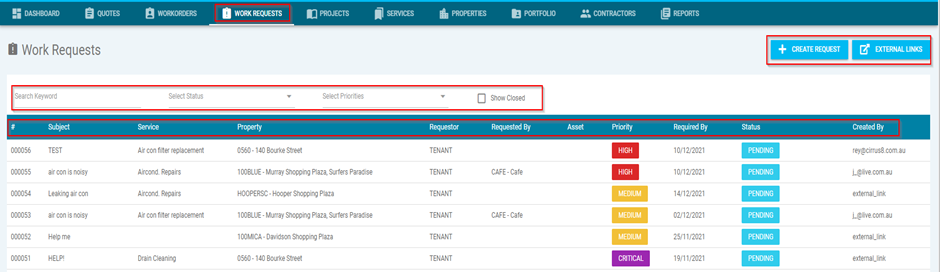
The Work Requests tab allows users to submit maintenance requests that can later be converted into quotes or work orders.
Available Actions
Within the Work Requests tab you can:
Create Request – Create a new work request.
External Links – Create and manage external request links.
Search Filters – Search by keyword, status, or priority.
Show Closed – Tick this option to display closed requests.
Filters – Filter requests by:
Request number
Subject
Service
Property
Requestor / Requested By
Asset
Priority
Status
Created By
Creating a Work Request
Follow these steps to create a new work request:
Step 1 — Open Create Request
Go to Work Requests.
Select Create Request.
A pop-up window will appear.
Step 2 — Complete Required Fields
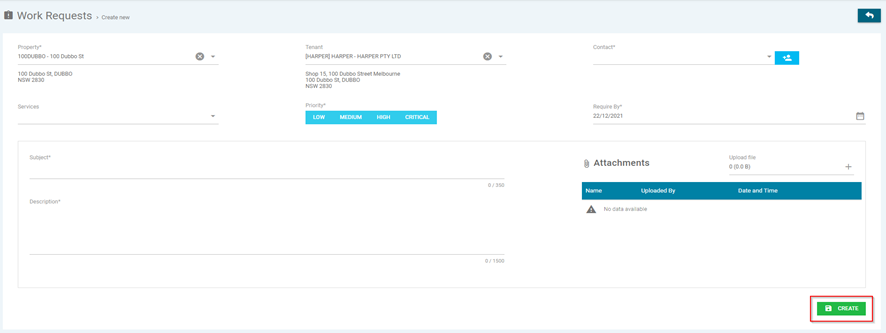
Fields marked with * are mandatory.
Property* – Select the property from the drop-down list.
Tenant – Select the tenant (optional).
Contact* – Choose a contact or click Add to create one.
Services – Select the required service.
Priority* – Choose the work priority.
Required By* – Enter the required completion date.
Subject* – Enter a short title (e.g., Leaking Tap).
Description* – Add details of the issue.
Example: Please arrange plumber to inspect leaking tap in male toilet.
Attachments – Add photos or documents by:
Clicking the + button, or
Dragging files into the window.
Step 3 — Submit the Request
Click Create to save the work request.
NOTE: Where a link has not been created, tenants must be registered/have access to the tenant portal to use this function. Please contact email support@cirrus8.com.au to register the tenants to the portal.
Creating an External Link
External links allow users to submit work requests via a shared form.
Step 1 — Open Create Link
Go to Work Requests.
Select Create Link.
A new pop-up window will open.
Step 2 — Available Options
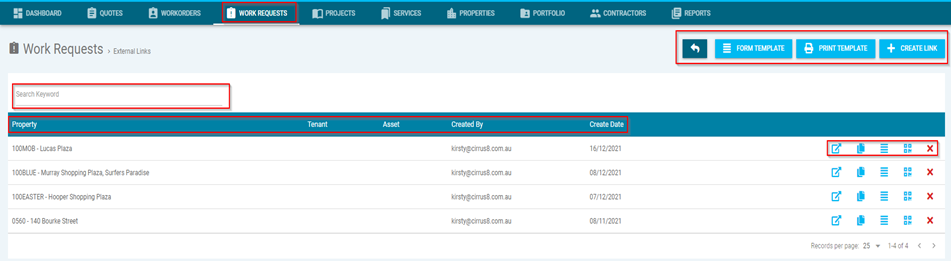
You can use the following actions:
Back Arrow – Return to previous screen.
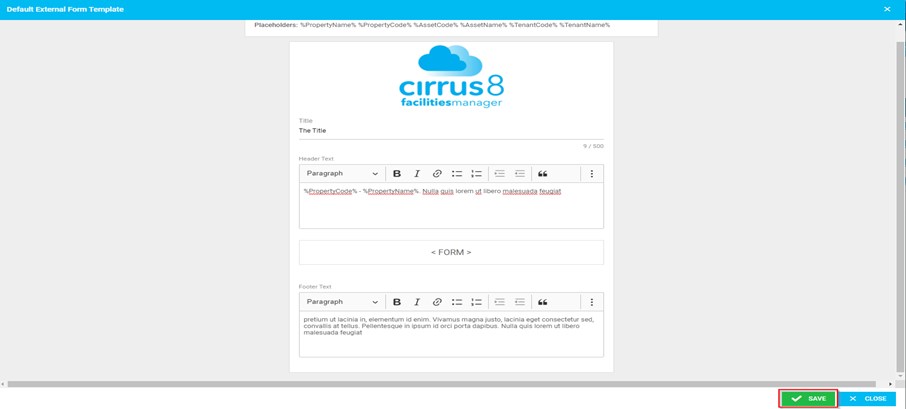
Form Template – View or edit the form template (click Save to keep changes).
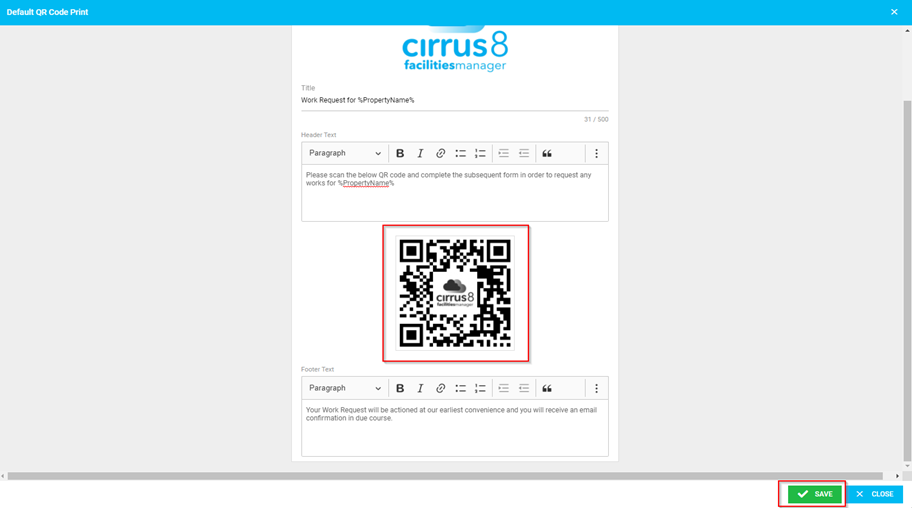
Print Template – Print QR code or edit the template (click Save).
Create Link – Generate a new external link.
Step 3 — Create the Link
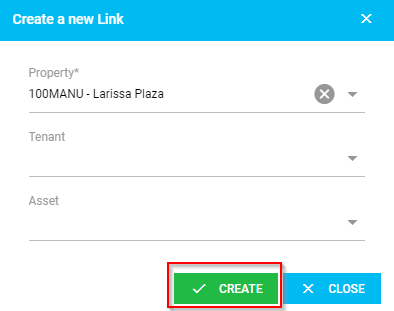
When selecting Create Link, complete the required fields:
Property* – Select property.
Tenant – Select tenant (optional).
Asset – Select an asset (optional).
Click Create.
Step 4 — Manage Existing Links
Use these tools to manage links:
? Box with Arrow – Open external link
? Documents Icon – Copy link URL
☰ Four Lines – Customise form template
QR Code – Print QR code
❌ Cross – Delete link
Search & Filter Links
Search Filters – Search by keyword.
Filters – Filter by:
Property
Tenant
Asset
Created By
Created Date
Viewing and Managing a Work Request
Select any work request to open its details.
Main Actions
Back Arrow – Return to previous screen
Create New Request – Start a new request
Create Quote – Generate a quote from the request
Create Workorder – Convert request into a work order
Complete and Close – Close the work request

Additional Tabs & Functions
Inside the work request, you can also:
Transactions – View financial transactions
Variations – View or add variations
Comments – Add comments or upload files
Attachments – Upload photos/documents
Activity Logs – Track status updates and actions
Email Logs – View related email history

Was this article helpful?
That’s Great!
Thank you for your feedback
Sorry! We couldn't be helpful
Thank you for your feedback
Feedback sent
We appreciate your effort and will try to fix the article