The Performance Dashboard is an executive-level reporting tool in Rex Cirrus8 that provides an at-a-glance overview of your office’s performance against key performance indicators (KPIs). It consolidates key metrics into a single view, allowing you to assess business performance without running multiple reports. Most dashboard tiles and charts are interactive, allowing you to drill down into the underlying data.
Each user can only view data from their own Rex Cirrus8 database. The Performance Dashboard does not combine data across multiple offices.
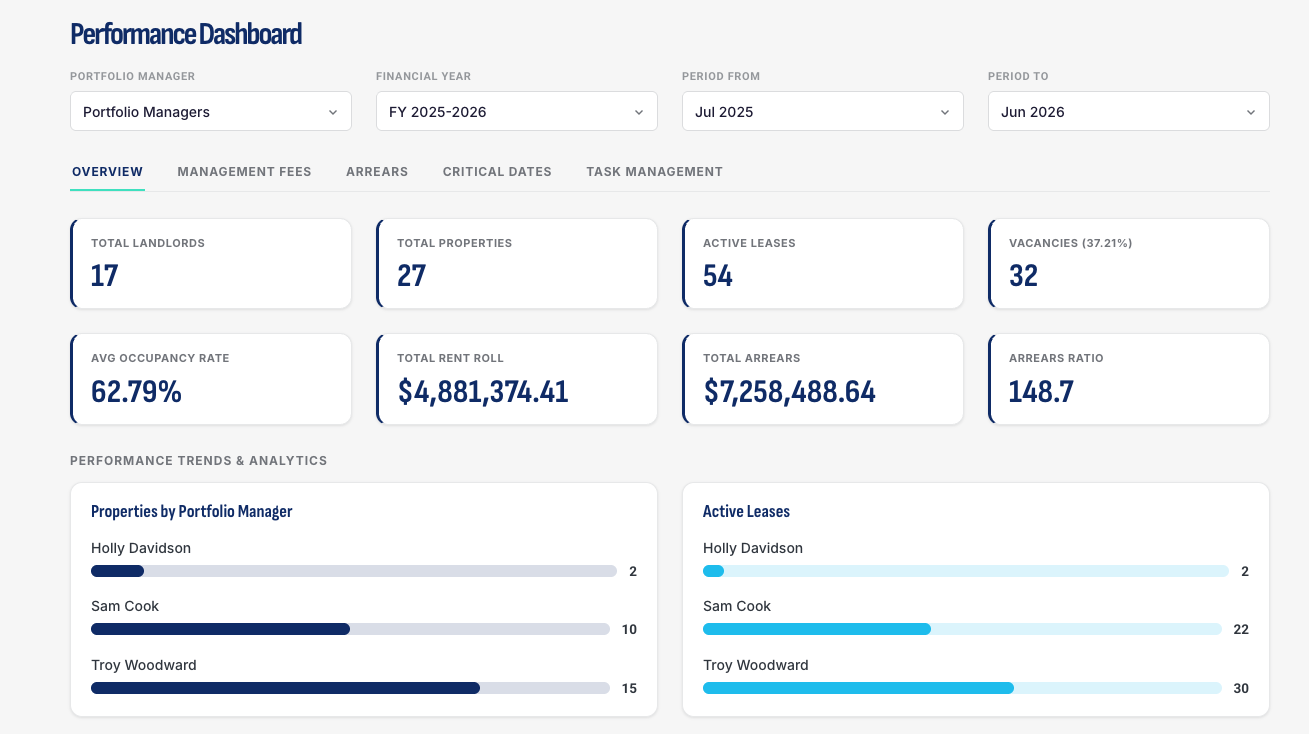
This guide explains how to access the Performance Dashboard, apply filters, navigate the dashboard tabs and interpret the key metrics to monitor business performance.
PERFORMANCE DASHBOARD
- Assign User Access
- Dashboard Location
- Reported Data
- Global Filters
- Detail View
- Key Indicators
- Calculation Methods
Assign User Access
A Local Admin user must complete the following steps.
Log in to the Admin Portal.
Select the Performance Dashboard user role.
Click Add User(s) To Role.
Enter the registered user’s email address.
Click Submit and confirm the success message.
Dashboard Location
Log in to Rex Cirrus8.
Select Performance Dashboard from the user role dropdown in the top-left corner.

Reported Data
The Performance Dashboard reports on properties under active management. To ensure consistent reporting, the following are automatically excluded from all dashboard figures:
Sales and Leasing (SL) properties and ledgers – properties and listings not under active management.
Inactive properties – properties inactive as at the selected Period To date.
Properties created after the reporting period – properties created after the selected Period To date.
If an expected property or amount is missing, check whether the property meets any of these exclusion criteria.
Global Filters
Four global filters appear at the top of the Performance Dashboard and apply across all five tabs. Changing a filter automatically updates all tiles, charts and tables to reflect your selections.

| Filter | Function |
|---|---|
| Portfolio Manager | Filter by one or more Portfolio(s). Default: All Portfolios included. |
| Financial Year | Select the Financial Year. |
| Period From | Start of the reporting period. |
| Period To | Reporting period end date. Must be after Period From. |
Detail View
Most dashboard tiles and chart segments are clickable, opening a Detail View of the underlying records based on your current filter selections.
In the Detail View, you can:
Click a column heading to sort the records.
Click the three-line filter icon beside a column heading to apply additional filters.
Calculated metrics, such as ratios and averages, are not clickable because they are derived from other values rather than individual records.
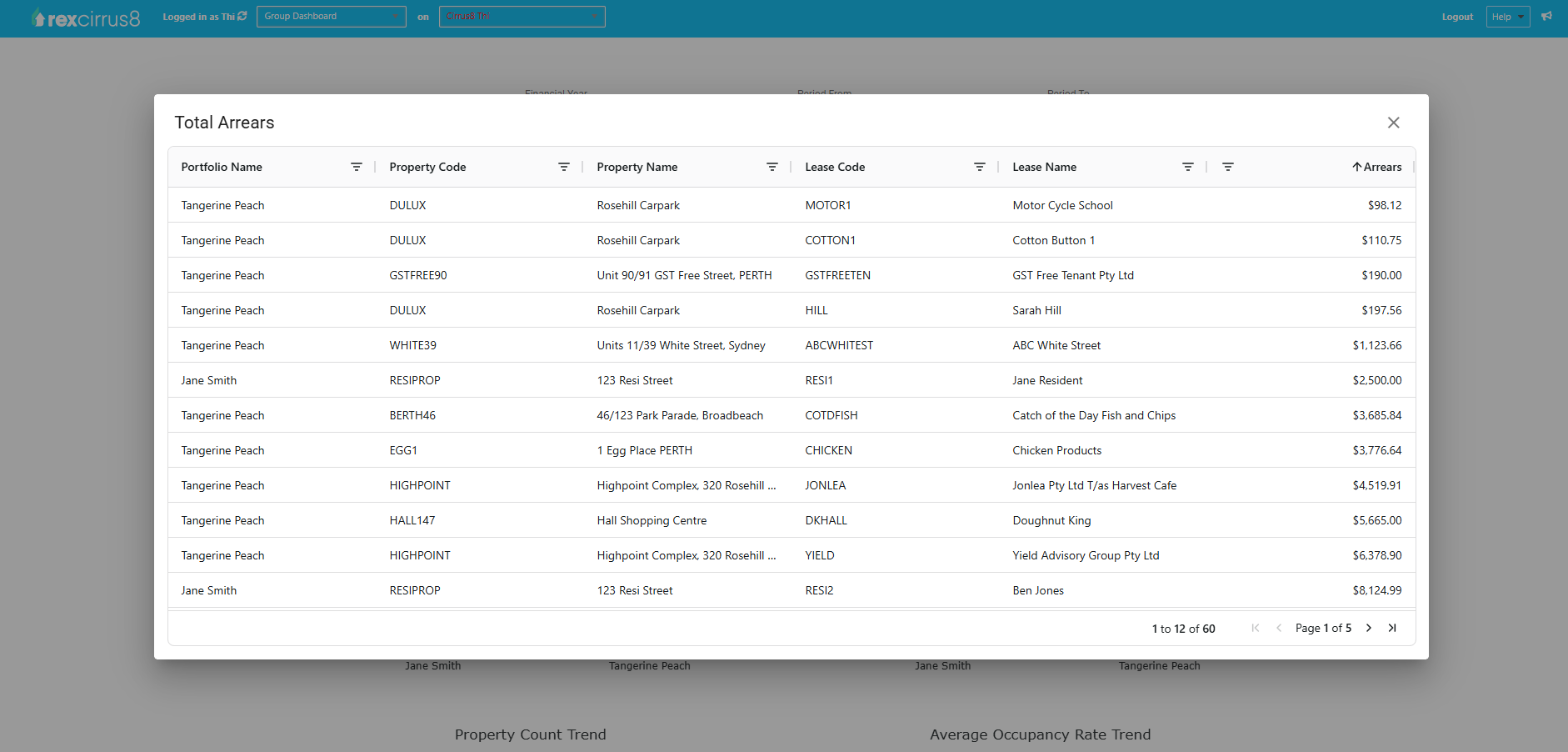
Example: Drill-down Detail View of Total Arrears on the Overview tab.
Key Indicators
The Performance Dashboard is organised into five tabs, each covering a different aspect of your office’s performance. Use the tab navigation near the top of the dashboard to switch between views. All five tabs respond to the same global filters.
Overview
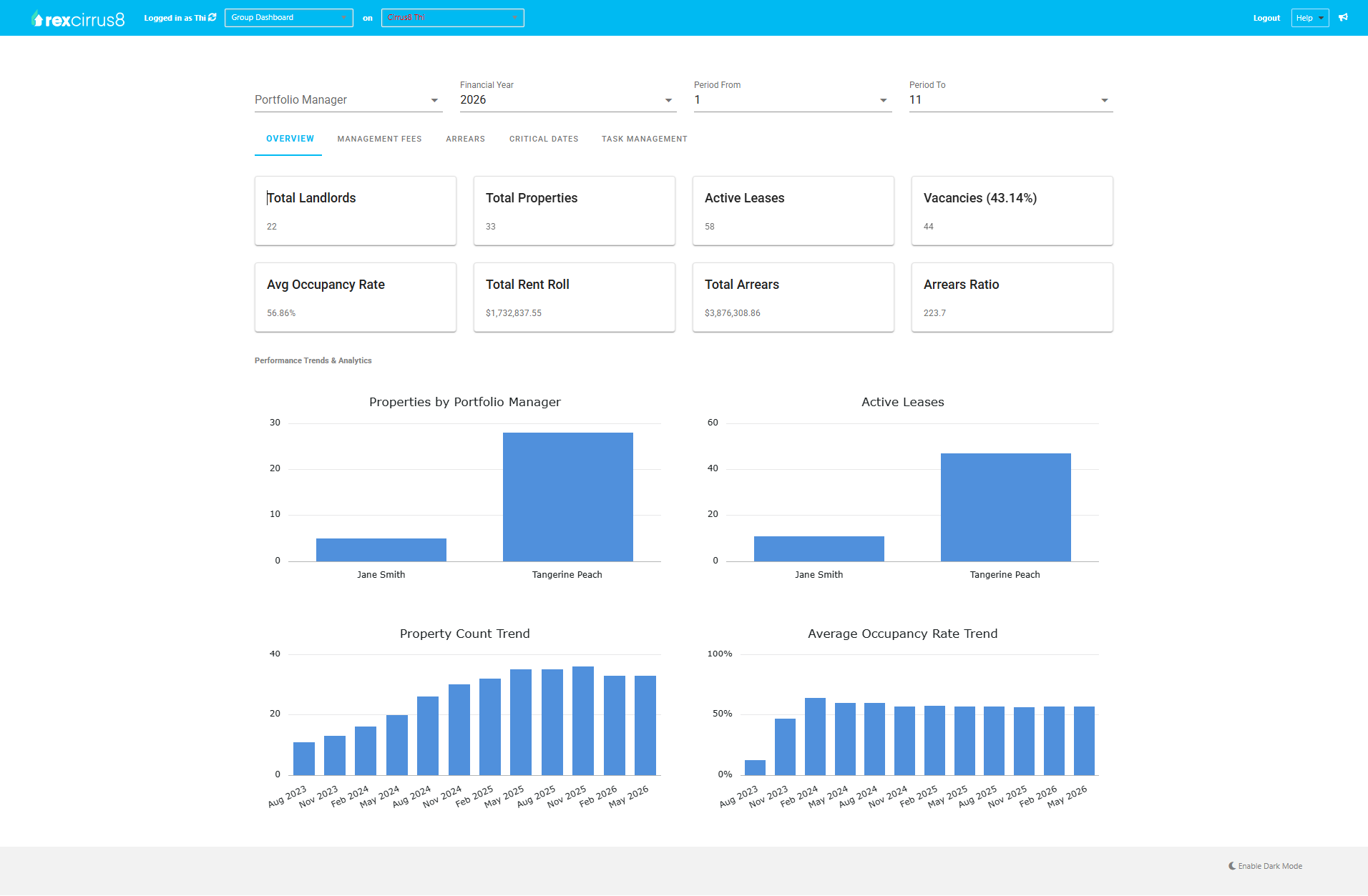
The Overview tab is the landing page, providing a summary of your office’s portfolio performance and overall health.
Key Figures
Total Landlords – the number of unique landlords who own at least one managed property. Each landlord is counted once, regardless of how many properties they own.
Total Properties – the number of properties under active management.
Active Leases – the number of occupied units with a current lease.
Vacancies – the number of vacant units, with the vacancy rate shown in brackets.
Average Occupancy Rate – the percentage of units that are occupied, calculated as 100% minus the vacancy rate. Each unit contributes individually, rather than each property being counted as a whole.
Total Rent Roll – the net amount billed during the selected period, calculated as invoices less credit notes.
Total Arrears – the total amount outstanding as at the selected Period To date.
Arrears Ratio – total arrears expressed as a percentage of the total rent roll.
Charts
Properties by Portfolio Manager – compares the number of properties managed by each Portfolio Manager.
Active Leases by Portfolio Manager – compares the number of active leases managed by each Portfolio Manager.
Property Count Trend – tracks changes in the total property count over recent reporting periods.
Average Occupancy Rate Trend – tracks changes in the average occupancy rate over recent reporting periods.
Management Fees
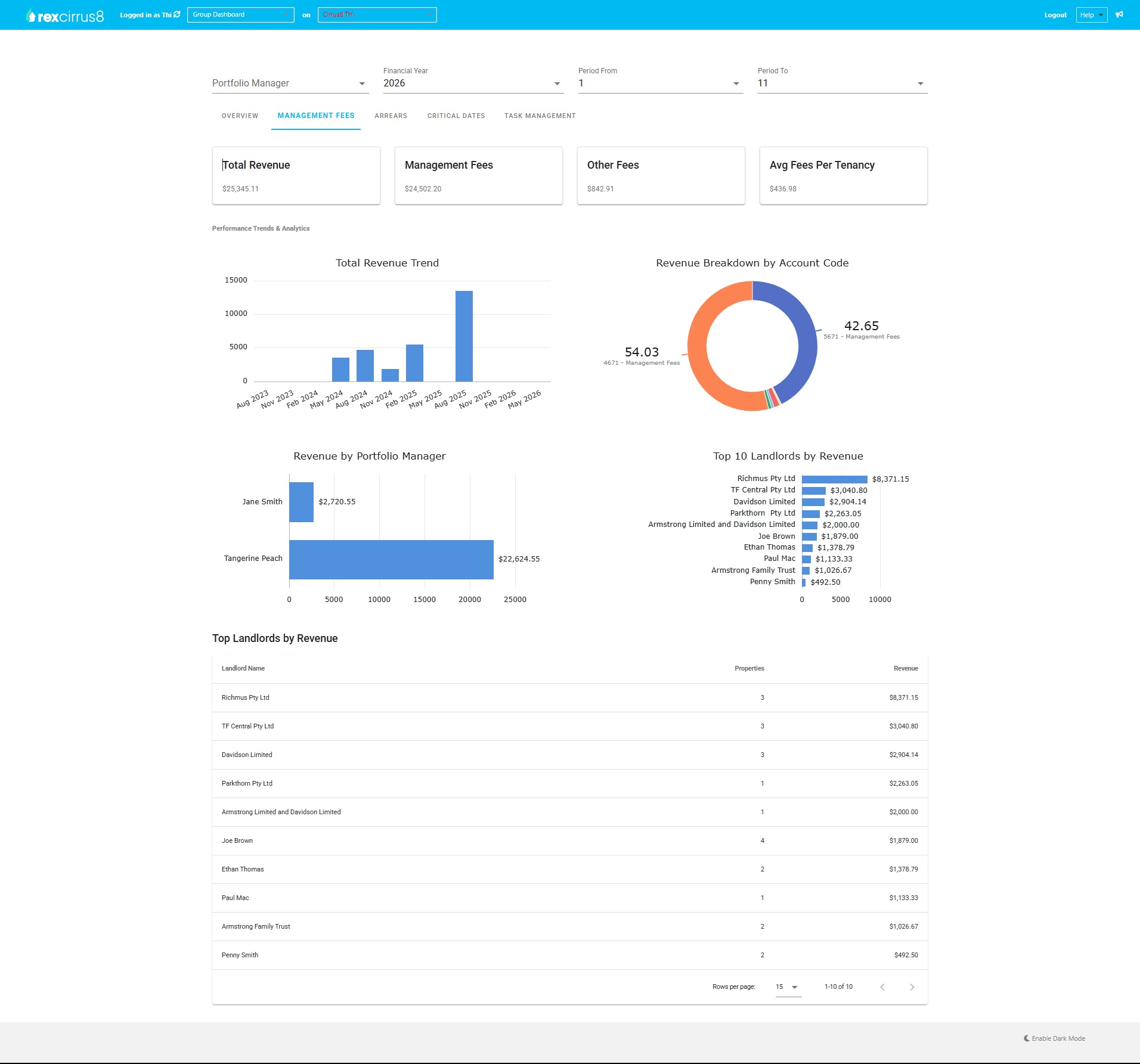
The Management Fees tab summarises your office’s agency fee revenue for the selected period. All figures are shown net of GST.
Key Figures
Total Revenue – total agency fee revenue, combining Management Fees and Other Fees.
Management Fees – revenue from property management fees, based on the period in which the fees were paid.
Other Fees – revenue from other fee types, such as leasing, inspection, rent review and administration fees, based on the period in which the fees were paid.
Average Fees Per Tenancy – total revenue divided by the number of occupied tenancies, showing average revenue per tenancy.
Charts
Total Revenue Trend – tracks revenue over recent reporting periods.
Revenue Breakdown by Account Code – a donut chart showing each fee account’s percentage of total revenue.
Revenue by Portfolio Manager – compares revenue contributions across the team.
Top 10 Landlords by Revenue – ranks the ten highest-revenue landlords, with a supporting table showing property counts.
Arrears
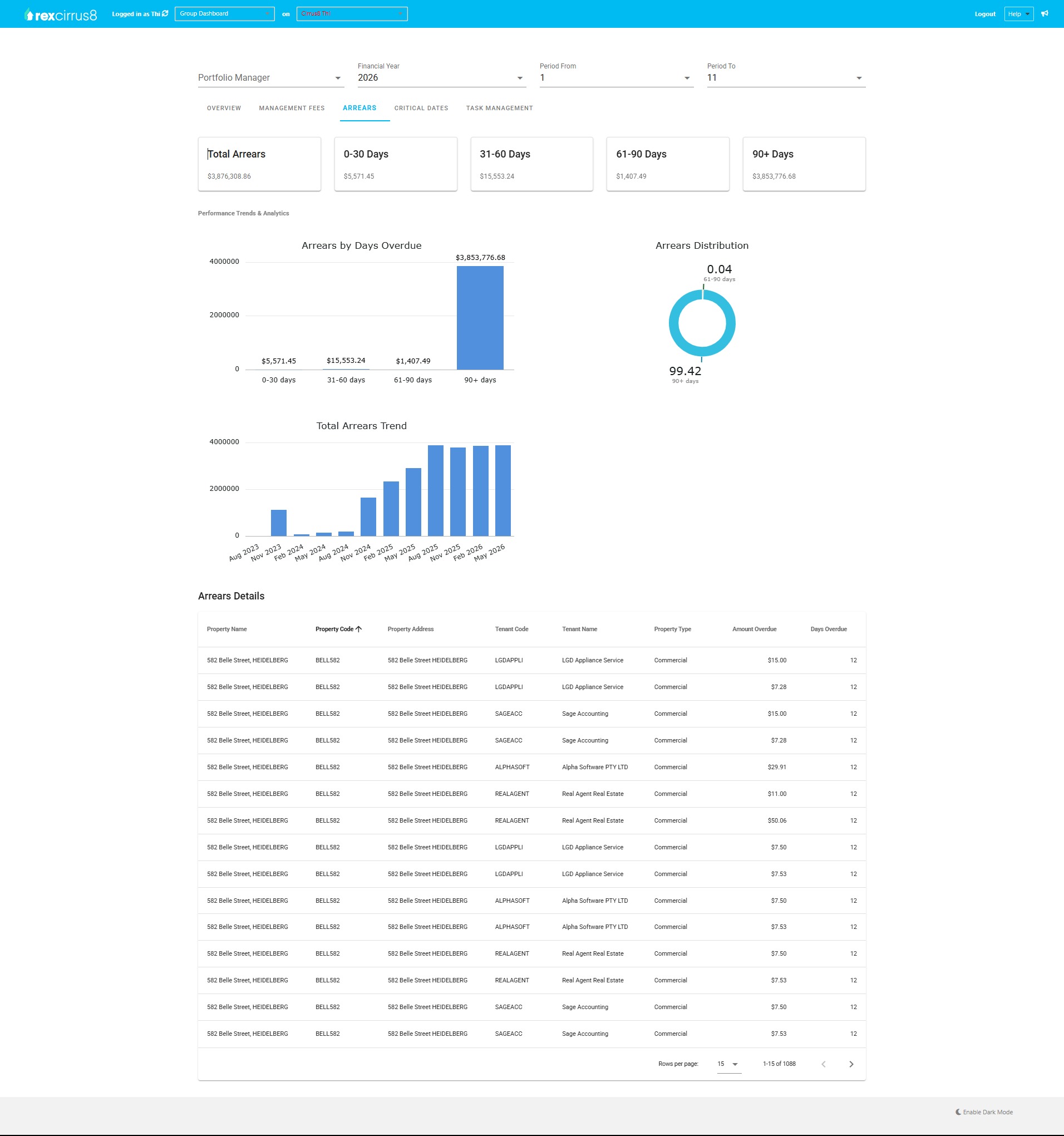
The Arrears tab provides a point-in-time view of outstanding Accounts Receivable across your portfolio, grouped into four ageing buckets as at the selected Period To date. Figures are shown gross of GST, exclude credits and include only positive outstanding amounts.
Key Figures
Total Arrears – the total positive outstanding amount across your portfolio.
0–30 Days – amounts up to 30 days overdue.
31–60 Days – amounts 31 to 60 days overdue.
61–90 Days – amounts 61 to 90 days overdue.
90+ Days – amounts more than 90 days overdue.
Charts
Arrears by Days Overdue – a bar chart comparing arrears across the four ageing buckets.
Arrears Distribution – a donut chart showing each ageing bucket’s percentage of total arrears.
Total Arrears Trend – tracks changes in total arrears over recent reporting periods.
Arrears Details – lists the individual arrears records contributing to the total.
Critical Dates
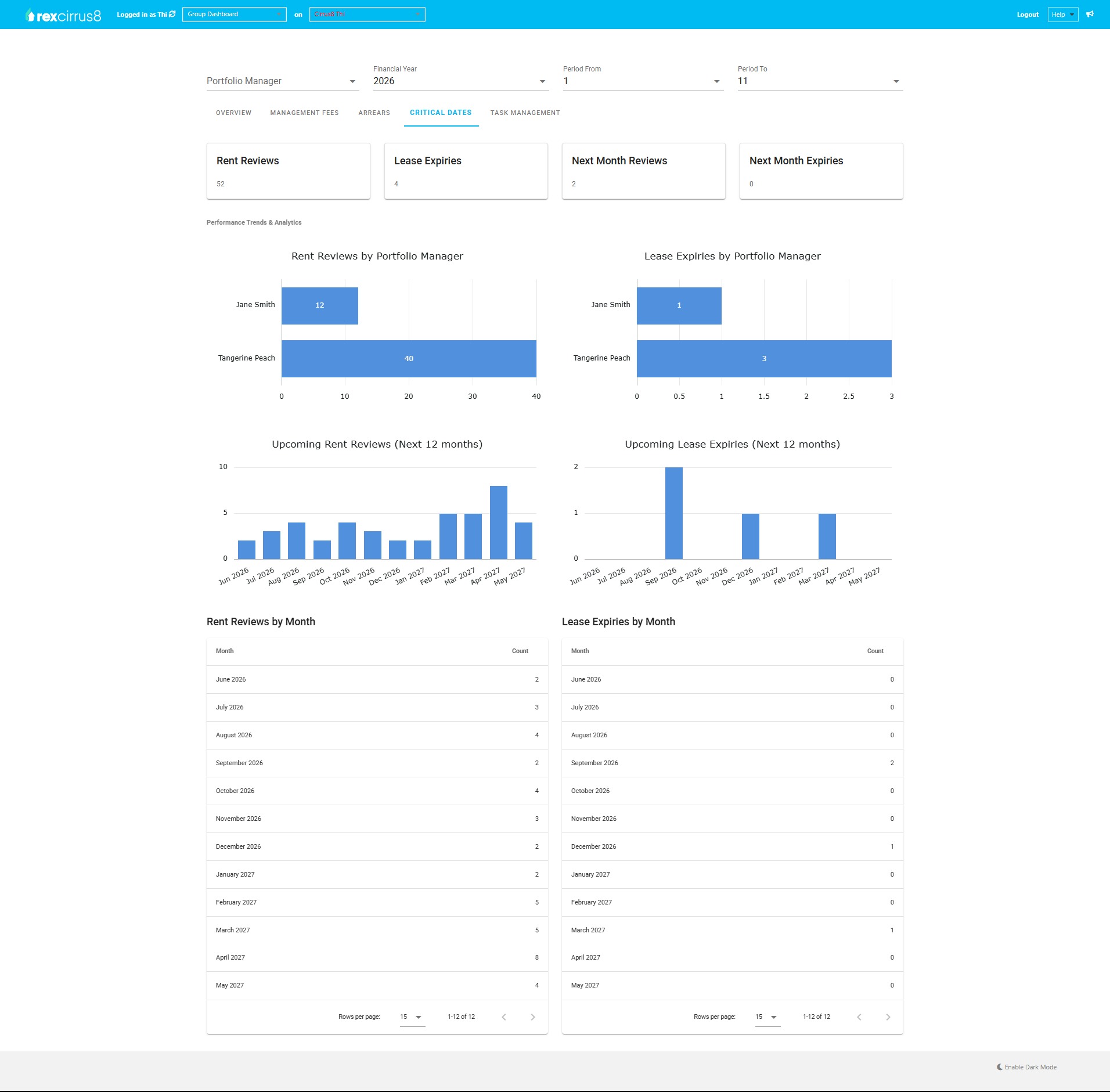
The Critical Dates tab provides an overview of upcoming rent reviews and lease expiries, helping you plan and manage key dates across your portfolio.
Key Figures
Rent Reviews – the number of open rent reviews due within the selected period.
Lease Expiries – the number of leases expiring within the selected period.
Next Month Reviews – the number of rent reviews due in the calendar month following the selected Period To date.
Next Month Expiries – the number of leases expiring in the calendar month following the selected Period To date.
Charts
Rent Reviews by Portfolio Manager – compares upcoming rent review workloads across the team.
Lease Expiries by Portfolio Manager – compares upcoming lease expiry workloads across the team.
Upcoming Rent Reviews (Next 12 Months) – shows the number of rent reviews due each month over the next 12 months.
Upcoming Lease Expiries (Next 12 Months) – shows the number of lease expiries due each month over the next 12 months.
Rent Reviews by Month and Lease Expiries by Month – supporting tables showing the exact number of rent reviews and lease expiries for each of the next 12 months.
Task Management
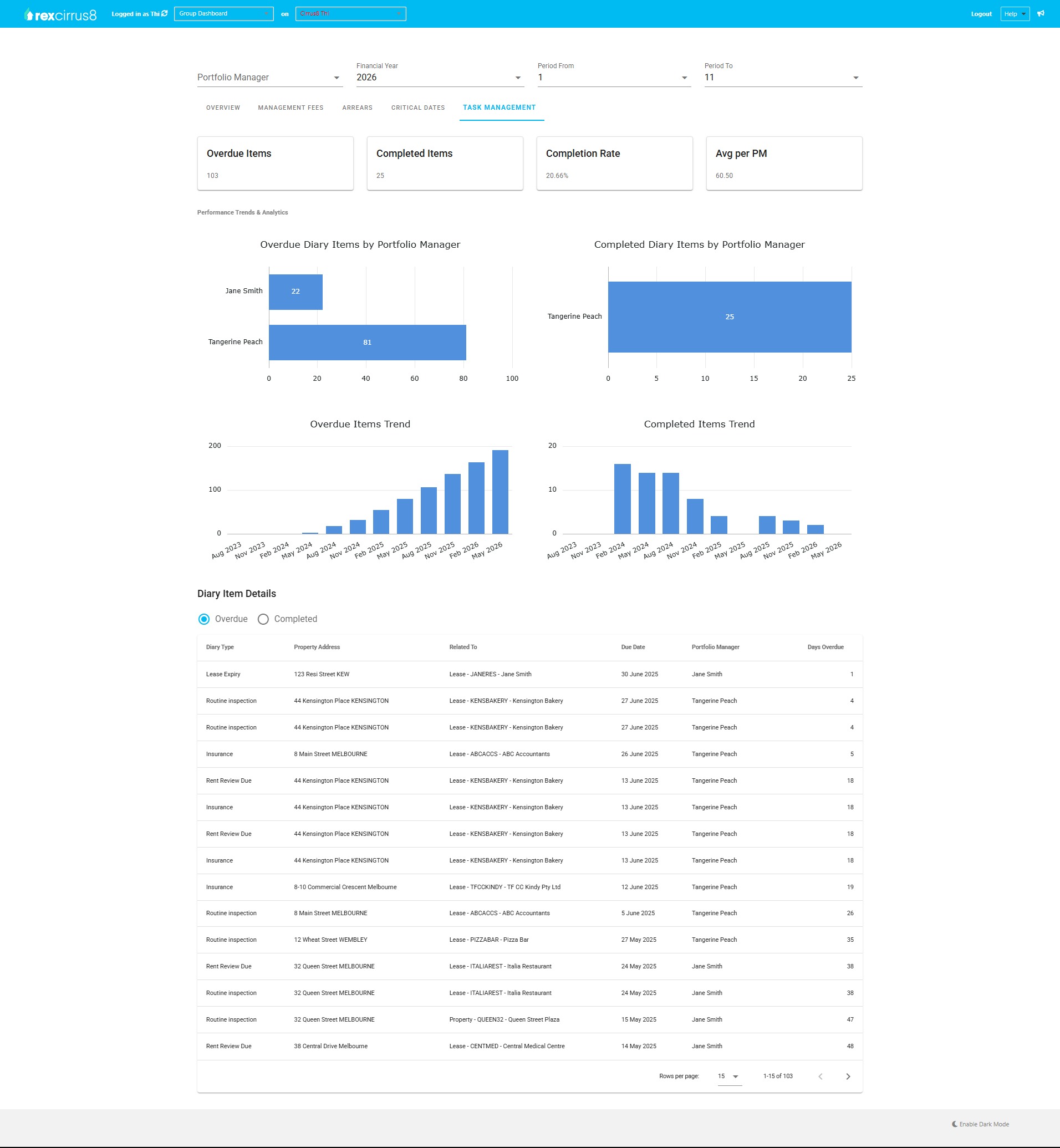
The Task Management tab provides an overview of diary item activity across your portfolio, helping you monitor overdue tasks, completion rates and workload across your team.
Key Figures
Overdue Items – the number of diary items past their due date that remain incomplete.
Completed Items – the number of diary items completed within the selected period.
Completion Rate – the percentage of diary items completed.
Average per PM – the average number of diary items per Portfolio Manager.
Charts
Overdue Diary Items by Portfolio Manager – compares overdue workloads across the team.
Completed Diary Items by Portfolio Manager – compares completed diary item activity across the team.
Overdue Items Trend – tracks changes in overdue diary items over recent reporting periods.
Completed Items Trend – tracks changes in completed diary items over recent reporting periods.
Diary Item Details – lists individual diary items, with a toggle to switch between the Overdue and Completed views.
Calculation Methods
Some dashboard figures may differ from those in other reports because they use specific calculation methods, reporting periods or GST treatments.
Average Occupancy Rate – calculated using individual units rather than whole properties. Properties with multiple units contribute according to the number of occupied and vacant units, so the result may differ from property-level occupancy figures in other reports.
Total Rent Roll – calculated from invoices less credit notes within the selected period. It reflects amounts billed, not payments received, so it may differ from receipts or cash reports.
Total Arrears – shows the amount outstanding as at the selected Period To date, rather than a cumulative total for the reporting period.
Management Fees and Revenue – displayed net of GST. Arrears and Rent Roll figures are displayed gross, including GST where applicable.
If a dashboard figure differs from another report, check the calculation method, selected filters and reporting period, and whether any property exclusion rules apply.
Was this article helpful?
That’s Great!
Thank you for your feedback
Sorry! We couldn't be helpful
Thank you for your feedback
Feedback sent
We appreciate your effort and will try to fix the article