The Cashbook Report provides a detailed record of all cash transactions, including funds received and payments made, with opening, running and closing balances for the selected reporting period.
The report can be generated by Bank Account or Property:
Bank Account: Displays all transactions associated with the selected bank account.
Property: Groups transactions by property, allowing you to review cash movements for one or more properties.
Accessing the Cashbook
The Cashbook Report is available to users with Trust Accountant or Property Manager access.
Navigate to:
Accounting Reports → Cashbook
Report Options
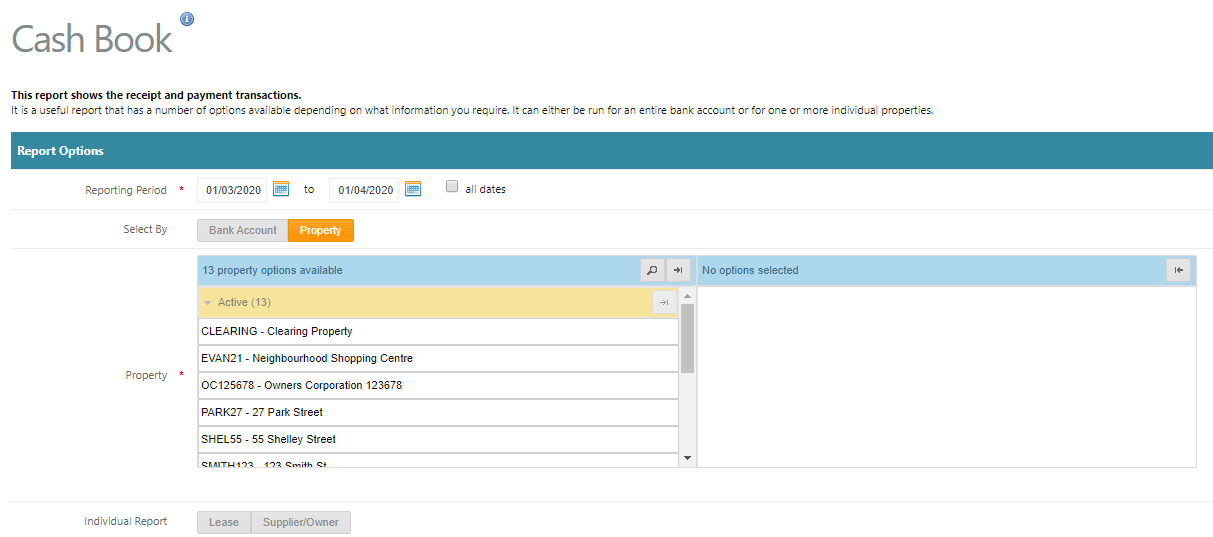
When generating the Cashbook Report, select the following options:
Reporting Period: Specify the date range for the transactions you wish to review.
Bank Account or Property: Choose whether to report on an entire bank account or selected properties.
Lease/Supplier (Optional): Refine the report to view transactions associated with a specific lease or supplier.
The Cashbook Report provides a clear record of cash movements and balances to assist with transaction reviews, financial reporting and reconciliation.
Advanced Report Options
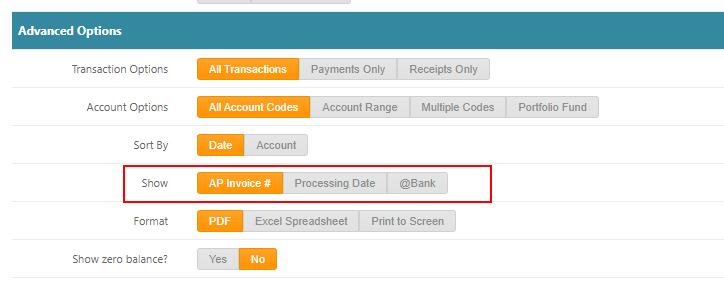
The Advanced Options allow you to customise the Cashbook Report by transaction type, account code, sorting preferences and output format.
Transaction Options: Select All Transactions, Payments Only or Receipts Only.
Account Options: Filter transactions using:
All Account Codes: Include transactions across all account codes.
Account Range: Specify a range of account codes.
Multiple Codes: Select specific account codes.
Portfolio Fund: Filter transactions by portfolio fund.
Sort By: Arrange transactions by Date or Account Code.
Show: Choose to display additional transaction information, including AP Invoice #, Processing Date or @Bank.
Format: Generate the report as a PDF, export to Excel or Print to Screen.
Show Zero Balance?: Choose whether to include records with a zero balance.
Was this article helpful?
That’s Great!
Thank you for your feedback
Sorry! We couldn't be helpful
Thank you for your feedback
Feedback sent
We appreciate your effort and will try to fix the article