Discover how to quickly and easily access dashboard information for workorders
TABLE OF CONTENTS
Navigating Workorders Dashboard
Under the Workorder tab you are able to action a few different items from here:
- Repeating workorders - You can view the Repeating Workorders dashboard.
- Create new workorder - You are able to create a New Workorder.
- Green document with X - Export all workorders currently being displayed to Excel.
- Journal Entry - Create Accruals Journals via FM (FM Plus Feature)
- Display Options - The 6 squares will change the dashboard to grid view, the calendar will display the upcoming jobs by due date on a calendar format, and the 3 dots with 3 lines icon will switch the dash to list view.
- Search filters - Search by keywords, status, priorities, or if the job is closed. The reset button will take you back to the default search
- Viewing a workorder - By selecting a workorder line on the dashboard this will take you through to more information.

View a Workorder
Once you have selected a workorder to view there are a few options you can action:
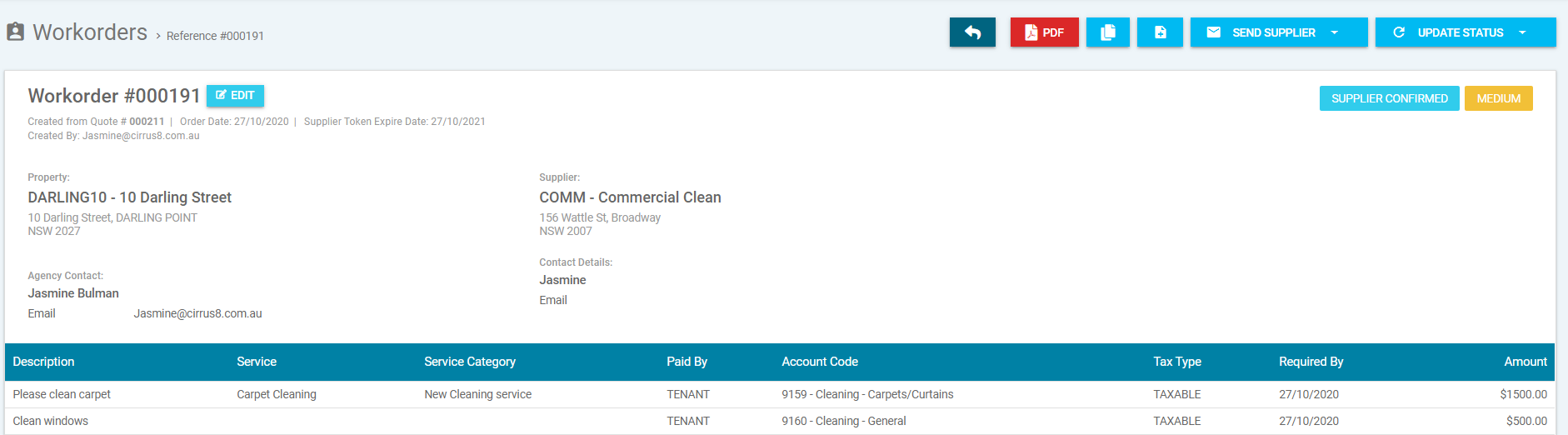
- Back arrow - this will take you back to the previous screen.
- PDF - this will download a PDF version of the report.
- Double Documents - this function will copy and create a new workorder.
- Document + - this is if you wish to create a new workorder.
- Send supplier
- Send the supplier a reminder email.
- Resend supplier confirmation.
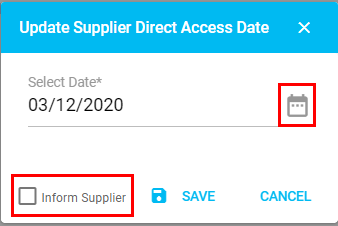
- Update supplier direct access date (this will update the supplier expiry token date - with the option to inform the supplier of the update). For example, if the workorder has expired you are now able to extend the date. The below pop-up will appear and you can click on the calendar to select the date you wish to extend it through to, there is also a tick box if you would like to inform the supplier and then you can click on save to update.
- Update status - close, cancel or reject workorder.
- Document with edit pencil - manual supplier input, if the supplier has spoken to you over the phone you are able to edit/update the workorder. This will open the below:

- This is the screen the supplier will see when they click on the link from the workorder request.
- Back arrow - this will take you back to the previous screen.
- PDF - this will download a PDF version.
- Confirm - this will confirm they are accepting the workorder.
- Reject - this is to reject doing the work, a pop-up window will appear where you can enter your reason.
- Once the workorder has been confirmed, the status can be updated to mark work has started and then mark as completed.
- Comments - the agent user and supplier can add comments and files. If the supplier adds any comments an email notification will be sent to the agent and if the agent adds any comments the supplier will be notified.
- Attachments - the agent user and supplier can also add attachments, for example a copy of the invoice or photos of the completed work. The system will log the date, time and who submitted it and will also notify the other party of any attachments added.

Edit a Workorder
Once you have created your workorder, if there is something that needs to be updated or there are changes in the work required you can edit the workorder.
- Select the workorder you need to edit and you will see the below edit button.
- Select Edit.

- The screen will update to allow you to edit the information on the workorder.
- The property, supplier and agency contacts will open up and you will be able to update them as required.
- The information in the quote can also be updated by selecting the edit pencil. Then the below pop up will appear where you can update the description, service category, service type, required by date, paid by and account code. Then to save select update line.

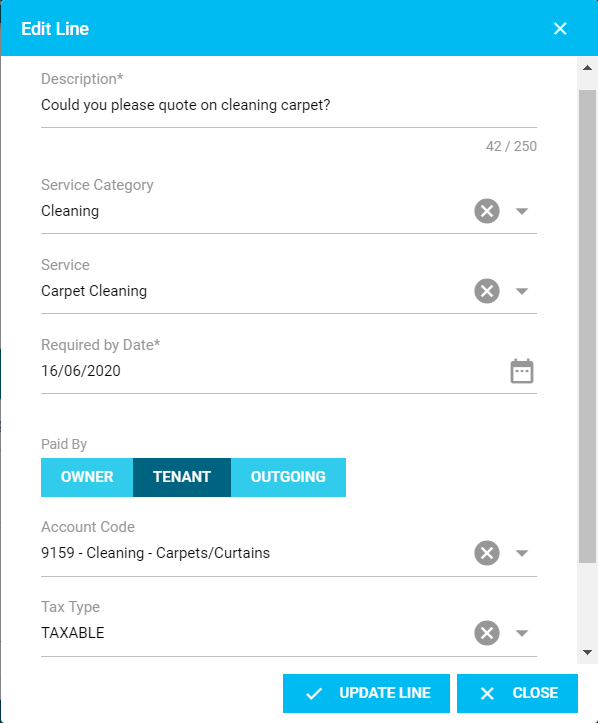
- Once all of the information has been updated, don't forget to select save. If you do not wish to save the changes, you can select cancel.

- If the workorder has been closed in the system, you can re-open it by going into the quote and clicking on the below button. The system will brig a pop-up asking if you are sure you want to re-open it and you can select yes or no.

Was this article helpful?
That’s Great!
Thank you for your feedback
Sorry! We couldn't be helpful
Thank you for your feedback
Feedback sent
We appreciate your effort and will try to fix the article