This section allows a Trust Accountant user to create new repeating invoice templates, create new accounts payable invoices from these templates and update or delete the templates. This section is located at Accounts Payable > Repeating Invoices.
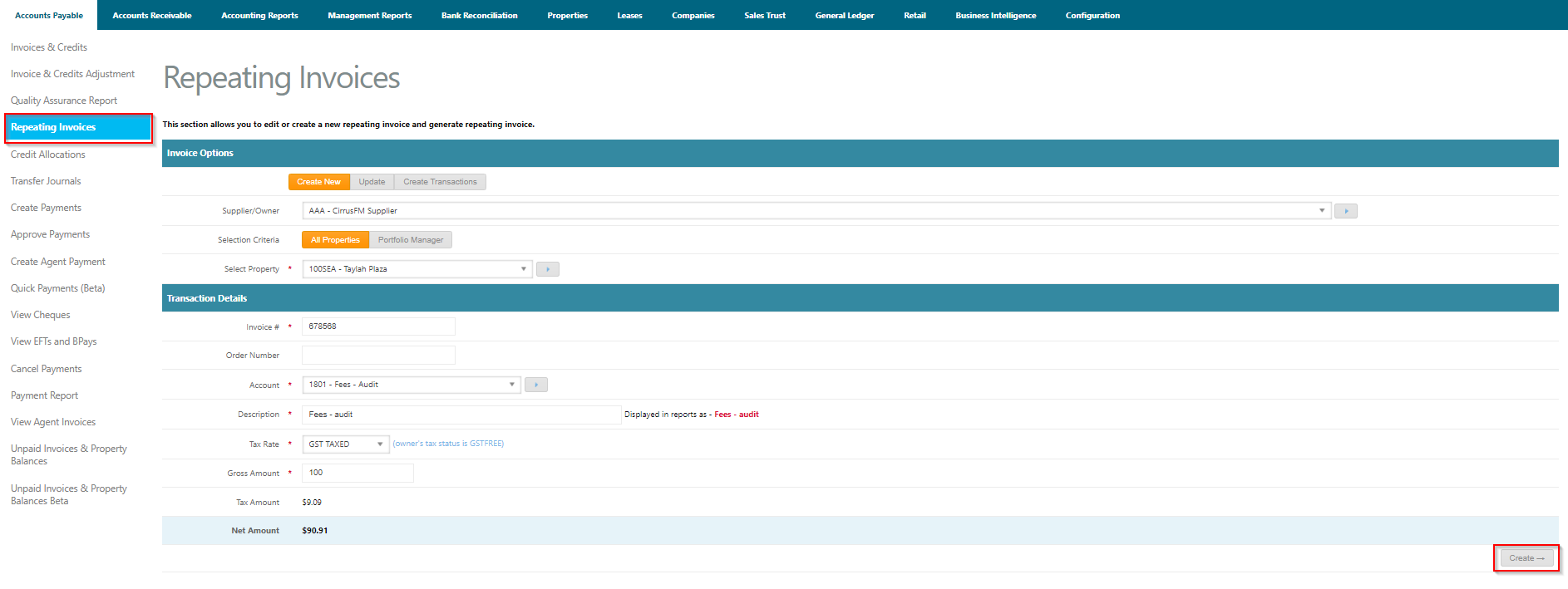
Create New Repeating Invoices Template
- Select Create New
- Select Supplier/Owner
- Select Property
- Enter Invoice Number
- Enter Work Order Number if applicable
- Select Account
- Enter Description. This will appear on all reporting and transactions
- Select Tax Rate as per the owners GST status
- Enter Gross Amount
- Click Create. A confirmation message will appear "These details have been saved as a repeating invoice template".

Update Repeating Invoices Template
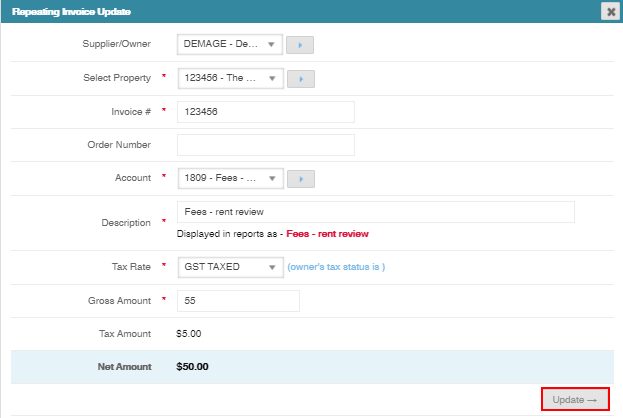
To update a repeating invoices template, follow the below steps:
- Go to Accounts Payable > Repeating Invoices
- Select Update. This will display all repeating invoice templates. To filter by property, select a property
- Click Update on the relevant template line. This will create a popup to enable updates on any open fields.
- Update the repeating invoice template fields as required
- Click Update
Delete Repeating Invoices Template
To delete a repeating invoices template, follow the below steps:
- Go to Accounts Payable > Repeating Invoices
- Select Update. This will display all repeating invoice templates. To filter by property, select a property
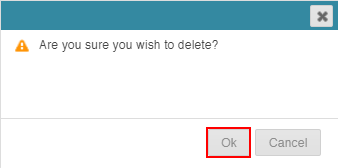
- Click Deleted on the relevant template line
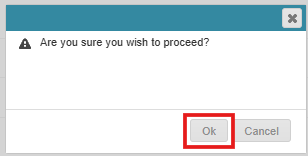
- Click Ok to the popup confirmation dialog box
Create Transaction using Repeating Invoices Template
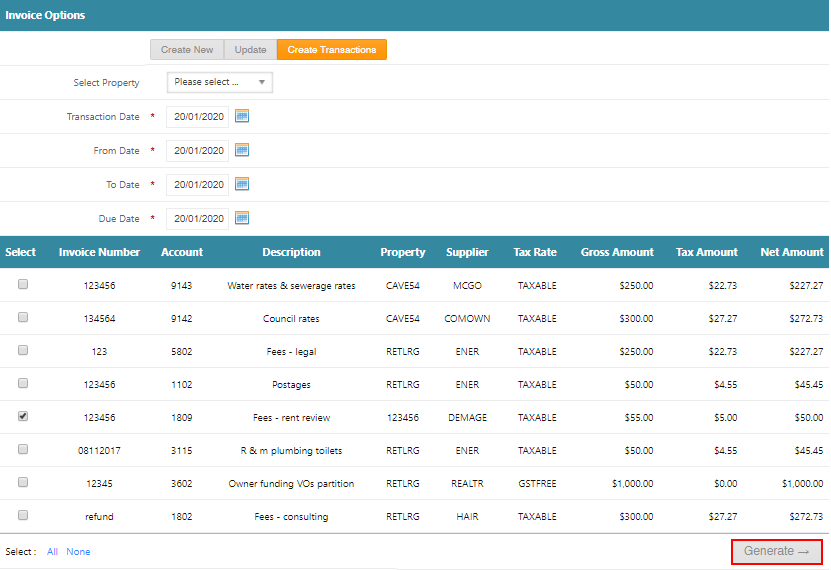
- Go to Accounts Payable > Repeating Invoices
- Select Create Transactions
- Select a property to filter the template results if required
- Enter the Transaction Date
- Enter the From Date
- Enter the To Date
- Select the tick box for the relevant repeating invoice template
- Click Generate
- Click Ok to the popup confirmation dialog box
- A confirmation message will appear "AP Invoices have been created".

Was this article helpful?
That’s Great!
Thank you for your feedback
Sorry! We couldn't be helpful
Thank you for your feedback
Feedback sent
We appreciate your effort and will try to fix the article