Purpose
When a supplier refunds money, we receipt the funds to the Clearing Property, then process an Accounts Payable Transfer Journal to reduce the original expense in the relevant property.
Important rule
✅ Do NOT receipt the refund directly to the property.
If you do, it will appear as property income, but the correct outcome is to reduce the original expense.
Step 1 — Receipt the Refund (to Clearing Property)
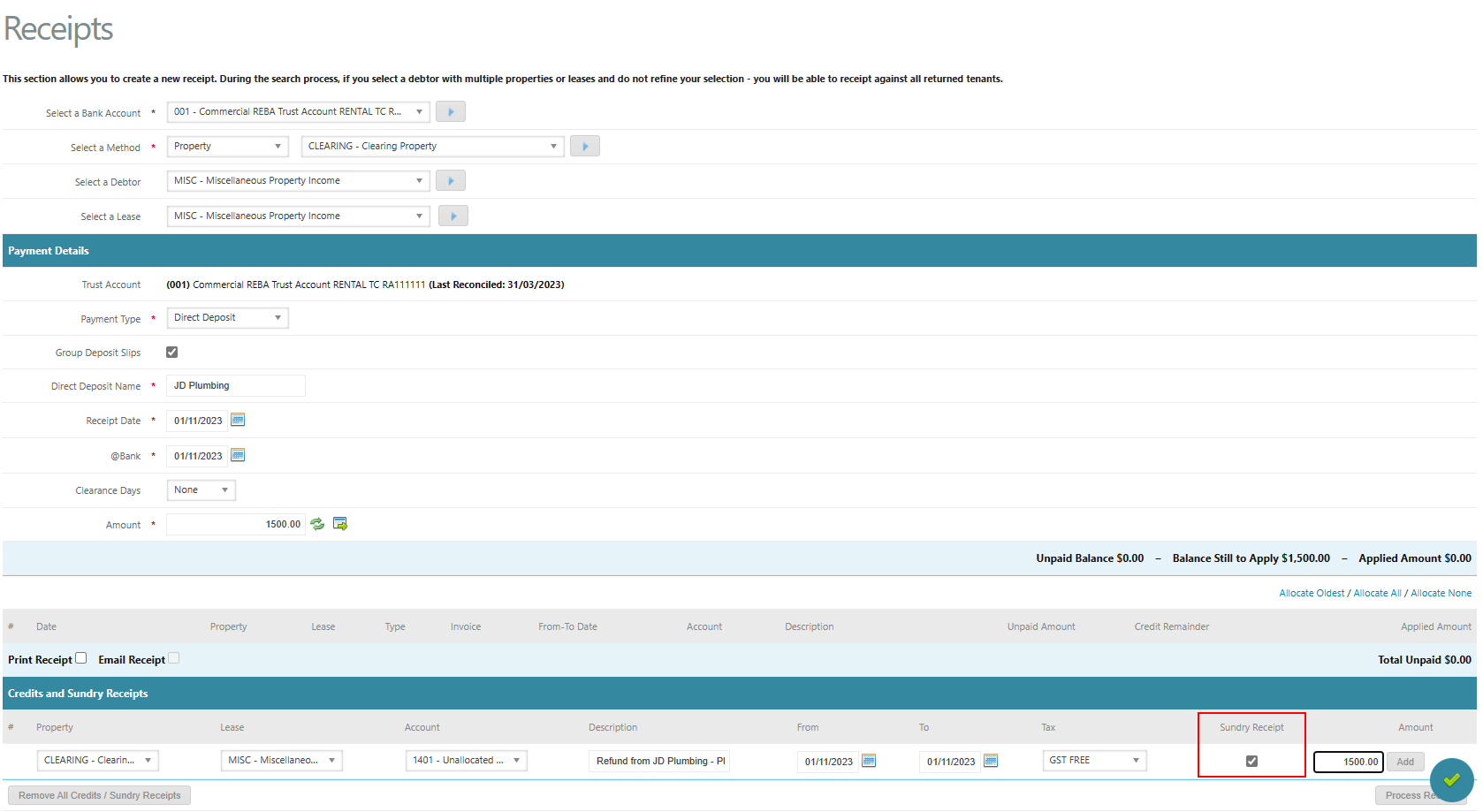
Go to Accounts Receivable > Receipts
Set the following:
Property: Clearing Property
Lease/Debtor: MISC
Direct Deposit Name / Date / Amount: match the bank statement
Click Add Credit / Sundry Receipt
Enter the receipt details
Tick “Sundry Receipt” (IMPORTANT)
If you miss this, the receipt won’t behave correctly (see internal notes: Credit / Sundry Receipts - cirrus8)
Enter the Amount
Click Add
Click Process Receipt
✅ Result: Refund cash is now sitting in the Clearing Property ready to be allocated correctly via a journal.
Step 2 — Process Accounts Payable Transfer Journal
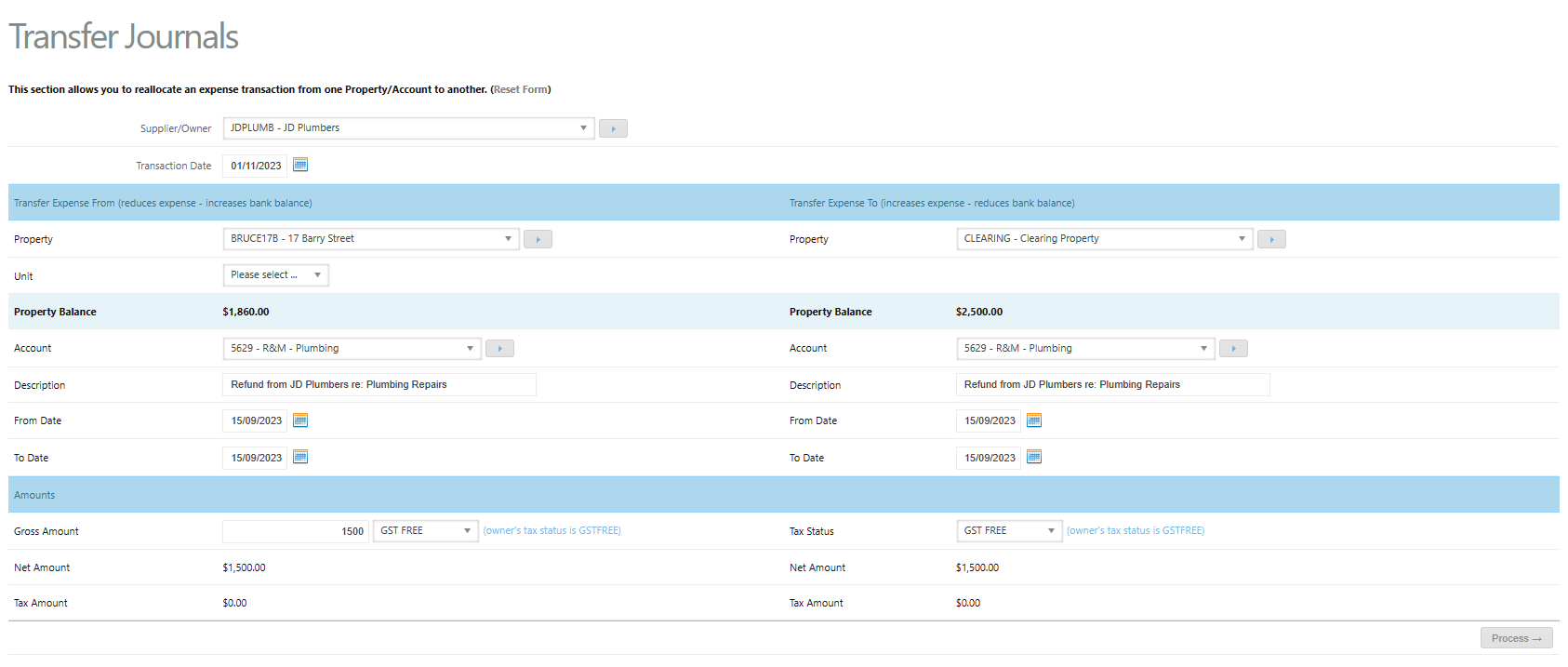
Go to Accounts Payable > Transfer Journal
Complete the header details:
Supplier: select the creditor/supplier the refund came from
Transaction date: the date the funds were received (per bank statement)
Transfer Expense From (reduces expense in the correct property)
This section ensures the property’s original expense is reduced.
Fill in:
Property: select the property entitled to the refund
Account: select the same expense account the original invoice was coded to
Description: e.g. Refund from JD Plumbers
Dates (From / To): match the dates on the original expense
Amount: the refund amount received
GST: select GST Free or GST Taxed — match the original expense
✅ Effect: Expense decreases for the relevant property.
Transfer Expense To (posts the other side to the Clearing Property)
This section clears out the Clearing Property entry created in Step 1.
Fill in:
Property: Clearing Property
Account: use the same account code as above
Description: same as above (e.g. Refund from JD Plumbers)
Dates: will auto-populate
Amount: will auto-populate
GST: GST Free
✅ Effect: Clearing Property is used only as a holding location, and the final outcome is an expense reduction, not income
Was this article helpful?
That’s Great!
Thank you for your feedback
Sorry! We couldn't be helpful
Thank you for your feedback
Feedback sent
We appreciate your effort and will try to fix the article