In this article, we will go through the following:
- Attaching ad-hoc documents to monthly owner reports
- Charging rent review fees while processing a rent review
- Amending budgets during the year when there is a change in tenancy
Owner Report Documents
To attach extra documents to an owner Report, just add documents within the relevant property and tick the box ‘Include with Owner Reports’
Under the Property Summary, navigate tot he Documents section and click ‘Add New’:


Complete the following fields:
- Document Title (e.g. Work Order Report)
- Description (e.g. Work Order Report - September 2024)
- Period Date (enter a date within the Owner Report period i.e. a date of 30/09/2024 will attach the document to the September 2024 Owner Report)
- Click on Choose File to upload your PDF Document
- Click checkbox to Include with owner Reports
- Update

The document will automatically be attached to the relevant Owner Report issued from the system.
Rent Review Fees
Setup:
When setting up a property, or as a Trust Accountant user via Manage Property, rent review fees are set up under the Fees Setup section:
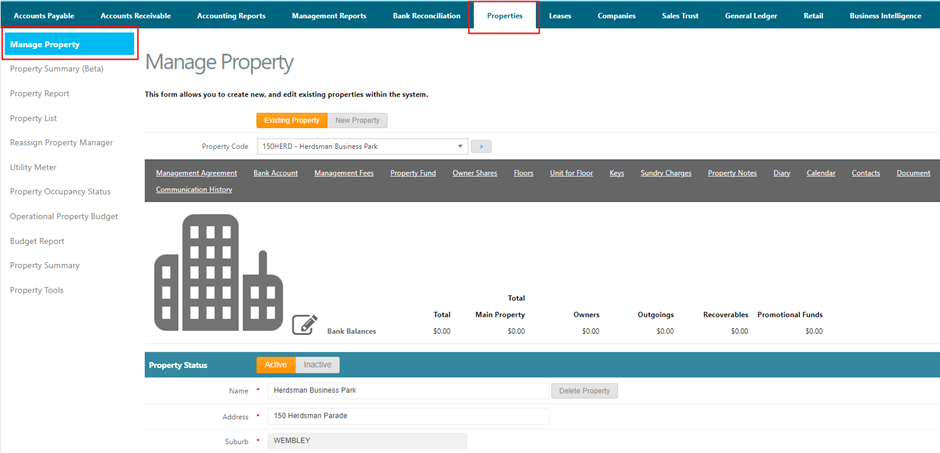
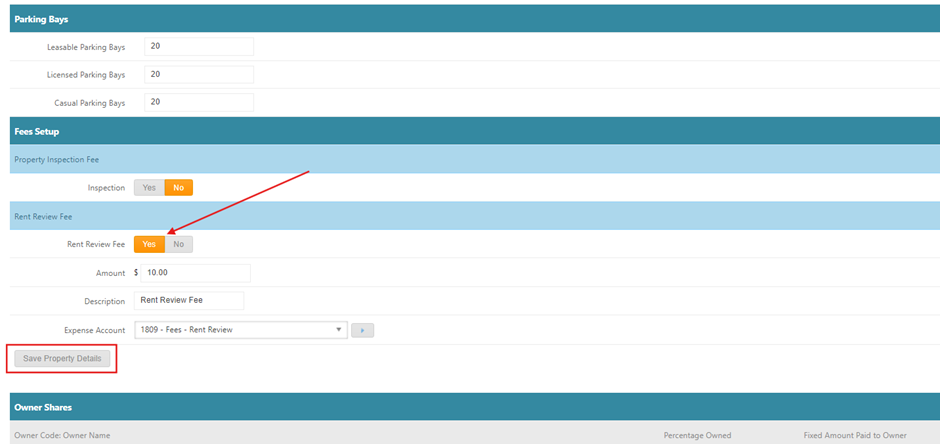
Toggle the Rent Review Fee to Yes and update the below fields:
- Amount to be charged (Note: this is a fixed amount only however can be updated when processing the rent review if the figure needs to be a custom calculation such as a % of the increase)
- Description - this will appear on your Owner Reports and again can be amended when processing the rent review if required)
- Expense Account - the expense code this will be charged to
- Click ‘Save Property Details’
Processing Rent Review Fees:
When processing a rent review as a Property manager, you will have the option to add a rent review fee.
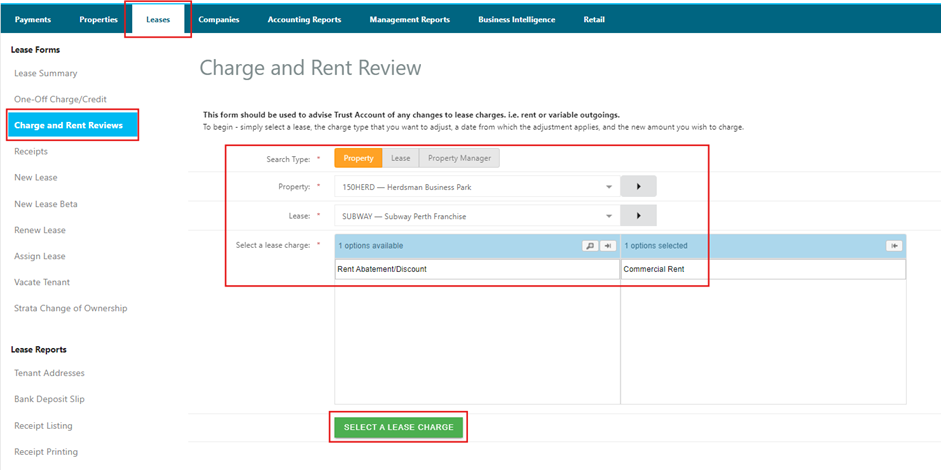
Location: Property Manager > Leases > Charge and Rent Review
Select a Lease and Lease Charge/s to be reviewed:
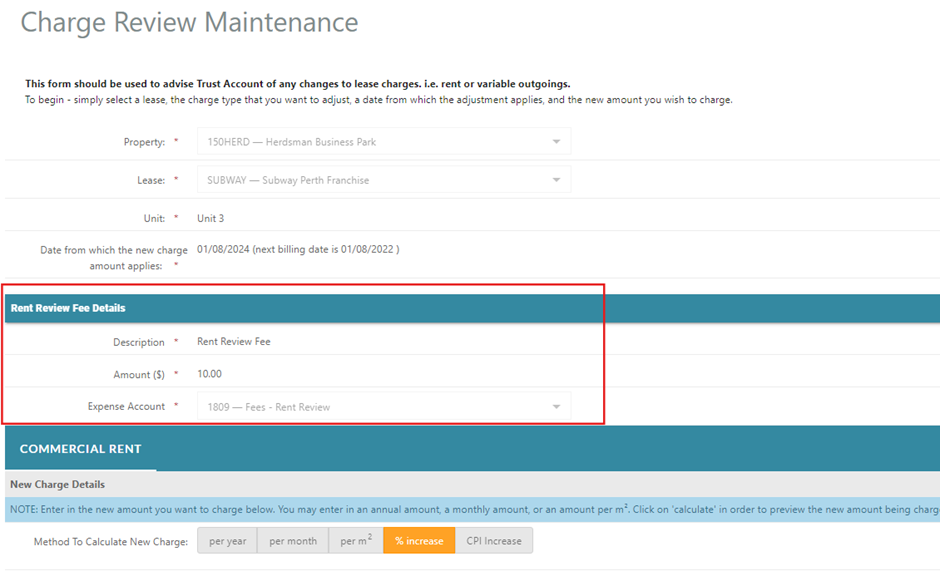
After you enter the date in which the new charge amount applies, click ‘Add Rent Review Fee’. This will pull through information as per the property setup however can be amended here is anything needs to be changed in line with the rent review being processed:
Paying the Fee:
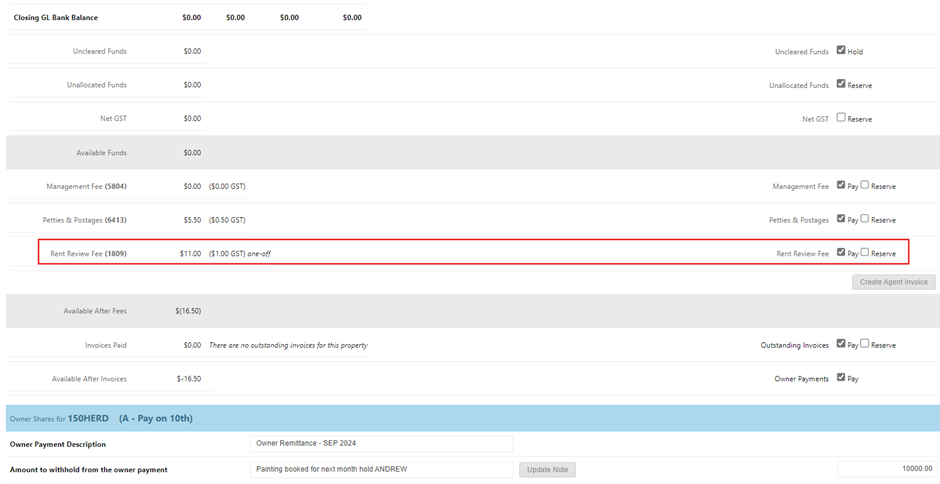
Once the charge review has been approved by the Trust Accountant, the fee is processed and automatically appears as a one-of sundry when processing payments for the property. An Agent Invoice will be created once the fee is paid:
Amending Budgets
Unlocking the Budget
- Navigate to Properties > Operational Property Budget
- Load the correct year and budget type
- Go to Step 5 (Budget Overview) and click ‘Unlock Budget’
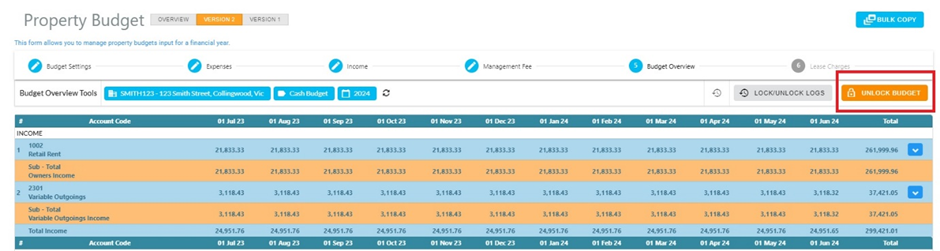
The following warning will appear where you will select YES:
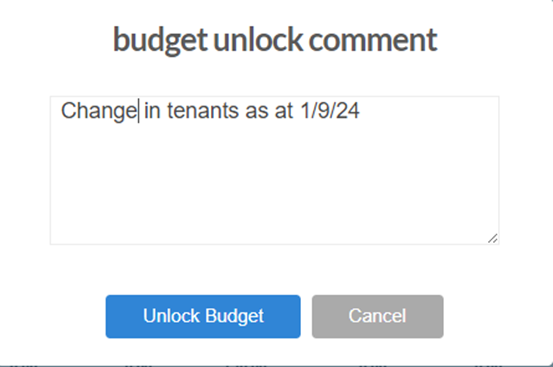
Enter a comment into the text field to keep a clear audit trail of when and why the budget status has been changed:
Amending the Unit Start Date:
The Unit StartDate is am important date in the Budget process as this determines the occupancy status of each unit within the budget - i.e. Vacant or Occupied and by whom
On the Budget Settings Page, enter the unit start date as at the first date in which the new tenant occupies a unit within the property. In the below exampled, Rebel Sport occupied the unit from the 1st September 2024 therefore we enter the date of 01/09/2024:
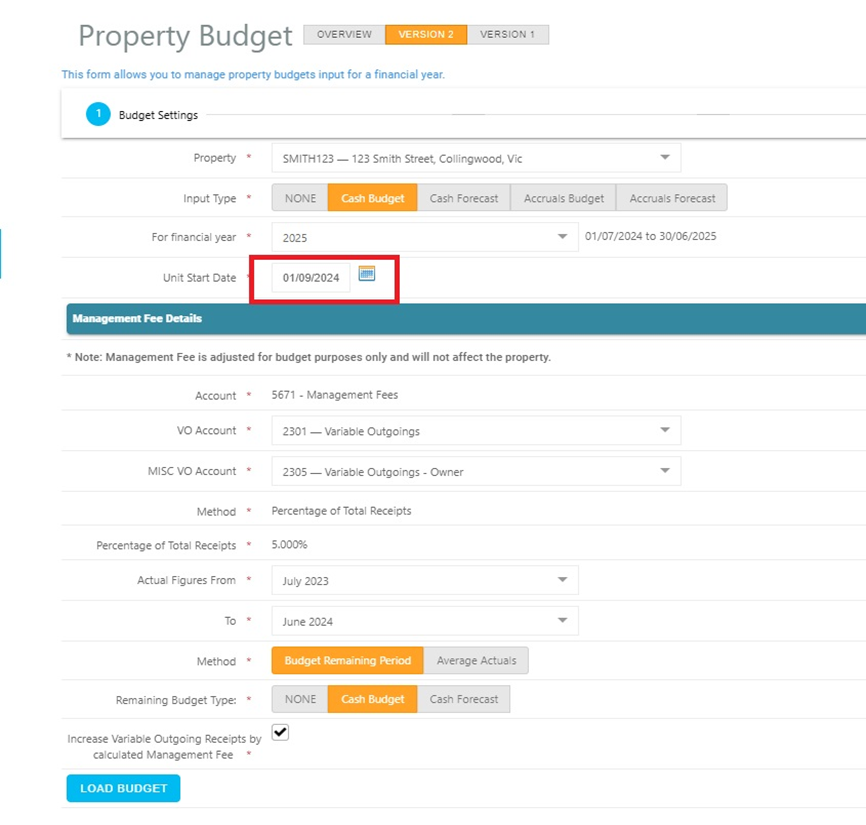
Click on LOAD BUDGET to load the budget.
Updating Expenses:
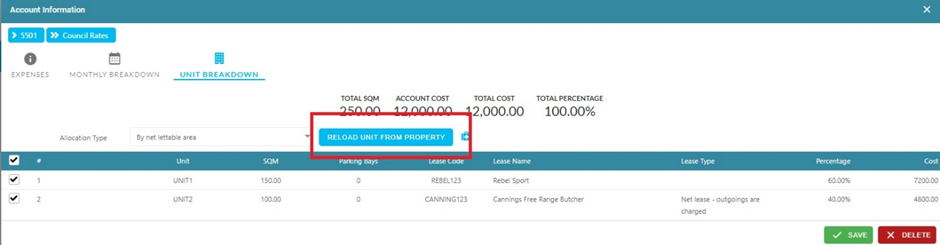
In the expenses tab, click in the first expense line item to ensure the correct tenant has been pulled through in the unit breakdown. If not, click on RELOAD UNIT FROM PROPERTY:
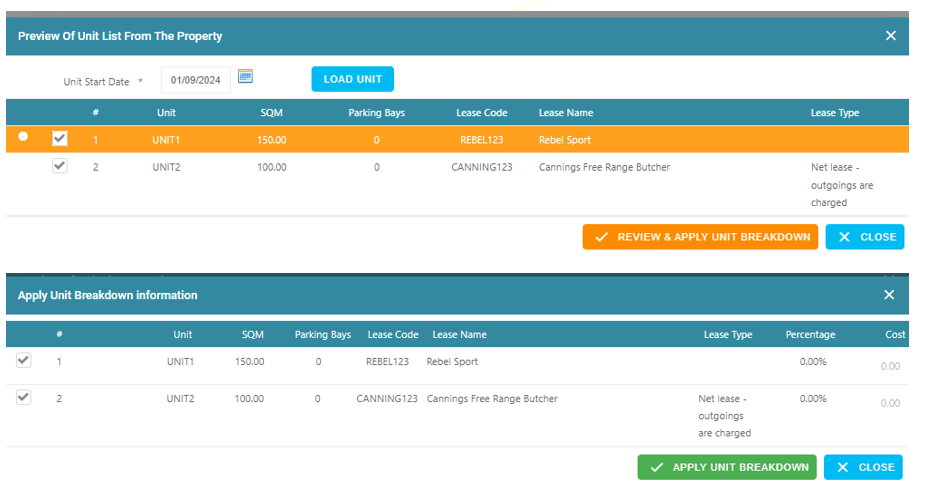
This will open the below screen where you click REVIEW & APPLY UNIT BREAKDOWN then APPLY UNIT BREAKDOWN:
dd Ensure all expense items are updated and update any custom allocations as required.
Updating Income:
g Click through to the Income section of the budget and follow the below two steps:
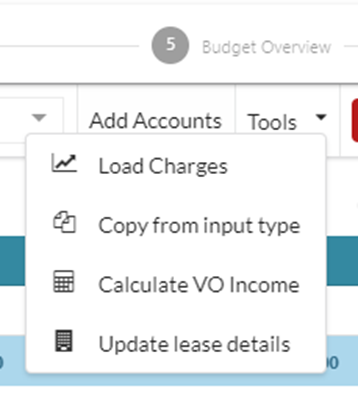
- Tools > Load Charges - this will pull through all tenant's recurring charges
- Tools > Calculate VO Income - this will calculate each tenant's Variable Outgoings charges based on the property expenses and how they've been allocated amongst each tenant
C Check your Income is reflecting as required, ensuring any assumptions for lease expiries and CPI reviews have been entered. Once done, navigate to step 4 to recalculate your Management Fees then step 6 to do one final check of the Budget Overview before re-locking the budget.
Please note: Full budget notes can be found here: Operational Property Budget - cirrus8
gf
Was this article helpful?
That’s Great!
Thank you for your feedback
Sorry! We couldn't be helpful
Thank you for your feedback
Feedback sent
We appreciate your effort and will try to fix the article