This section can be accessed by an Administrator and Facility Manager user.
The Properties tab allows users to view information in regards to a specific property, by selecting the property you wish to view.
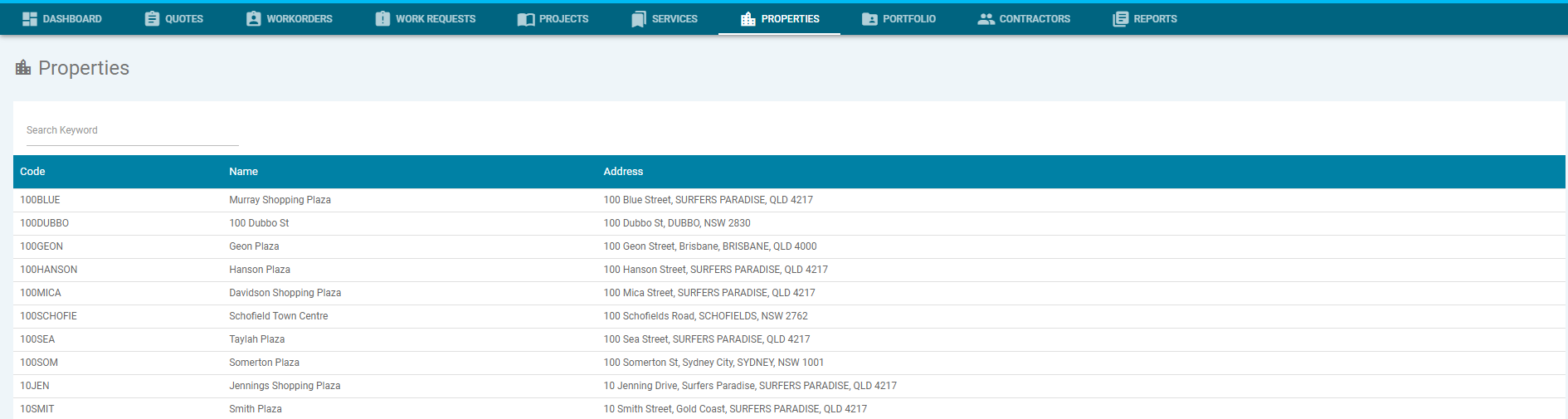
Once the property has been selected, you are able to action the following:-
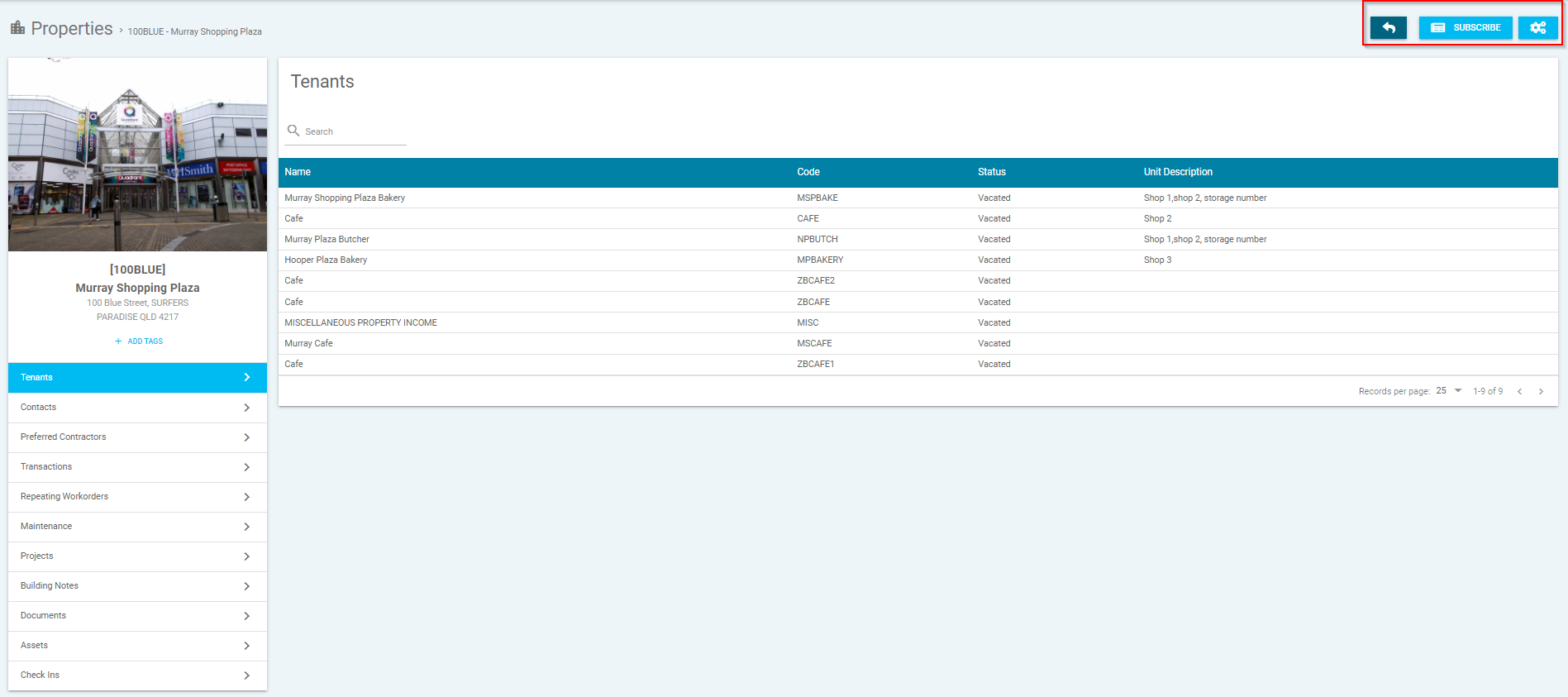
- Back arrow - This will take you back to the previous screen
- Subscribe - This allows the user to subscribe to diary reminders for the property
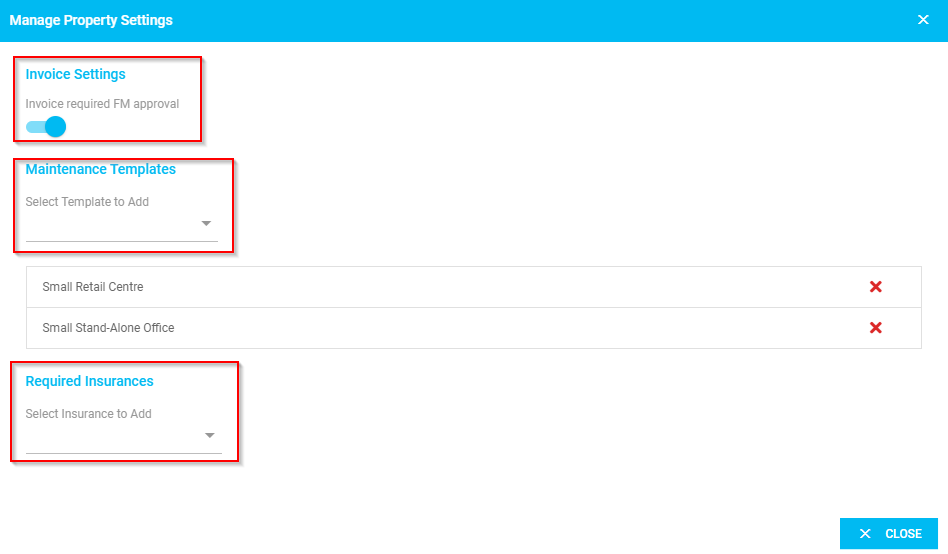
- Button with Gears -This allows the user to update property settings. When selected, a pop-up window will open and you will have the option to action the following:-
- Invoice Settings - Invoices uploaded will require FM approval when submitted
- Maintenance Templates - This will allow you to add a template for the property
- Required Insurances - This allows you to add a 'Property' insurance type created from the drop-down menu
Tenants
This will show the tenants set up for the property. The system will pull through information from Cirrus8 on the tenants within the property
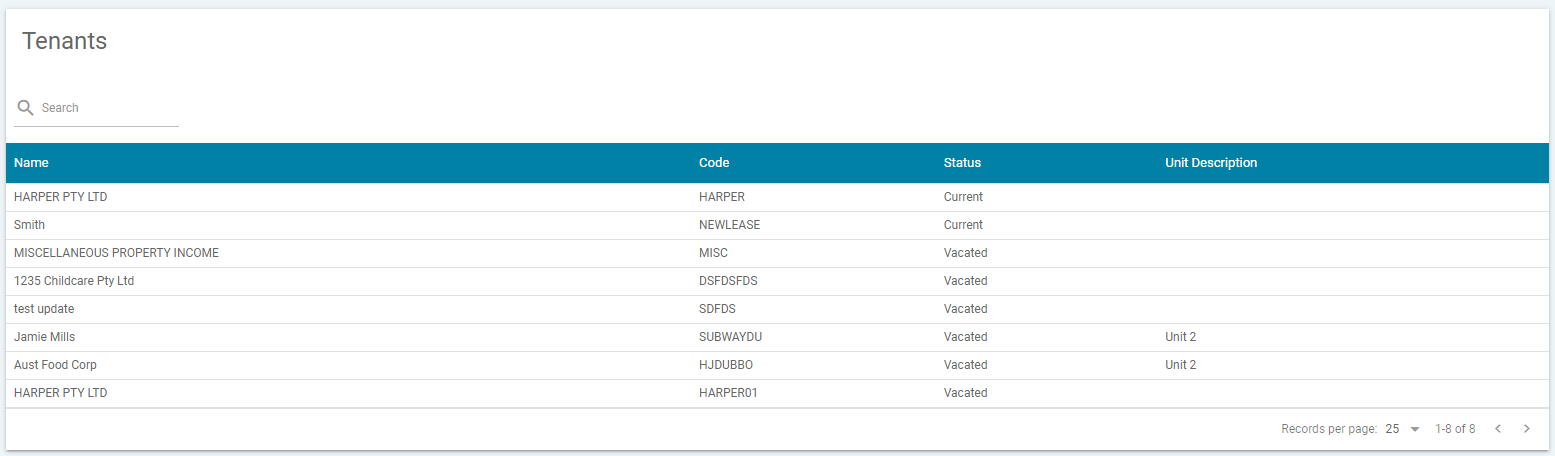
NOTE: If the Debtor Company is not active in Cirrus8, these tenants will not appear.
Contacts
This will show the contacts set up for the property.

Where the contacts are pulled through from Cirrus8, you will need to update these details in Cirrus8 and the information will update in CirrusFM.
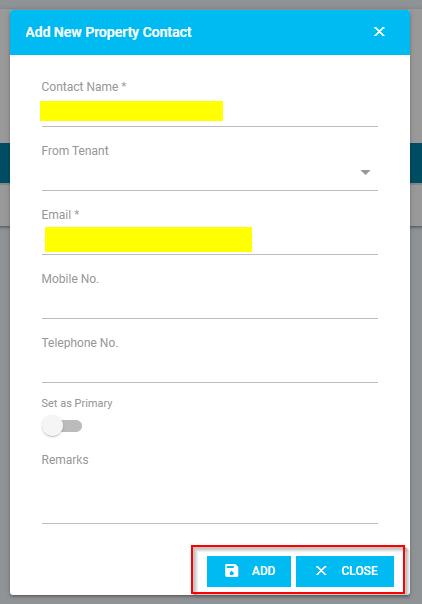
You can add a contact by clicking 'Create New Contact', which will open a pop-up window and prompt you to enter the following, then click 'Add' to save or 'Close' to go back:-
- * means this is a mandatory field and must be entered to create the new property contact
- Contact Name* - Enter the name of the contact
- From Tenant - Select the lease the tenant contact relates to from the drop-down menu
- Email* - Enter the email of the contact
- Mobile No. - Enter the mobile number for the contact
- Telephone No. - Enter a contact number for the contact
- Set as Primary - Turn on this toggle to make the contact the primary contact
- Remarks - Enter remarks for the contact
NOTE: Contacts from Cirrus8 will only appear once selected when you create a work order or quote.
Preferred Contractors
Under each property you can set up preferred contractors, these will show when creating a quote or workorder, the system will default to show the preferred contractor, however you can un-tick this to show all suppliers.
In the Preferred Contractors section you will have the option to action the following:-

- Remove Contractors - This allows you to remove contractors added. To remove a contractor, tick the box next to the contractors you wish to remove then click 'REMOVE CONTRACTORS'
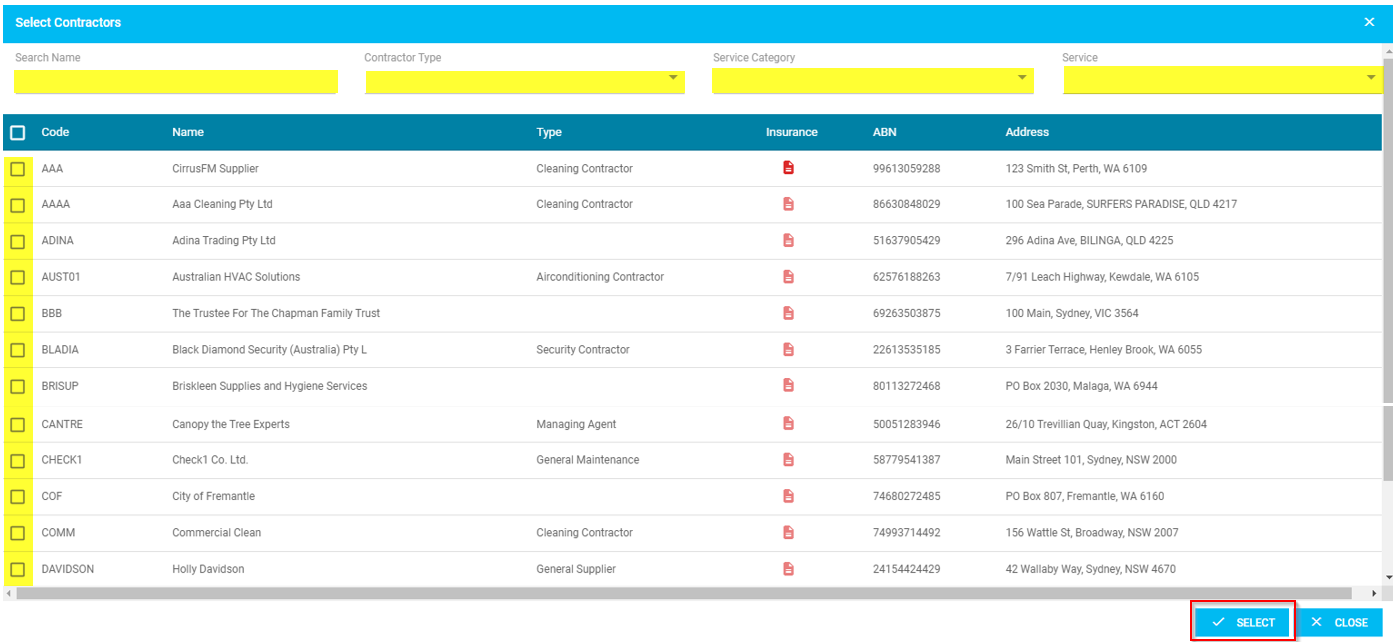
- Add Contractors - This allows you to add a preferred contractor for the property. By clicking 'ADD CONTRACTOR' a new pop-up window will appear and prompt you for the following:-
- Filter the search or scroll through the page
- Tick the applicable preferred contractors for the property and click on select
Transactions
This will show all the quotes, workorders and work requests that have been created for the property.
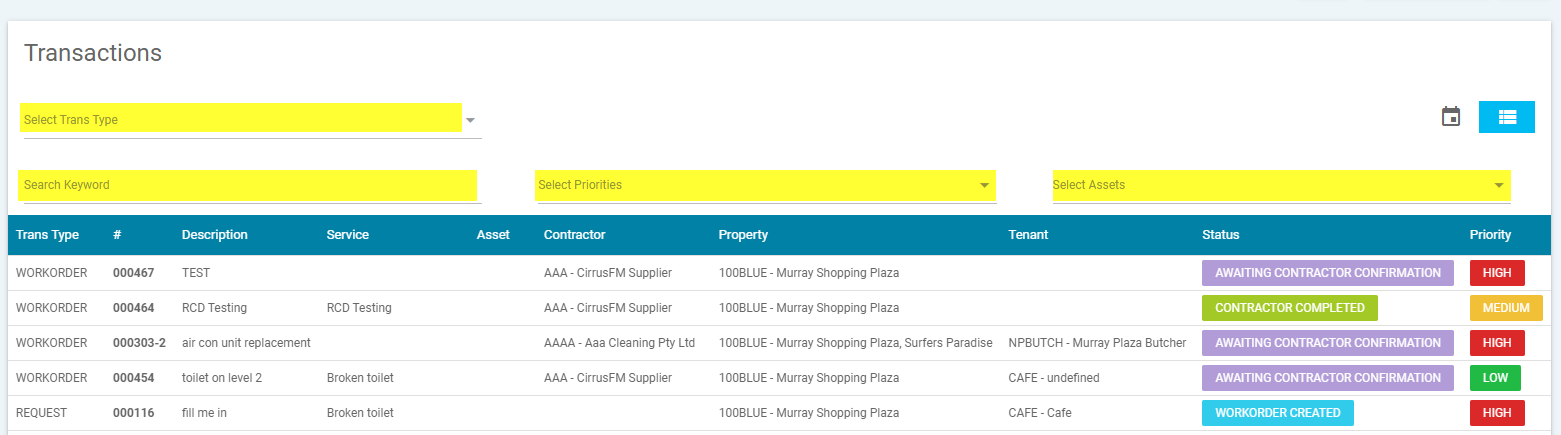
- You can filter your search by transaction type, keyword, priorities or assets.
- By selecting a transaction it will take you through to quote, workorder or work request selected to view more information.
Repeating Workorders
This will show all the repeating workorders that are set up for the property.
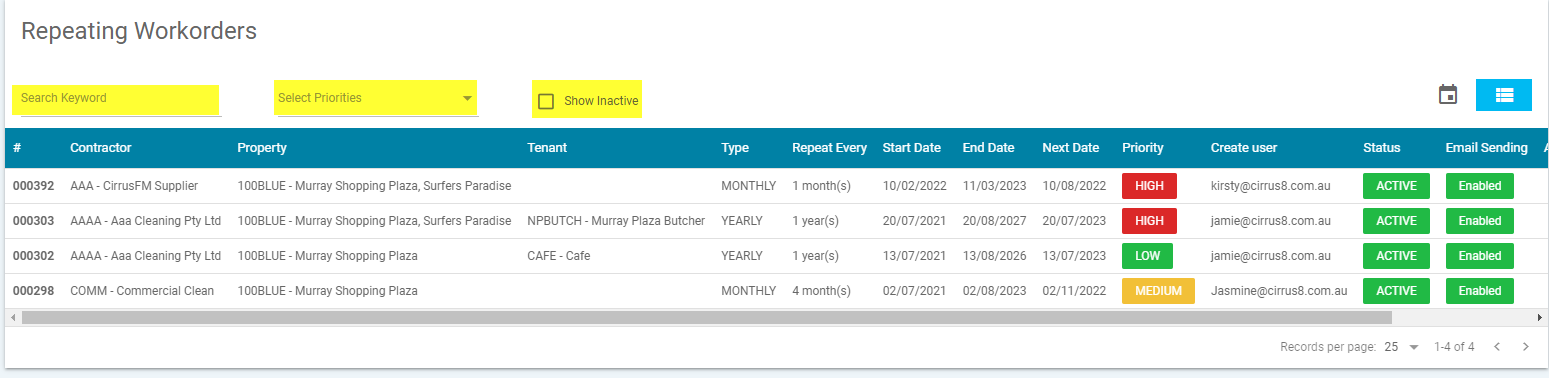
- You can filter your view of transaction by keyword or priorities
- By selecting a workorder, it will take you through to the workorder to view more information.
Maintenance
This will allow you view and update the 'maintenance templates' added to the property and the option to action the following:-
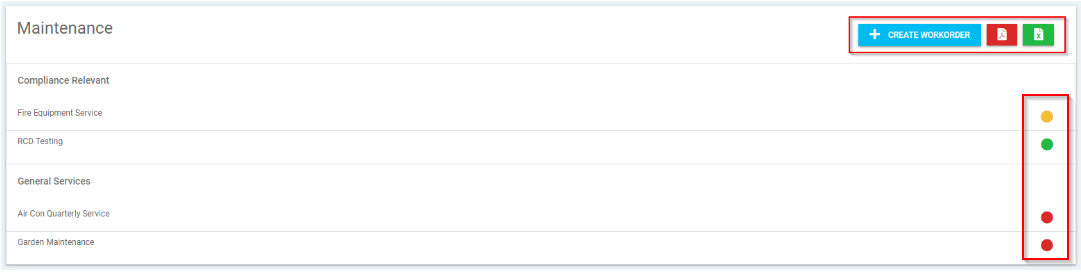
- Create Workorder - This will allow you to create a work order for the services included in the maintenance template
- Red Document Icon - Print/export to PDF
- Green Document Icon - Print/export to excel.
- List of Services - This allows you view and updated the services included in the maintenance template by clicking on the relevant service or the coloured dots (located on the right hand side).
Note:  Red Dot = Overdue / Yellow Dot
 = Due Soon / Green Dot
 = Current
By clicking the service or coloured dots, a pop-up window will appear with the line details and you will have the option to action a few different items:-
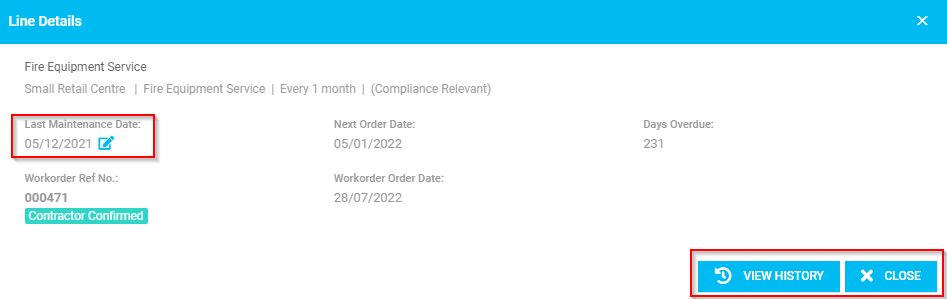
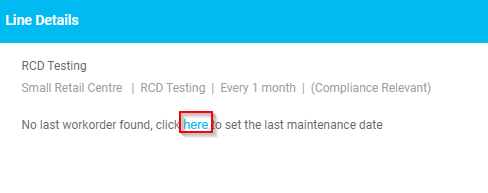
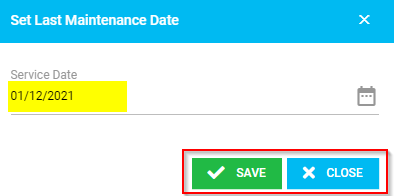
- Last Maintenance Date - This allows you to enter or edit the last maintenance date. f no last work order is found click 'here' to set the last maintenance date. This will open a new pop-up window which will prompt you to enter the last service date, then click 'save' or 'close' to go back
- View History - This will allow you to view the transaction history
- Close - This will close the line details and go back
Projects
This will show all projects that have been created for the property.

When searching for a specific project you can filter by keyword, status or priorities from the drop-down menu or search bar options up the top of the page. To view the closed transactions tick the 'Show Closed' checkbox.
When you click on a project it will take you through to project selected to view more information.
Building Notes
Reference Notes
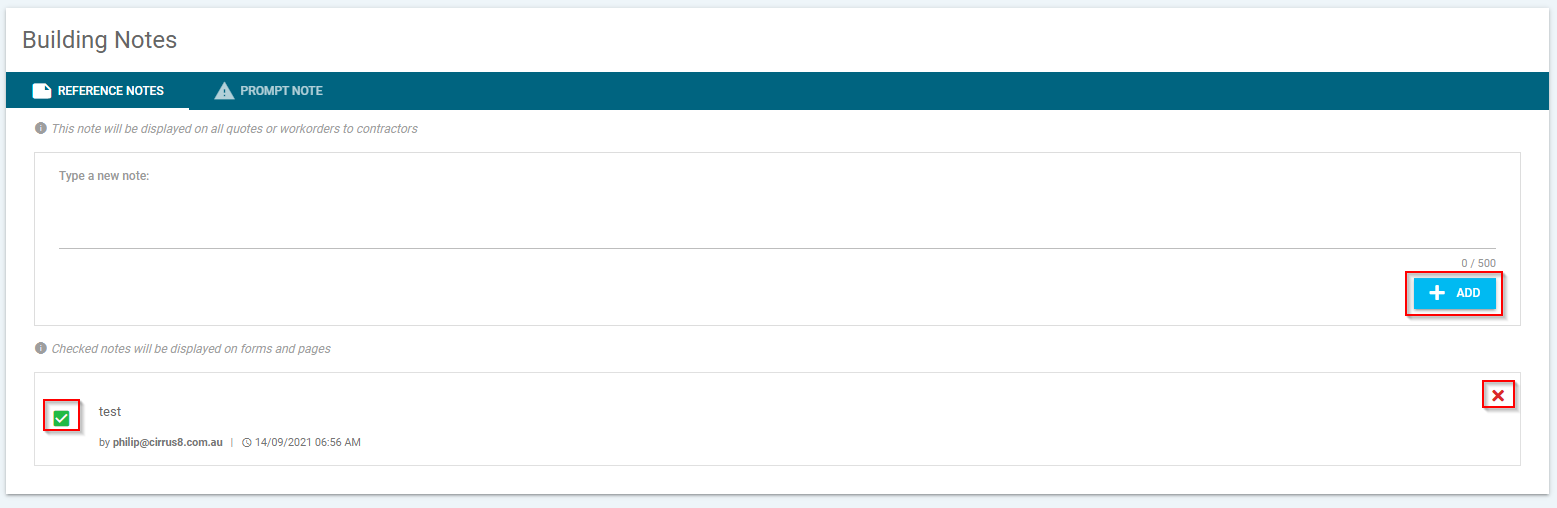
Reference notes can be added for properties, which will appear on all quotes and workorders when ticked. For example, a note can be added if there are items the contractor might need to be aware of to attend to work such as the location of the electrical switchboard.
To add a note, you will need to:-
- Enter in the open field and click 'ADD' to save.
- Tick the checkbox if you wish to display on quotes or workorders
- If you have entered note in error correct, you can delete the note by clicking the red X.
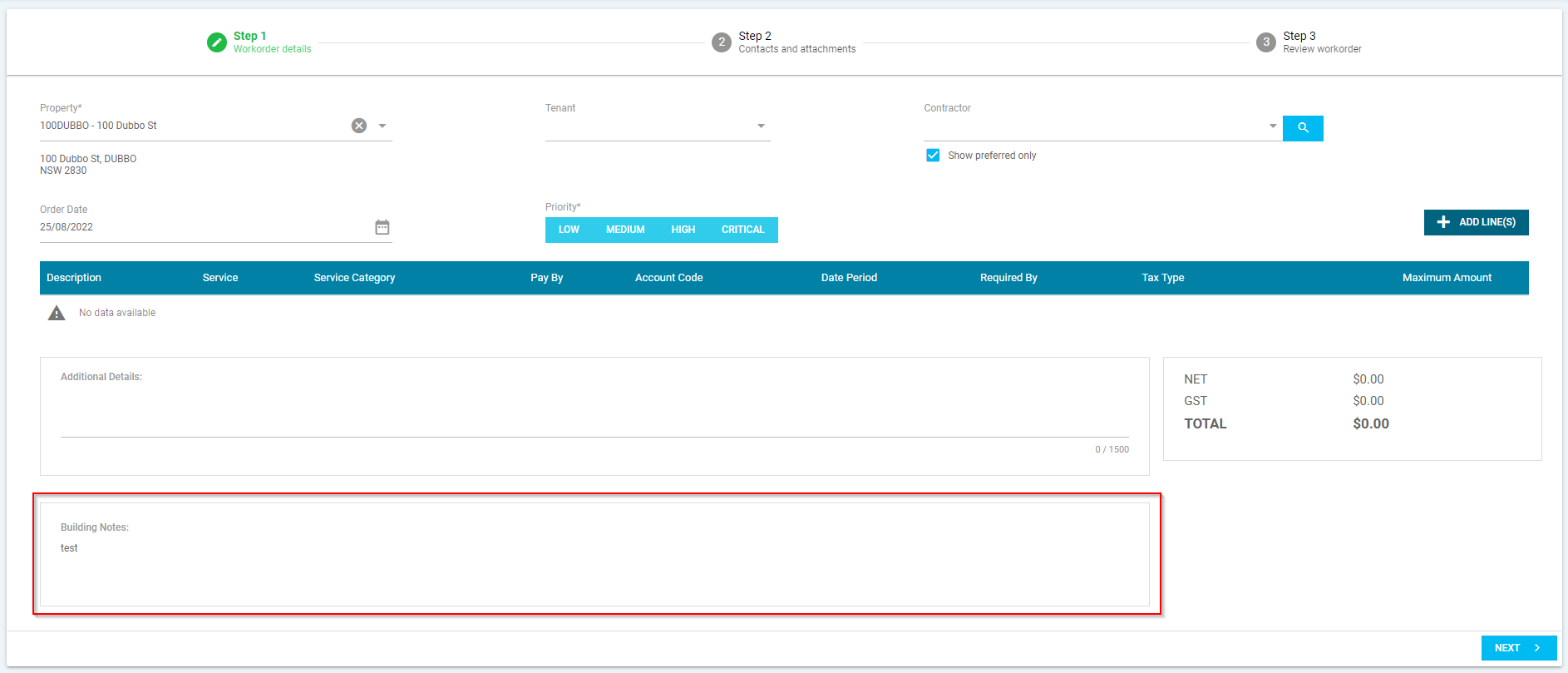
Where a reference note is added, when the property is selected when creating a quote or workorder, it will appear below 'Additional Details' under 'Building Notes'.
Prompt Note
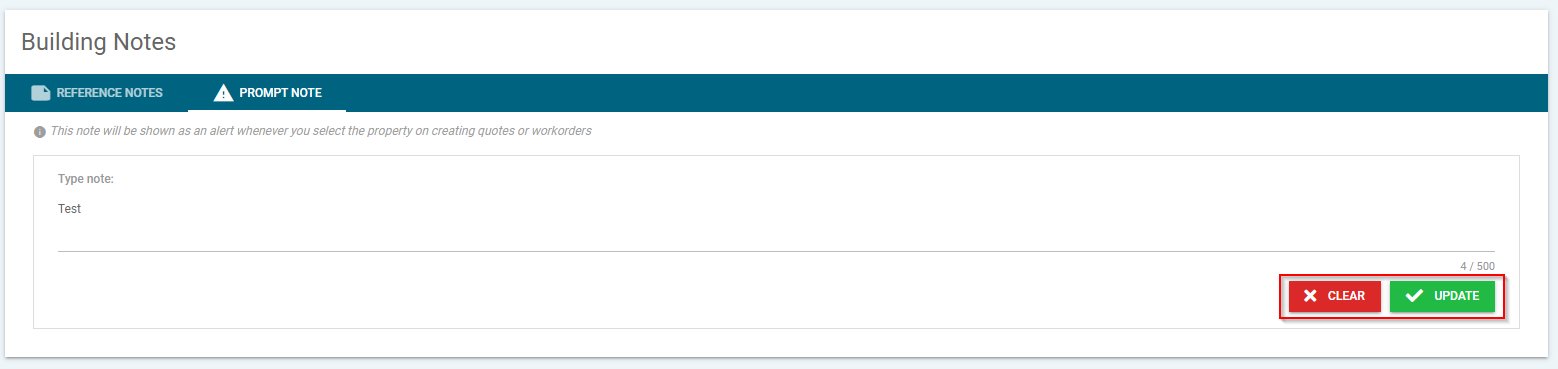
A prompt note can be added to be used as an alert for the property.
To add a note, you will need to enter in the open field then click 'Update' to save or 'Clear' to remove.
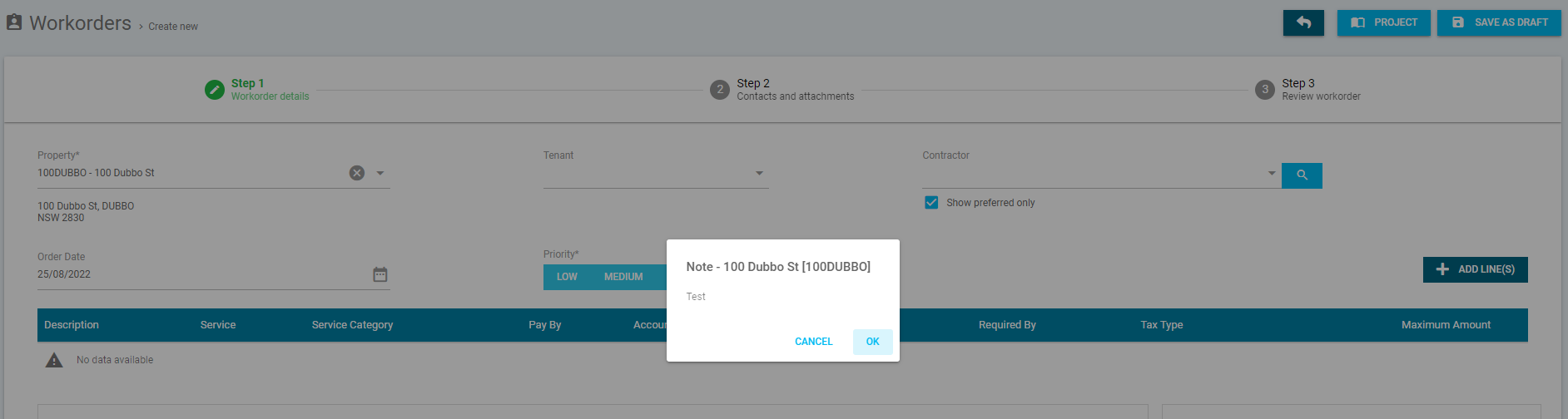
Where a prompt note is added, when the property is selected when creating a quote or workorder, it will appear as a pop-up.
Documents & Registers
This section will allow you to upload a documents and registers for a property.
Documents
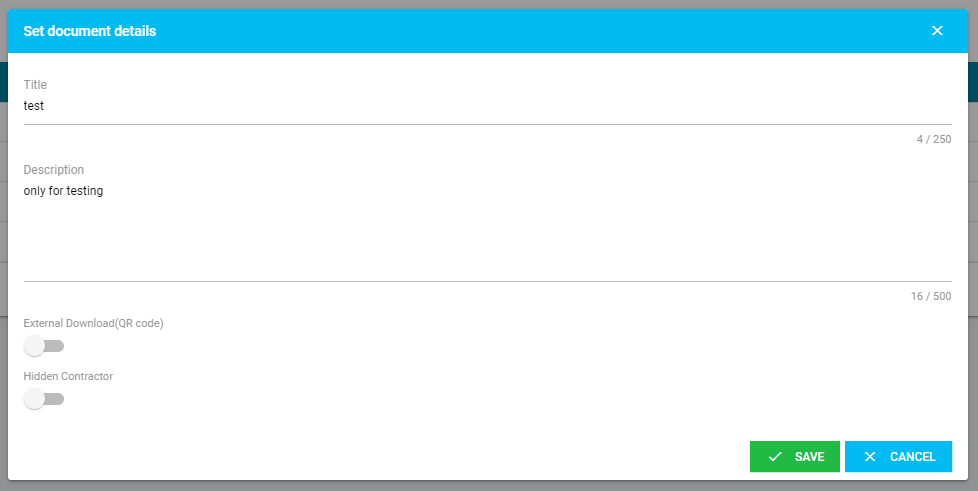
- To upload a new document click the + or drag document to the 'Upload a new Document' section. A new pop-up window will open and prompt you to:-
- Enter the title and description of the document
- External Download (QR Code) toggle - This allows you to link the document to the External Links to use the QR code function
- Hidden Contractor toggle - This allows you to hide the document from the contractor
- Click save
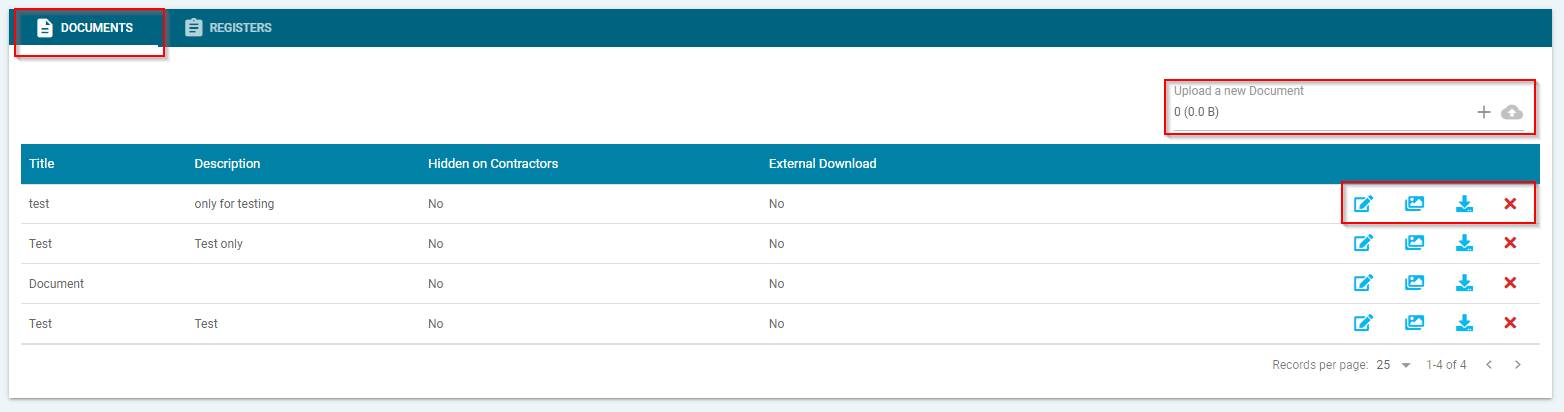
- Once the document has been uploaded, you will have the option to action the following:-
- Pencil Icon - This will allow you to edit the document details
- Picture Icon - This will allow you to preview the document
- Download Icon - This will allow you to download the document
- Red Cross Icon - This will allow you to delete the document
Registers
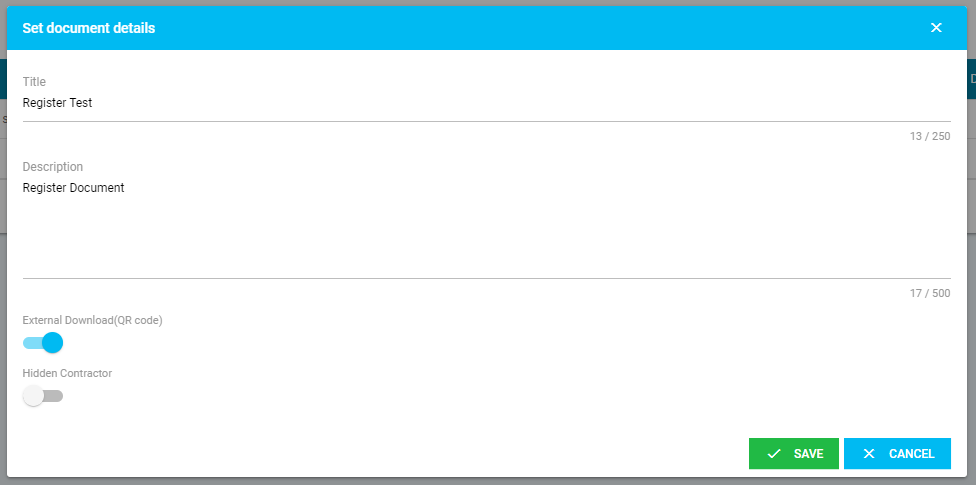
- Upload a register by clicking the + or dragging the register to the 'Upload a new Document' section. A new pop-up window will open and prompt you to:-
- Enter the title and description of the register
- External Download (QR Code) toggle - This allows you to link the registers to the External Links to use the QR code function
- Hidden Contractor toggle - This allows you to hide the register from the contractor. Note: You will need to ensure the register is not hidden if you wish to use the QR code function
- Click save
- Once the registered document has been uploaded, you will have the option to action the following:-
- Pencil Icon - This will allow you to edit the registers details
- Picture Icon - This will allow you to preview the registers
- Download Icon - This will allow you to download the registers
- Red Cross Icon - This will allow you to delete the registers
NOTE: Go to the External Link to down the QR Code
Assets
This will allow you to add Assets to a property.

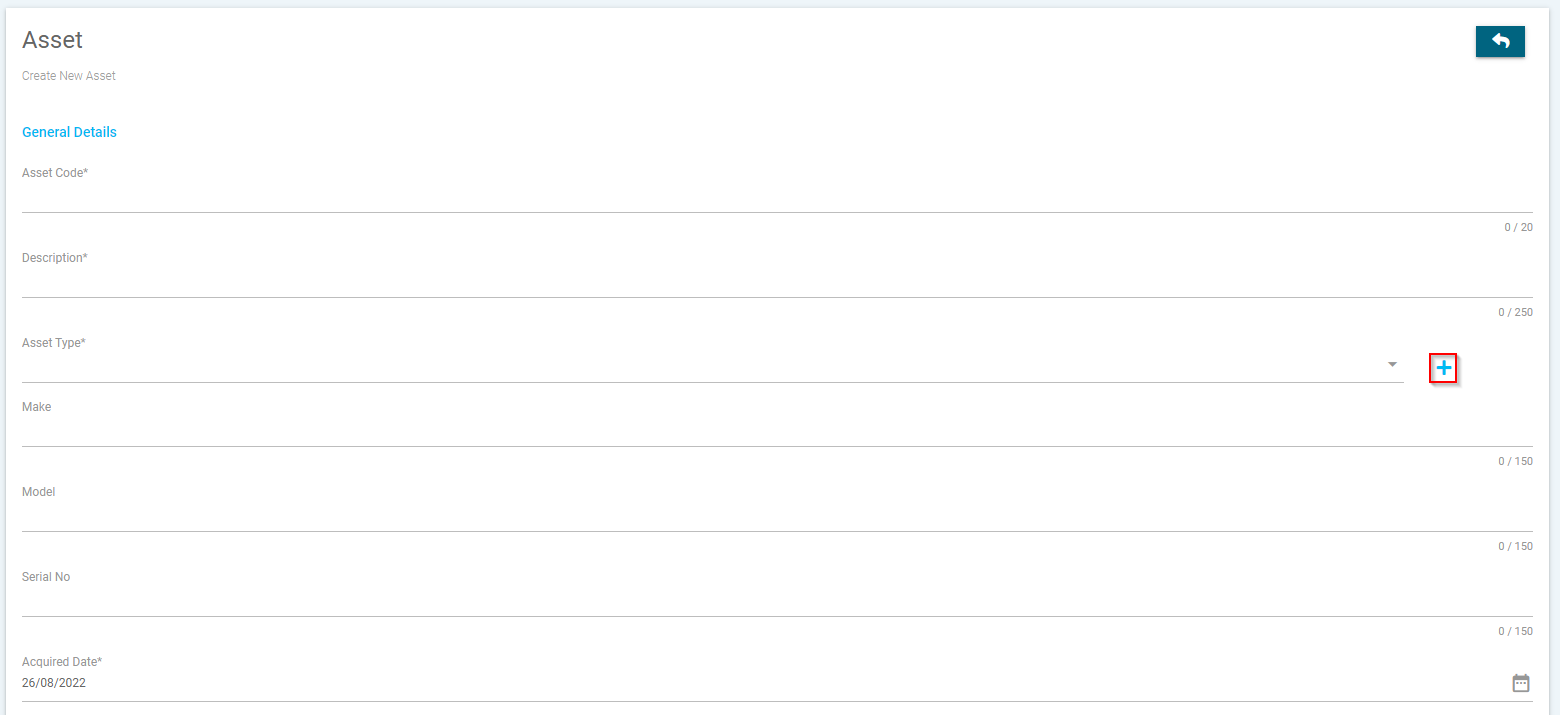
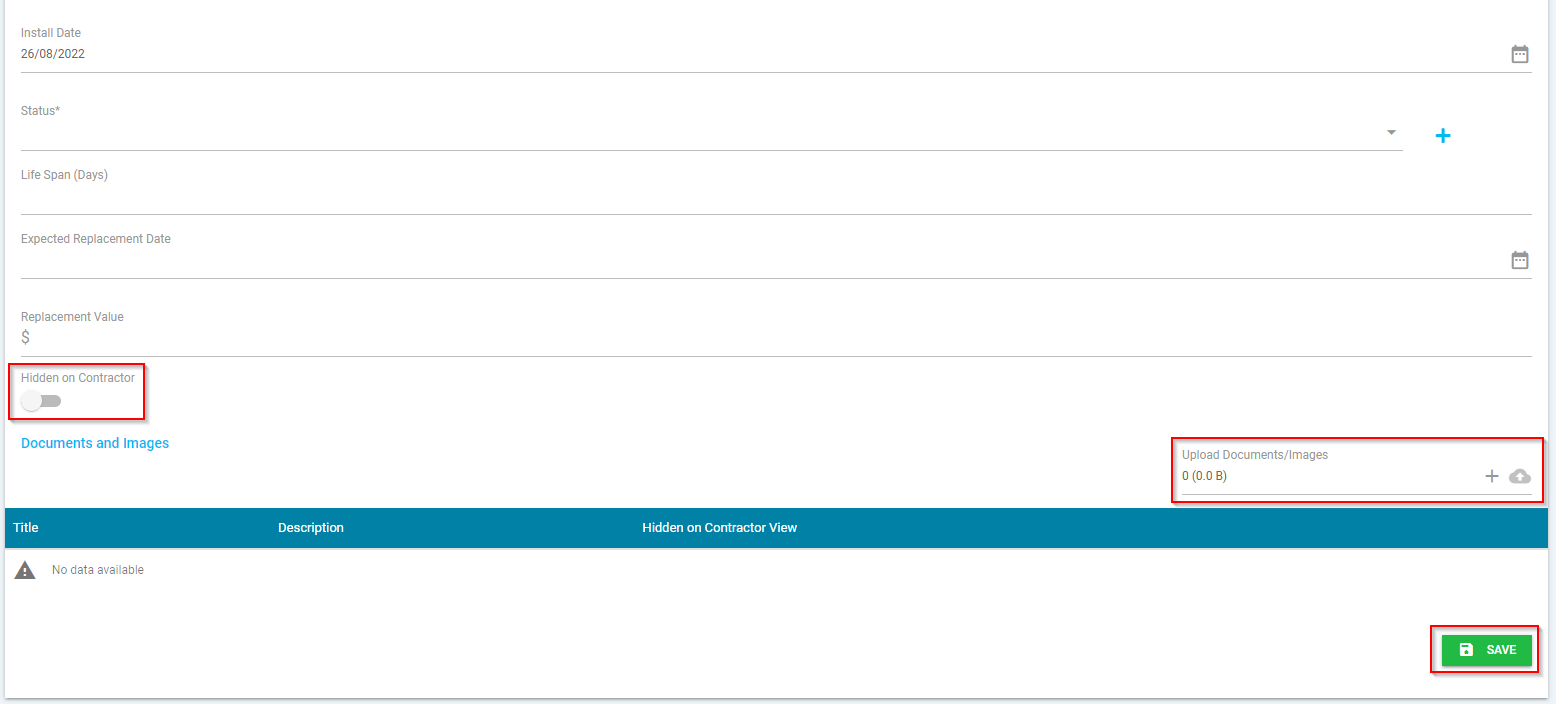
To add an asset click 'Create New Asset'. This will open a pop-up window and prompt you to enter the following:-
- * means this is a mandatory field and must be entered to create the asset
- Asset Code* - Enter a code for the asset, e.g. AC1. Only use letters and numbers, no special characters.
- Description* - Enter a brief description of the asset.
- Asset Type* - Select an asset type from the drop-down menu or click the blue + icon to add a new asset type.
- Make - Enter the make of the asset
- Model - Enter the model of the asset
- Serial No - Enter the serial number of the asset
- Acquired Date* - Enter the date the asset was acquired. The system will default this to the date entered.
- Install Date* - Enter the date the asset was installed. The system will default this to the date entered.
- Status* - Select the status from the drop-down menu or click the blue + icon to add a new asset status
- Life Span (Days) - Enter the life span of the asset
- Expected Replacement Date - Enter the date the asset is expected to be replaced
- Replacement Value - Enter the estimated value to replace the asset
- Hidden on Contractor - When you turn this toggle on, it allows you to hide the asset from the contractor
- Documents and Images - This allows you to add a document or photo by selecting the + icon under 'Upload Documents/Images'.
- Save - This will save the asset entered
Check Ins
This will show the check in log submitted for the property.

Was this article helpful?
That’s Great!
Thank you for your feedback
Sorry! We couldn't be helpful
Thank you for your feedback
Feedback sent
We appreciate your effort and will try to fix the article