This article will provide an overview of navigating and understanding the Receipts page in Cirrus8 and provides a step-by-step guide on how to create a new receipt as a Trust Accountant user.
- Trust Accountant Location: Accounts Receivable > Receipts
- Property Manager Location: Leases > Receipts. Note - as a Property Manager user this form is used to advise the Trust Accountant for any cash or cheques received. Refer to article Advise Trust Accountant of Cash or Cheque Receipts as a Property Manager User
Create A Receipt
To process a new receipt as a Trust Accountant user, go to the Receipts screen and follow the below steps:
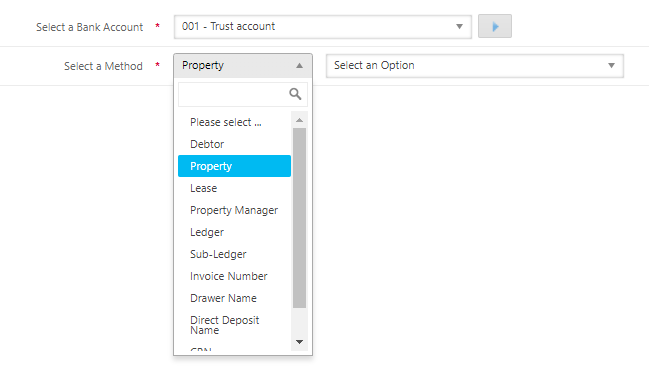
- Select a Bank Account - Select the relevant Trust Account in the drop-down menu if there are more than one bank accounts set up in your database
- Select a Method - Select a search method
3. Complete the receipt details. When recording funds received, follow these guidelines based on the Payment Type selected from the drop-down menu:
Direct Deposit
- Payer Information: Not required
- Direct Deposit Name: Use the name as it appears on the bank statement
- Receipt Date: Date the funds were received
- Bank Processing Date (@Bank Date): As per bank statement
- Clearance Dates: None
- Amount: As per bank statement
Direct Debit
- Receipt Date: Date the funds were received
- Bank Processing Date (@Bank Date): As per bank statement
- Clearance Days: Select the number of clearance days
- Amount: As per bank statement
BPAY
- Receipt Date: Date the funds were received
- Bank Processing Date (@Bank Date): As per bank statement
- Clearance Days: Select the number of clearance days
- Amount: As per bank statement
Cheque
- Payer Information: Optional
- Drawer Name: Use the name written on the cheque
- Cheque Number: Enter the cheque number as per the physical cheque received
- Bank: Select the bank of the cheque from the drop-down selection
- BSB: Enter the BSB as per the physical cheque received
- Receipt Date: Date the cheque was deposited into the trust account
- Bank Processing Date (@Bank Date): Date deposited (allow 4 days to clear)
- Clearance Days: Enter the number of days the bank takes to clear the cheque
- Amount: As per cheque
- Receipt Number: Optional, enter the receipt or reference number the bank has provided after depositing the cheque
Cash
- Payer Information: Optional
- Group Deposit Slips: Optional
- Receipt Date: Date the cash was received and banked
- Bank Processing Date (@Bank Date): Date deposited
- Clearance Days: Enter the number of days the bank takes to clear the cash
- Amount Received: As per deposit
- Receipt Number: Optional, enter the receipt or reference number the bank has provided after depositing the cheque
NOTE: By default, the @Bank date will be set to the Receipt Date and should only be changed when removing a bank reconciliation adjustment from a previous period and receipting to the correct tenant in the current period.
4. Allocate the receipt amount to the relevant tenant invoices using the following allocation methods:
- Double click the Applied Amount box next to the relevant invoice to allocate funds to the invoice in full.
- Manually type in the amount in the Applied Amount column to the relevant invoice. This amount can either be the full amount due or a part payment.
 Auto Allocate Amount - Clicking this icon will prompt Cirrus8 to search for an invoice matching receipt amount. If a match has been found, it will allocate the funds to the matching invoice.
 Allocate Oldest Amount - Clicking this icon will prompt Cirrus8 to allocate the total receipt amount against the oldest outstanding invoices.
NOTE: To receipt an overpayment by the tenant, refer to this article: Receipt Overpaid Or Unallocated Funds
5. Once the funds have been allocated, ensure that the Balance Still to Apply amount is now $0.00 and the Applied Amount matches the receipt amount after allocating the funds.
6. Click Process Receipt
Below are other functions within the Receipts screen:
 View Payment History -This icon will appear when a partially paid invoice has previously been receipted against. Clicking on this icon will display a history of receipt transactions against the partially paid invoice.
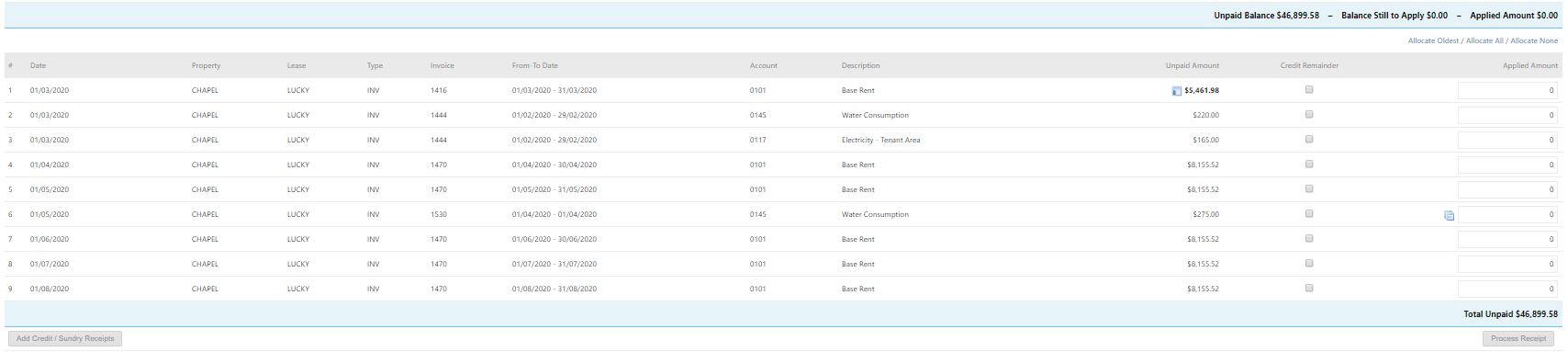
 View Linked Invoice - Clicking on this icon will display the corresponding Accounts Payable invoices linked to the Accounts Receivable invoice. Accounts Payable invoices placed on hold until funds received from the tenant may have the hold status removed, enabling the Accounts Payable invoice to be paid with the available funds.

- Credit Remainder - If the tenant has short paid an invoice, ticking the Credit Remainder box allows the user to credit off the balance of the invoice. When the receipt has been processed in full, a credit tax invoice is generated.

Was this article helpful?
That’s Great!
Thank you for your feedback
Sorry! We couldn't be helpful
Thank you for your feedback
Feedback sent
We appreciate your effort and will try to fix the article