The Manage Chart of Accounts section displays existing account codes used within the Cirrus8 database and allows a Trust Accountant user to view, edit and add new account codes to the database. This article provides an overview of the of the Chart of Accounts and how to manage the account codes.
Understanding the Chart of Accounts
The chart of accounts is central to any accounting system. Each transaction gets allocated account codes, and depending on which category the account code belongs to, the transaction will appear in the corresponding section of financial reports.
Account Group
The account group is the major group an account falls within. The major account groups are:
- Owners Income
- Variable Outgoings Income
- Directly Recoverable Income
- Owners Expenditure
- Variable Outgoings Expenditure
- Directly Recoverable Expenditure
Ranges of accounts are set up for each account group. Some groups have multiple ranges set up as below

The other categories of Distributions are for distribution of profit/cash to owners/investors and balance sheet accounts.
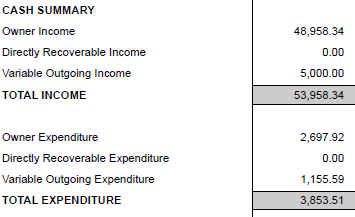
The owner reports look at the account group an account falls within to determine where the transaction appears in the owners report. Major account groups line up with the reporting categories on the owners statement.
Control Accounts
A control account is a main account which has a subsidiary ledger that supports it. e.g. the debtors control account has the tenant ledgers which support it. The balances of all the subsidiary ledgers should add up to the balance of the control account. If the two are not in balance it is important to investigate and resolve, although any good accounting system should not allow this to occur. Control accounts (Cirrus8 default) are:
- 10000 bank – used for all cashbook transactions
- 10001 debtors – used for all tenant transactions
- 10002 creditors – used for all supplier transactions
- 10003 GST output tax – for GST on revenue
- 10004 GST input tax – for GST on expenses
- 10005 accrued expenses
- 10006 accrued income
- 10007 retained earnings current year
- 10008 retained earnings prior years
- 10009 future period costs – used for month end journals for prepaid expenses
- 10010 charged in advance – used for month end journals for income charged in advance
Balance Sheet Accounts
The balance sheet accounts are any accounts that are not income or expense accounts which appear on the balance sheet.
General Ledger Account Groups
There are Major General Ledger Account Groups and Sub-Groups. The allocation of these determines where an account appears in the general ledger reports – trial balance, profit and loss and balance sheet. The sub-groups depend upon the major account group. Groups and Sub-Groups are:
- Balance Sheet – Assets – Bank
- Balance Sheet – Assets – Fixed Assets
- Balance Sheet – Assets – Current Assets
- Balance Sheet – Assets – Non Current Assets
- Balance Sheet – Liabilities – Current Liabilities
- Balance Sheet – Liabilities – Non Current Liabilities
- Balance Sheet – Equity – Share Capital
- Balance Sheet – Equity – Retained Earnings
- Income – Owners Income
- Income – Directly Recoverable Income
- Income – Variable Outgoings Income
- Expenses – Owners Expenditure
- Expenses – Variable Outgoings Expenditure
- Expenses – Recoverable Expenditure
Management Fee Flag
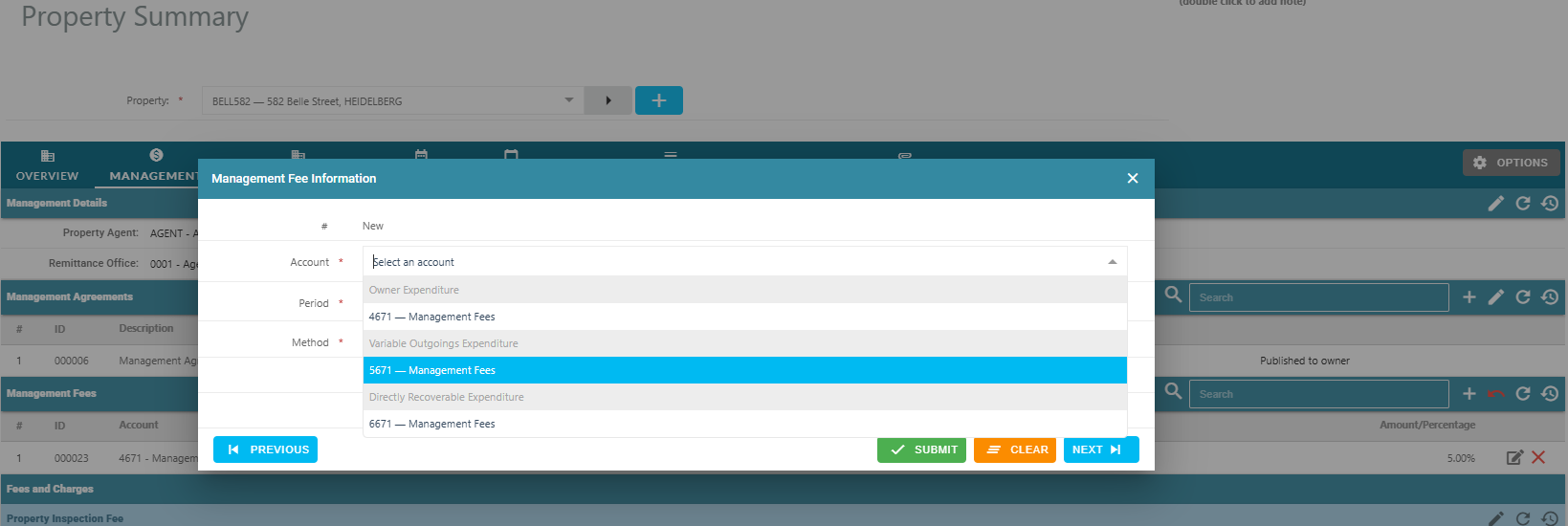
The Management Fee flag can be set for expense accounts only, which are utilised to charge management fees against a property (including investment management fee accounts).

The accounts flagged as a management fee will then appear on the Management Fees account code section drop down list under Manage Property and Property Summary pages. Normally three account codes are set up, one for each major category of expense, i.e. Owners, Variable Outgoings and Directly Recoverable.
Sundry Property Charges
Sundry Property Charges as those additional charges that get set up against the property to charge the property on a monthly basis, e.g. Postage and Petties or Miscellaneous Fees. Only expense accounts can be flagged as a Sundry Property Charge, and will appear on the Sundry Charges section under the Manage Property and Property Summary pages.


GST Codes
Each account code needs to have a default GST code attached to it. It needs to be the code that is most commonly used for that account. The various options available are:
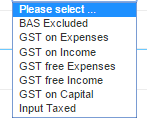 The GST codes are currently only used to calculate the GST amount applicable to trial balance figures when exported to Xero.
View and Edit Account Code
To view and edit an account code, go to:
- Configuration > Manage Chart of Accounts
- Click Existing Account
- Click the Account Code drop-down menu
- Type the code or code name or scroll the menu to find the relevant account code for viewing
- Make any required changes to the account code
- Click Update Account Details
Delete or Archive Account Code
To delete an account code, go to:
- Configuration > Manage Chart of Accounts
- Click Existing Account
- Click the Account Code drop-down menu
- Type the code or code name or scroll the menu to find the relevant account code
- Click Delete this account to delete the account code
- Click OK to the confirmation pop-up box
Note - account codes which are used as a lease charge or have been used in previous transactions cannot be deleted
To archive or unarchive an account code, go to:
- Configuration > Manage Chart of Accounts
- Click Existing Account
- Click the Account Code drop-down menu
- Type the code or code name or scroll the menu to find the relevant account code
- Click Archive this account to archive the account.
- Click OK to the confirmation pop-up box
- Archived accounts can be unarchived by clicking on Remove from archive against an archived account code
Add New Account Code
To add a new an account code, go to:
- Configuration > Manage Chart of Accounts
- Click New Account
- Select the Account Type - Balance Sheet, Expenses or Income
- Select the Category
- Select the Sub-Category
- Click on the Account Ranges to populate the next available account code in the range, or manually enter an Account Code
- Enter the new Account Name
- If this is a new expense code, tick whether this is a Management Fee or Sundry Charge account
- If this is a new income code, tick whether the account code should be excluded from the management fee calculation. This means that if the account code is excluded, any time funds are receipted against this account code, Cirrus8 will not include this income as part of the management fee calculation to be charged on a property.
- Select the GST Code for Xero Export
- Select the GL Account Group
- Select the GL Account Sub-group
- Click Add Account
Was this article helpful?
That’s Great!
Thank you for your feedback
Sorry! We couldn't be helpful
Thank you for your feedback
Feedback sent
We appreciate your effort and will try to fix the article