Multi-Factor Authentication (MFA) Setup Guide – Cirrus8
1. What is Multi-Factor Authentication (MFA)?
Multi-Factor Authentication (MFA) is a security measure that requires two or more forms of verification before a user can access their account.
Instead of relying only on a password, MFA adds an additional security layer such as a one-time code generated on a mobile device.
This helps protect accounts even if a password is compromised.
2. How MFA Works in Cirrus8
When MFA is enabled in Cirrus8, users must provide:
Their Cirrus8 password, and
A one-time code, delivered either by:
SMS to an Australian mobile number, or
An Authenticator App
Cirrus8 recommends using an Authenticator App, as it provides stronger security than SMS.
3. Why MFA is Important
MFA significantly improves account security.
Even if a criminal obtains a user’s password, they cannot access the account without the second verification method, such as the one-time code sent to a mobile device.
Setting Up MFA in Cirrus8
Once MFA is enforced, users will be prompted to configure MFA when they log in.
Users can choose one of two methods:
SMS verification
Authenticator App
Option 1: Set Up MFA Using SMS
Log in to Cirrus8.
When prompted for MFA setup, select SMS verification.
Enter your Australian mobile phone number.
Cirrus8 will send a one-time code via SMS.
Enter the code into Cirrus8 to verify your number.
MFA setup will now be complete.
Important notes:
Each user must have a unique mobile number.
The same mobile number cannot be used for multiple accounts.
Each time you log in, Cirrus8 will send a new one-time code via SMS that must be entered.
Option 2: Set Up MFA Using an Authenticator App (Recommended)
Step 1 – Install an Authenticator App
Install one of the following apps on your mobile device:
Google Authenticator
Microsoft Authenticator
Both apps are available for Android and iOS in the Google Play Store and Apple App Store.
If you already use MFA for other software, you may already have one of these apps installed.
Step 2 – Scan the QR Code
Log in to Cirrus8.
Select Authenticator App as your MFA method.
Cirrus8 will display a QR code.
Open your authenticator app.
Use the app to scan the QR code.
Step 3 – Enter the Verification Code
After scanning the QR code, the authenticator app will generate a time-based one-time password.
Enter this verification code into Cirrus8.
Click Confirm to complete setup.
Step 4 – Logging in With MFA
After setup is complete:
Enter your username and password in Cirrus8.
Open your Authenticator App.
Enter the current one-time code shown in the app.
A new code will automatically generate every 30 seconds.
Resetting MFA
If a user loses access to their MFA method, it must be reset.
MFA can be reset in two ways.
Method 1 – Reset via Admin Portal
Log in to the Admin Portal.
Locate the relevant user account.
Click the Key Icon next to the user.
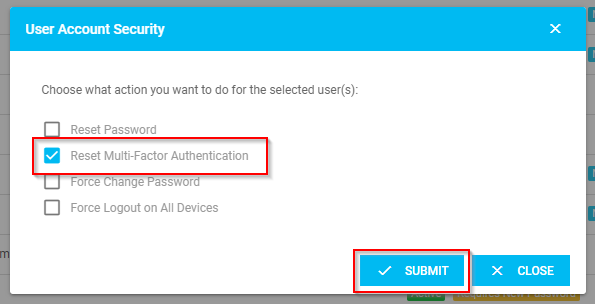
A User Account Security window will appear.
Select Reset Multi-Factor Authentication.
Click Submit.
The user will then be required to set up MFA again on their next login.
Method 2 – Request Reset from Cirrus8 Support
If an administrator cannot reset MFA, contact the Cirrus8 Support team.
Send an email request to:
Important
When requesting an MFA reset, written approval from the company director is required before Cirrus8 can process the request.
Support
If you have questions or require assistance, contact the Cirrus8 Support team:
Email: support@cirrus8.com.au
Was this article helpful?
That’s Great!
Thank you for your feedback
Sorry! We couldn't be helpful
Thank you for your feedback
Feedback sent
We appreciate your effort and will try to fix the article