This article covers the various tasks on how to manage user accounts via the Users Tab in Admin Portal.
TABLE OF CONTENTS
- View a User's Profile
- Reset User Password
- Reset Multi-Factor Authentication (MFA)
- Force a Password Change
- Force Logout on all Devices
- Set up another User as a Local Admin
- Remove Local Admin Rights

View a User's Profile
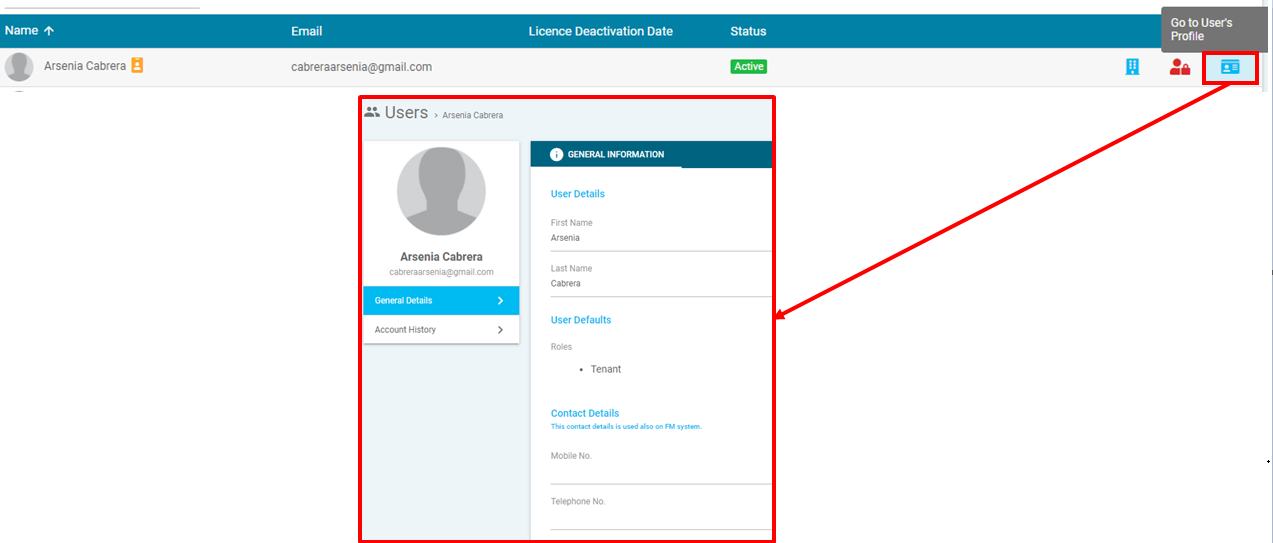
- Find the User from the list
- Click on the "Go to User's Profile" button
Reset User Password
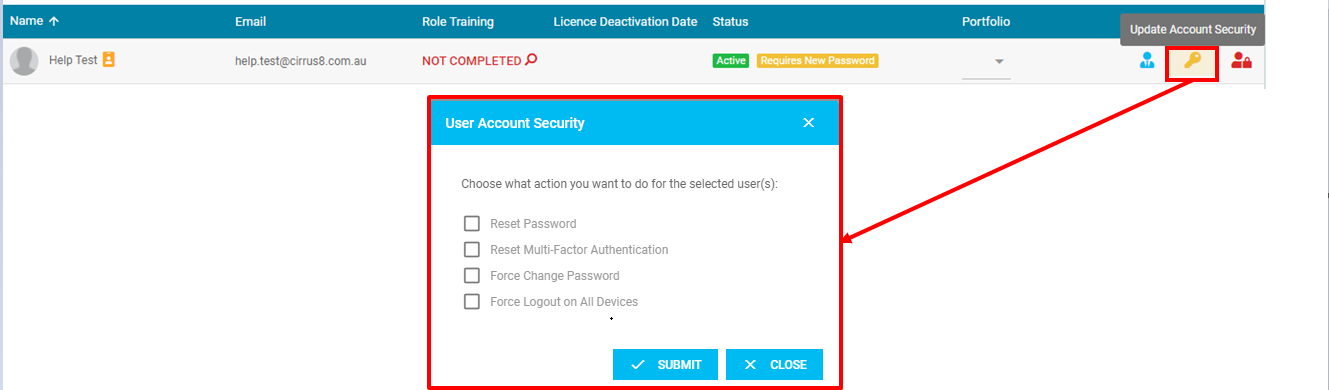
- Find the User from the list
- Click the Update Account Security button
The User Account Security pop up module will be displayed:
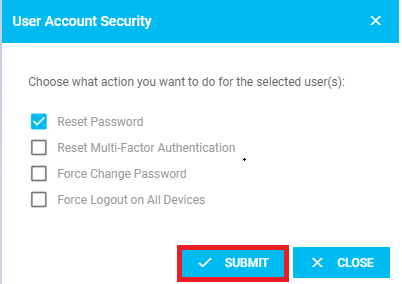
- Tick Reset Password then click Submit. A successful message will appear:
Reset Multi-Factor Authentication (MFA)
- Find the User from the list
- Click the Update Account Security button
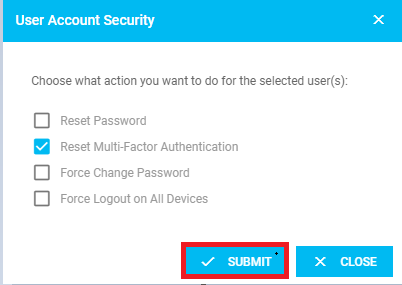
The User Account Security pop up module will be displayed:
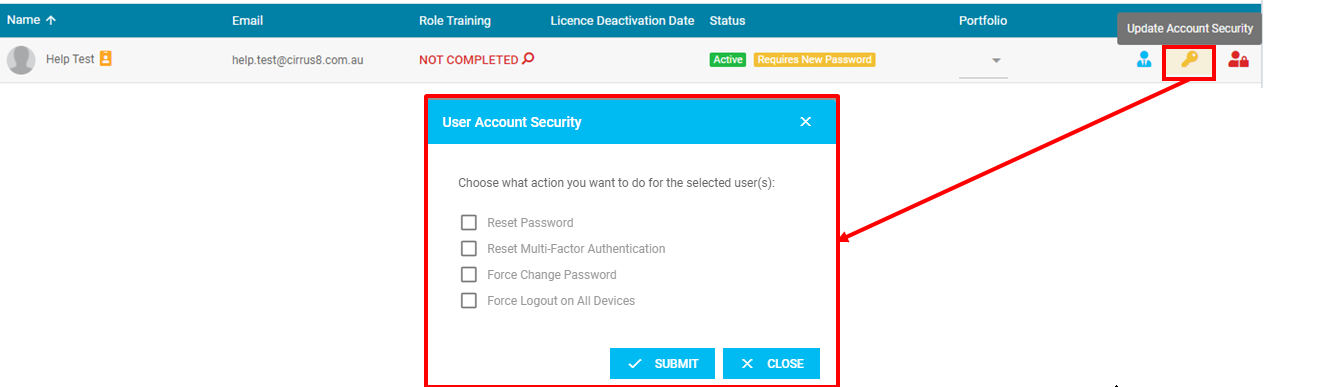
- Tick Reset Multi-Factor Authentication then click Submit. A successful message will appear:
Force a Password Change
- Find the User from the list
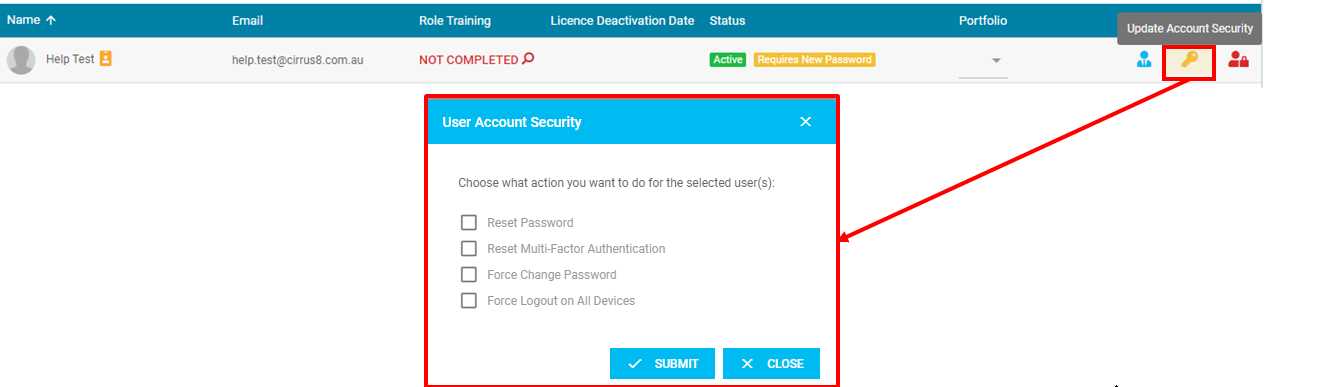
- Click the Update Account Security button
The User Account Security pop up module will be displayed:
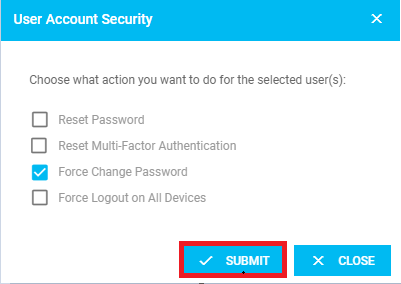
- Tick Force Change Password then click Submit. A successful message will appear:
Force Logout on all Devices
- Find the User from the list
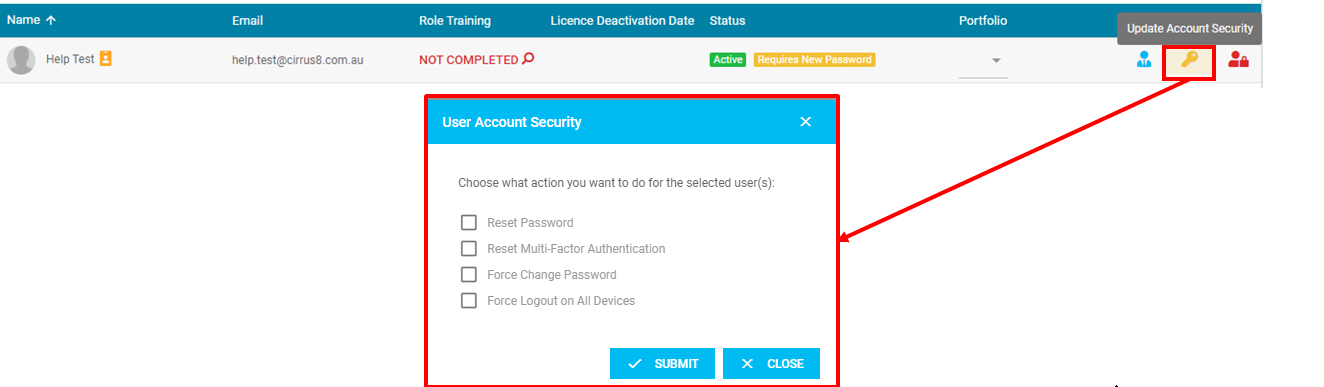
- Click the Update Account Security button
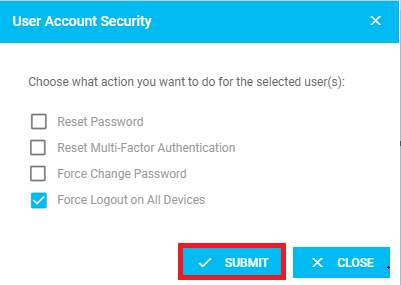
The User Account Security pop up module will be displayed:
- Tick Force Logout on All Devices then click Submit. A successful message will appear:
Set up another User as a Local Admin
This allows other users to administer user logins. Users should only be given Local Admin rights upon approval from someone within the client organisation with the authority to make this decision.
- Find the User to from the list.
- Click Set As Local Admin button. A successful message will appear.

Remove Local Admin Rights
- Find the User to from the list.
- Click Remove As Local Admin button. A successful message will appear.
Was this article helpful?
That’s Great!
Thank you for your feedback
Sorry! We couldn't be helpful
Thank you for your feedback
Feedback sent
We appreciate your effort and will try to fix the article