This article explains how to register a new user in Cirrus8. This function is available under the Manage Tab in the Admin Portal.
TABLE OF CONTENTS
- Register New Users (Including Owners & Tenants)
- Assign Property/Lease to Owner or Tenant User
- Re-send Registration Email
Register New Users (Including Owners & Tenants)
Click Register New User button on the upper right-hand corner. A registration pop-up form will be displayed.
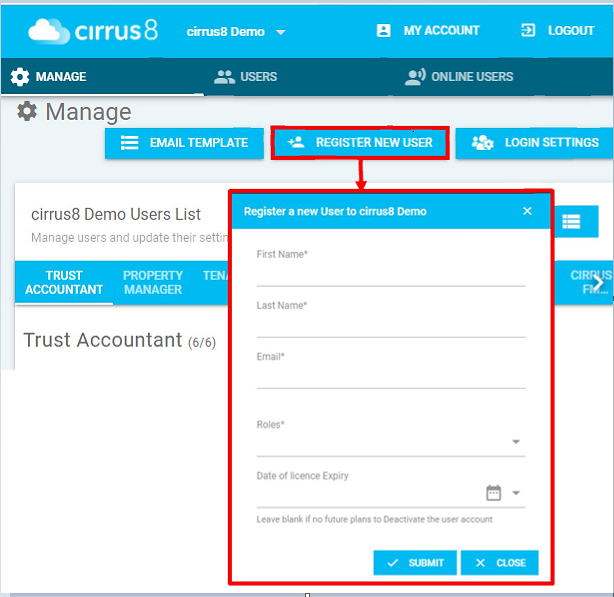
Enter the following details:
- First and Last Name
- Email
- Roles
- Date of Licence Expiry – Leave BLANK for no expiration
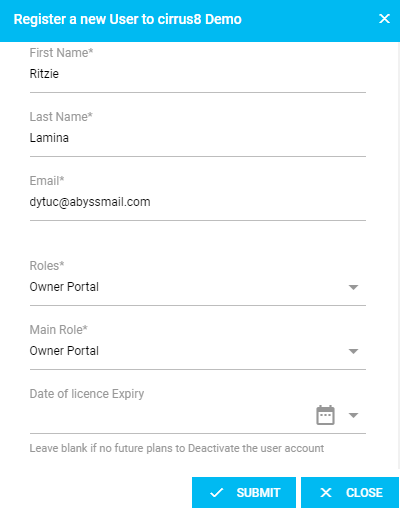
Click “Submit”.
A successful message will appear, and an activation email will be sent to the email address specified in the registration form.

Assign Property/Lease to Owner or Tenant User
When creating Owner or Tenant users, you must then assign the properties/leases you manage for them to have access to. Click on the Property Icon:

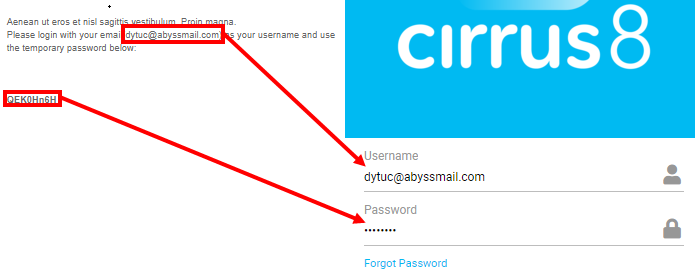
On the login screen, enter the email address used for registration as the username and the temporary password received from the email. Then, press Enter (keyboard) or click Login.
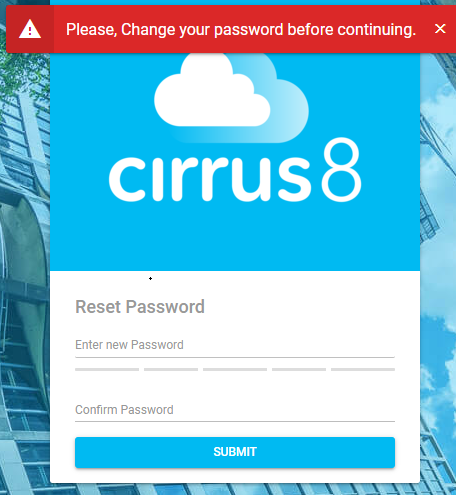
The user will be prompted to change password. Enter a new password then click Submit.
A successful message will appear for the password change and will prompt the user to enter their username and the new password.
Re-send Registration Email
If the user has not yet activated their account, you can re-send the registration email by finding the user in the User tab.
Click "Resend Register Email" button:

Was this article helpful?
That’s Great!
Thank you for your feedback
Sorry! We couldn't be helpful
Thank you for your feedback
Feedback sent
We appreciate your effort and will try to fix the article