Learn how to manage user accounts effectively by deactivating or reactivating them as needed for security and access control purposes.
TABLE OF CONTENTS
Deactivate a User
- Find the user from the list
- Click Deactivate User Account button.

- Enter a date in which this user's account is to be deactivated and click Submit
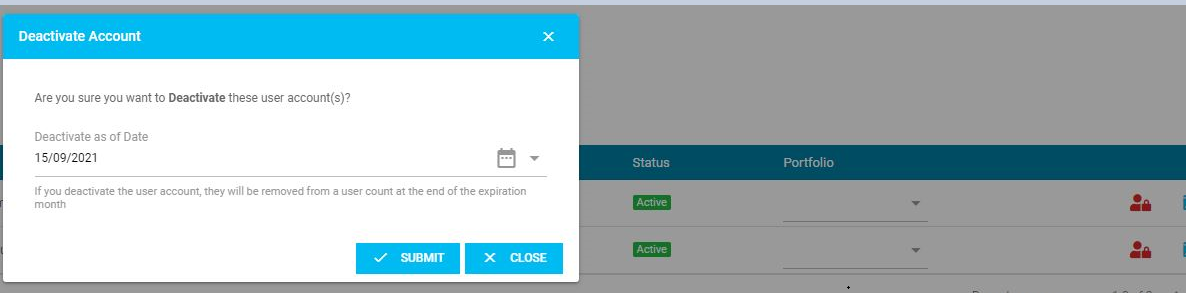
NOTE: this only deactivates the user account from that Client (database) you are in. If the user has access to other databases, e.g. A Test database then that needs to be separately deactivated.
Reactivate a User
- Find the User from the User List, ensuring you have selected the Show Inactive tick box.

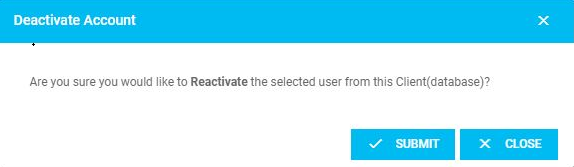
- Click Reactivate User Account button
- Click Submit
Was this article helpful?
That’s Great!
Thank you for your feedback
Sorry! We couldn't be helpful
Thank you for your feedback
Feedback sent
We appreciate your effort and will try to fix the article