The Email Configuration page allows a Trust Accountant user to configure the designated email address where emails are sent from. This article covers the steps to configure this in a Cirrus8 database.
DNS Settings Configuration
In order for the Email Configuration function to work, you must allow Cirrus8 to send emails on behalf of your company domain. To do this, please add the below to the domains DNS entry and contact support@cirrus8.com.au once done to confirm the default email address you wish correspondence to be sent from, direct from Cirrus8:
- v=spf1 a:mail.cirrus8.com.au a:mail2.cirrus8.com.au -all
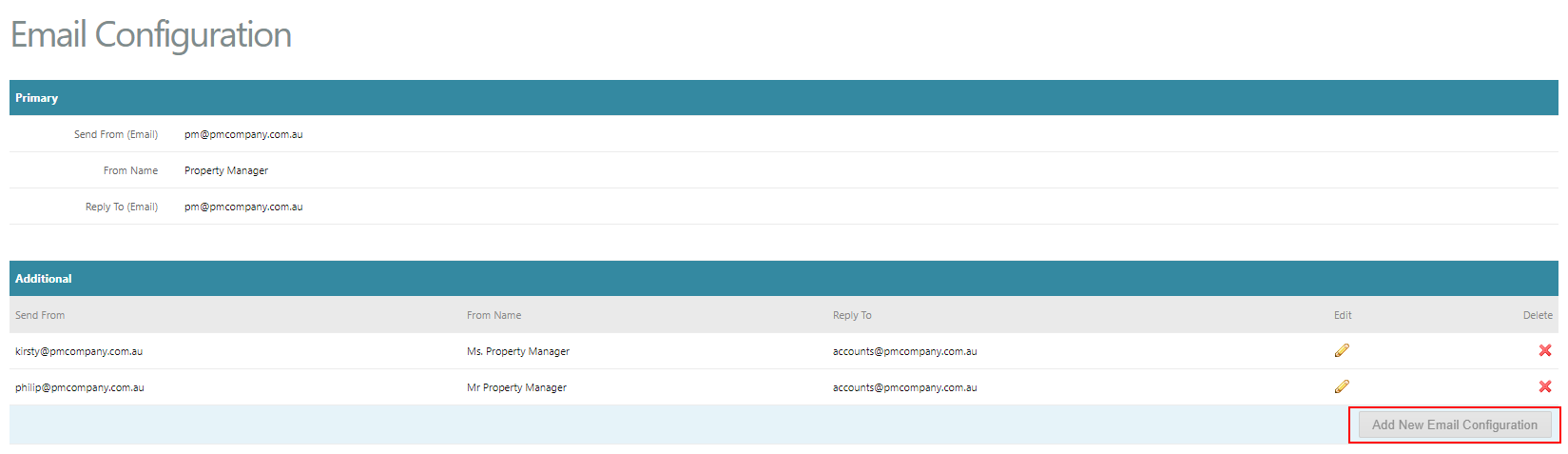
Add New Email Configuration
Once the Cirrus8 support team has set up your primary/default email setup, Trust Accountant users can configure further email setups by going to:
- Configuration > Email Configuration
- Click Add New Email Configuration
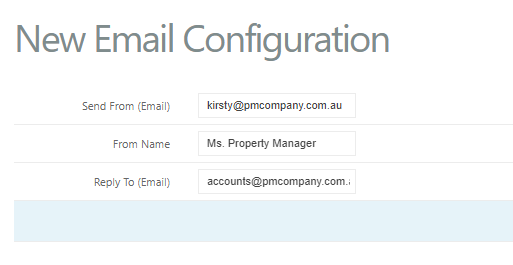
- Send From (Email): The email address you wish to email from
- From Name: The name you wish the email to be sent from
- Reply To (Email): The email address you wish the recipient to reply to
Please note that you can use a combination of email addresses - e.g. a different Send From and Reply To email address:

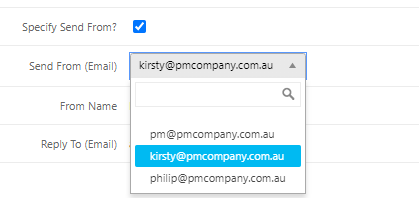
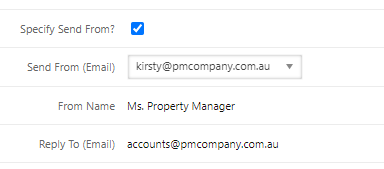
Specify Send From Email
In various sections of Cirrus8 such as Generate Tax Invoice, Generate Arrears Statements, Send Emails & Letters and Owner Reports, you can specify the sender details. This determines the 'From Name' and 'Reply To' email address used in the outgoing correspondence.
NOTE: All emails sent from other areas of Cirrus8 where correspondence can be issued will be sent via the primary/default setup. Please keep this in mind when determining your preferred setup.
Was this article helpful?
That’s Great!
Thank you for your feedback
Sorry! We couldn't be helpful
Thank you for your feedback
Feedback sent
We appreciate your effort and will try to fix the article