When receipting funds in Cirrus8, there are situations where money is received without an existing invoice to allocate the payment to.
In these cases, there are two ways to receipt the funds:
Sundry Receipt
Amount in Credit
The option selected determines how the funds are recorded and when they can be used.
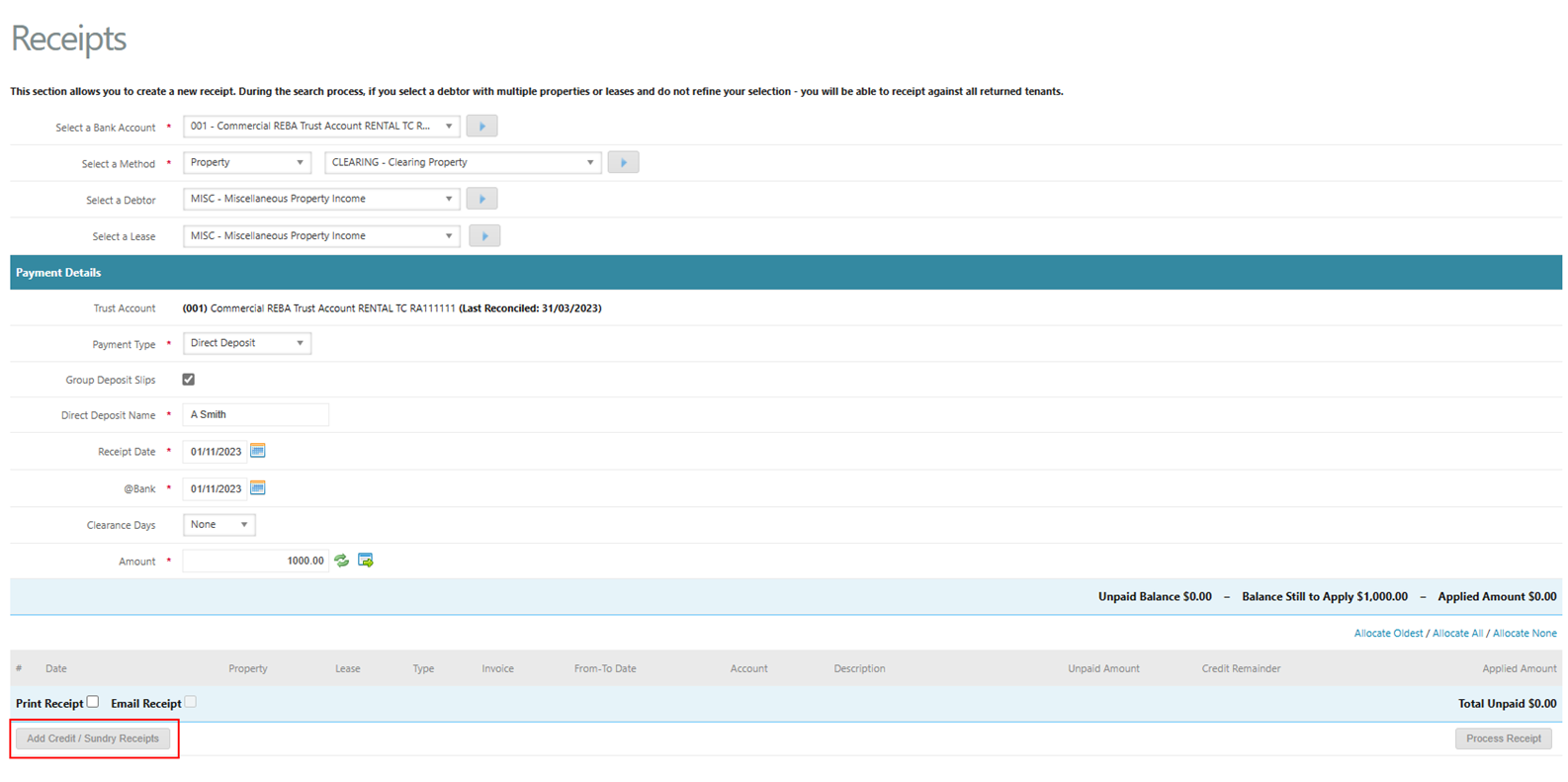
1. Sundry Receipt
What a Sundry Receipt Does
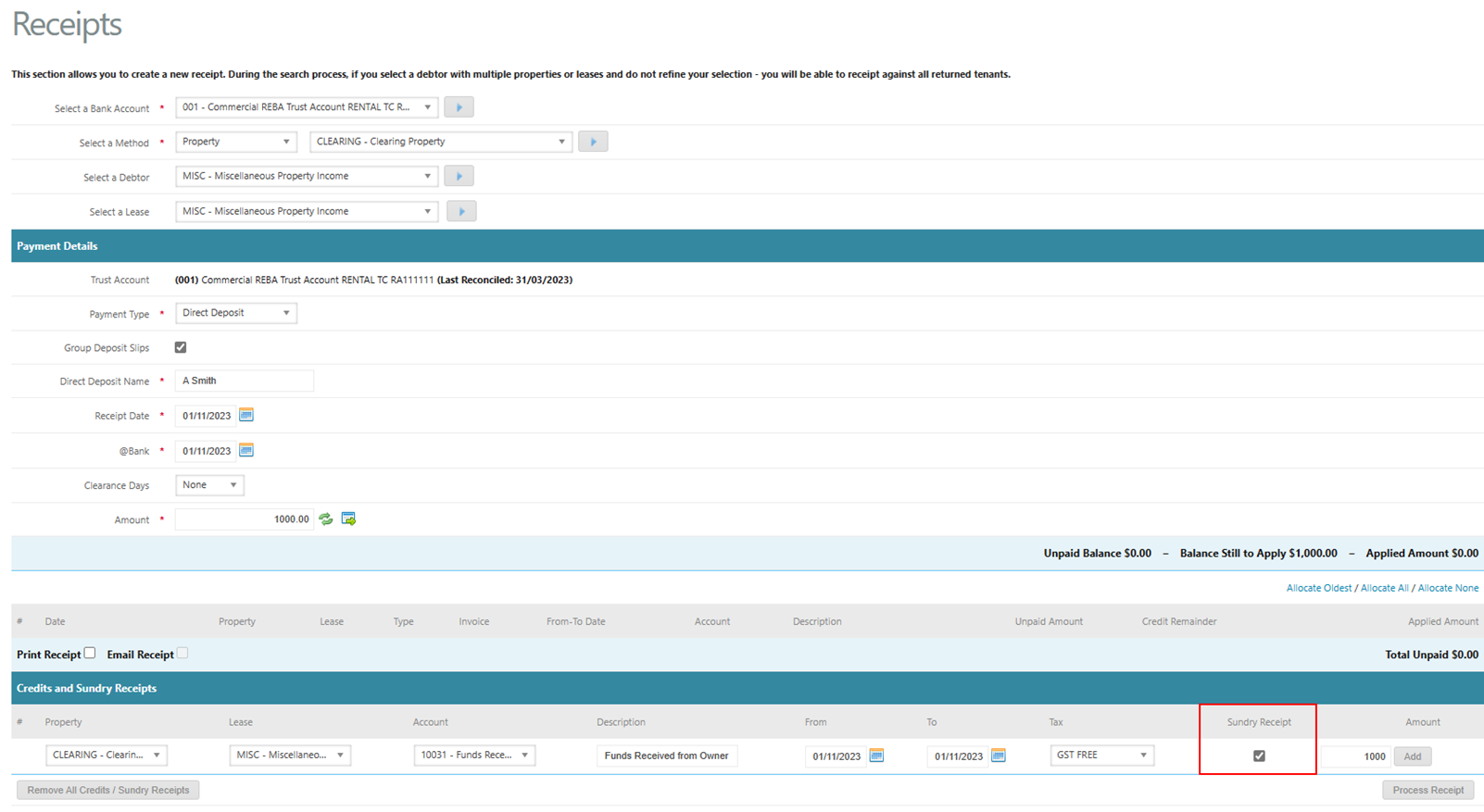
A Sundry Receipt automatically creates an invoice transaction and immediately allocates the received funds to that invoice.
Because the funds are attached to a transaction, they become available to use in the property immediately.
When to Use a Sundry Receipt
Use this option when the money represents income or funds that should be recognised straight away.
Typical examples include:
Owner Contributions
Insurance Claims
Sales Deposits
These payments are not linked to a tenant charge, but they still need to be recorded as a transaction in the system.
Steps to Process a Sundry Receipt
Go to Accounts Receivable.
Select Receipts.
Choose the relevant property or account.
Enter the payment details (date, amount, payment method, reference).
Tick the checkbox labelled “Sundry Receipt.”
Enter the appropriate account code and description.
Confirm the receipt and save the transaction.
Result
Cirrus8 creates a matching invoice automatically.
The funds are immediately available for property use.
When receipting, you will tick Sundry Receipt:
2. Amount in Credit
What an Amount in Credit Does
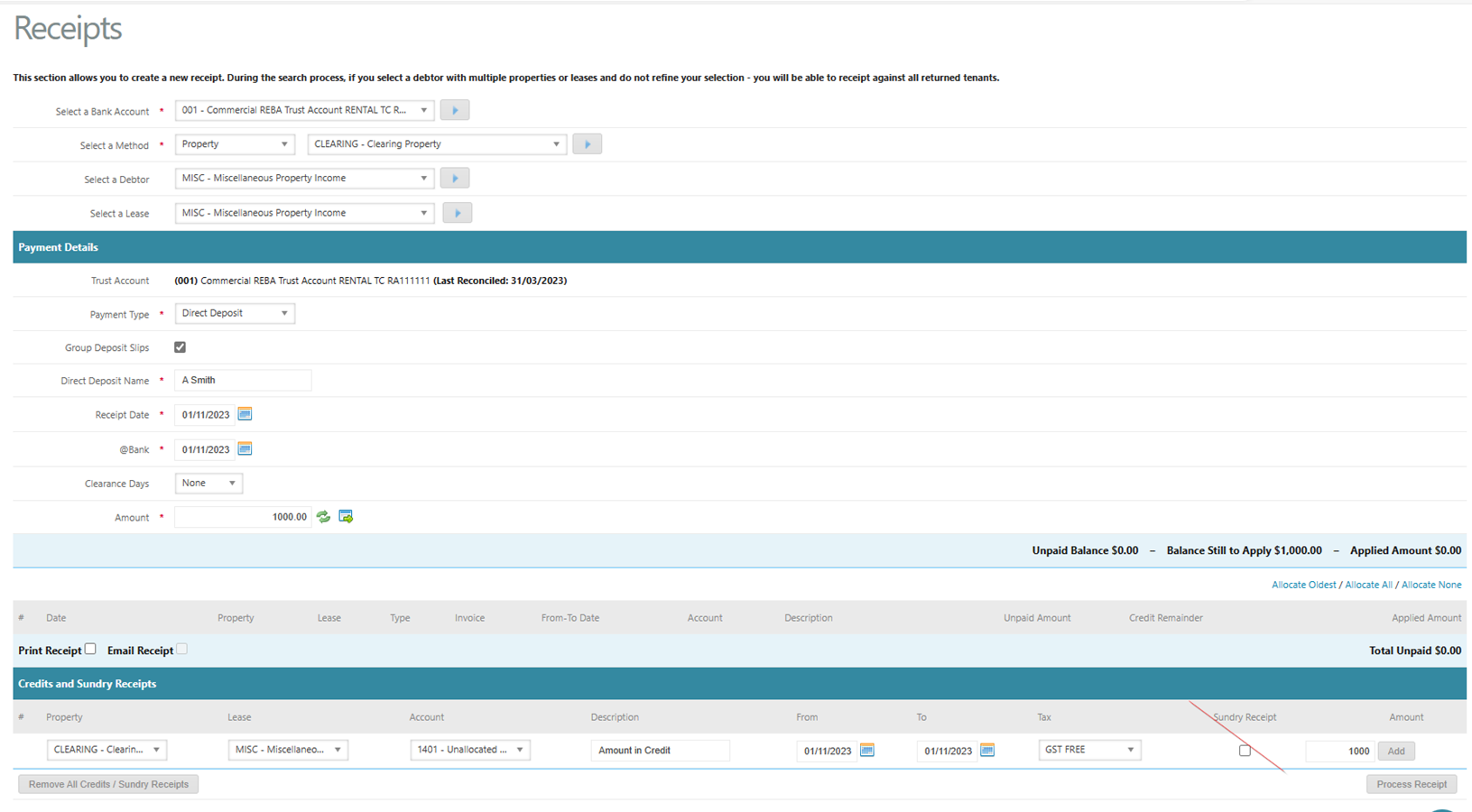
An Amount in Credit records money received without allocating it to a transaction.
The funds remain unallocated and reserved until a transaction is created later.
This means the system holds the funds in the property but does not recognise them as income yet.
When to Use Amount in Credit
Use this option when the payment may need to be allocated later or refunded.
Common examples include:
Tenant Overpayments
Leasing Deposits
Bonds
These funds are held until a relevant charge or invoice is created.
Steps to Receipt an Amount in Credit
Go to Accounts Receivable.
Select Receipts.
Choose the tenant or property account.
Enter the payment details.
Leave the “Sundry Receipt” box unticked.
Save the receipt.
Result
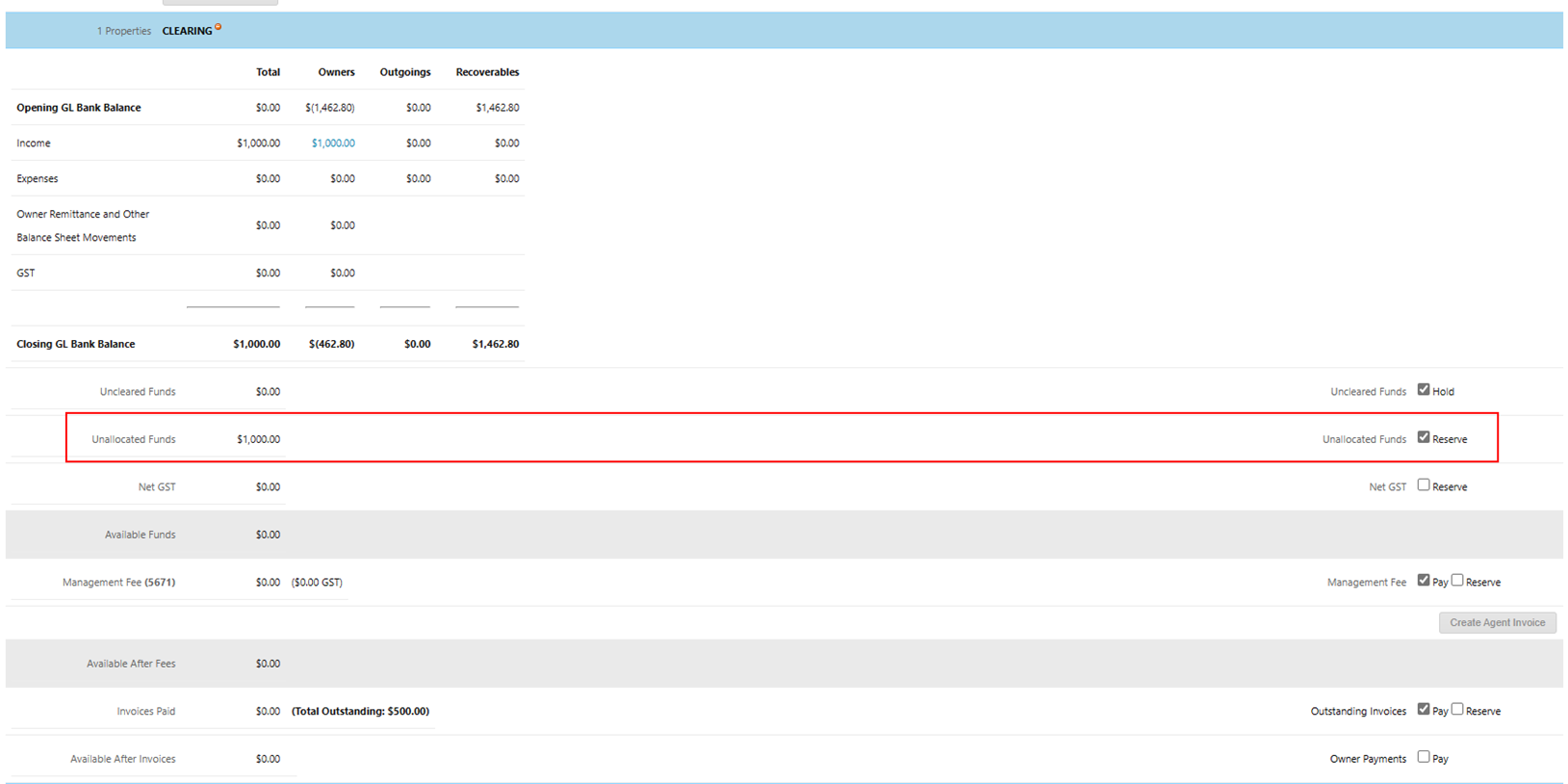
The funds are stored as unallocated credit.
They remain reserved in the property account until allocated.
When processing a payment run, these funds will be reserved by default. You are able to untick ‘Reserve’ if you wish to pay these funds out before they have been allocated however it is suggested that these are held until they have been allocated as a precaution in case the tenant asks for a refund of their overpayment:
FAQ
Finding Tenants with Unallocated Funds
To identify tenants with funds that have not yet been allocated:
Steps
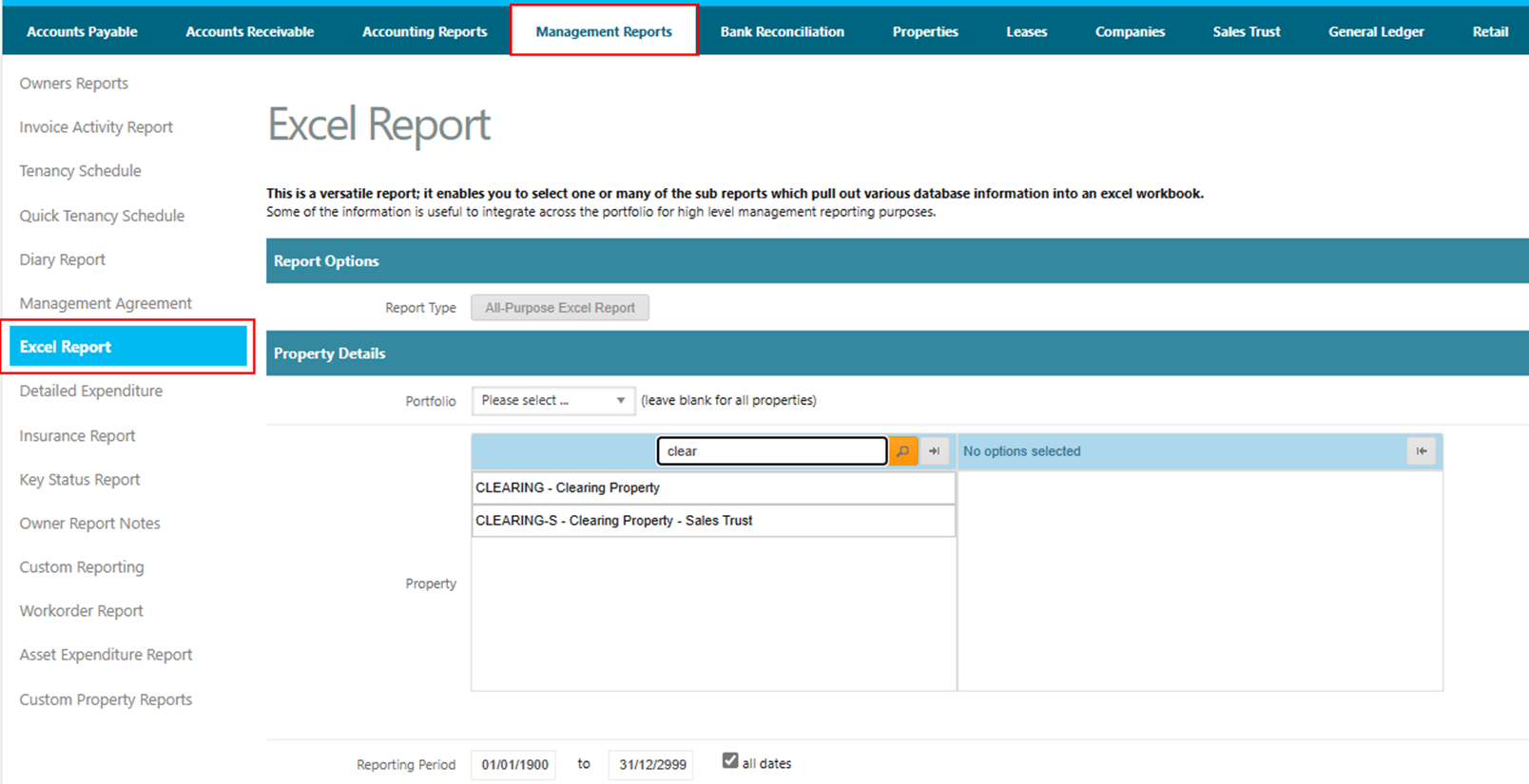
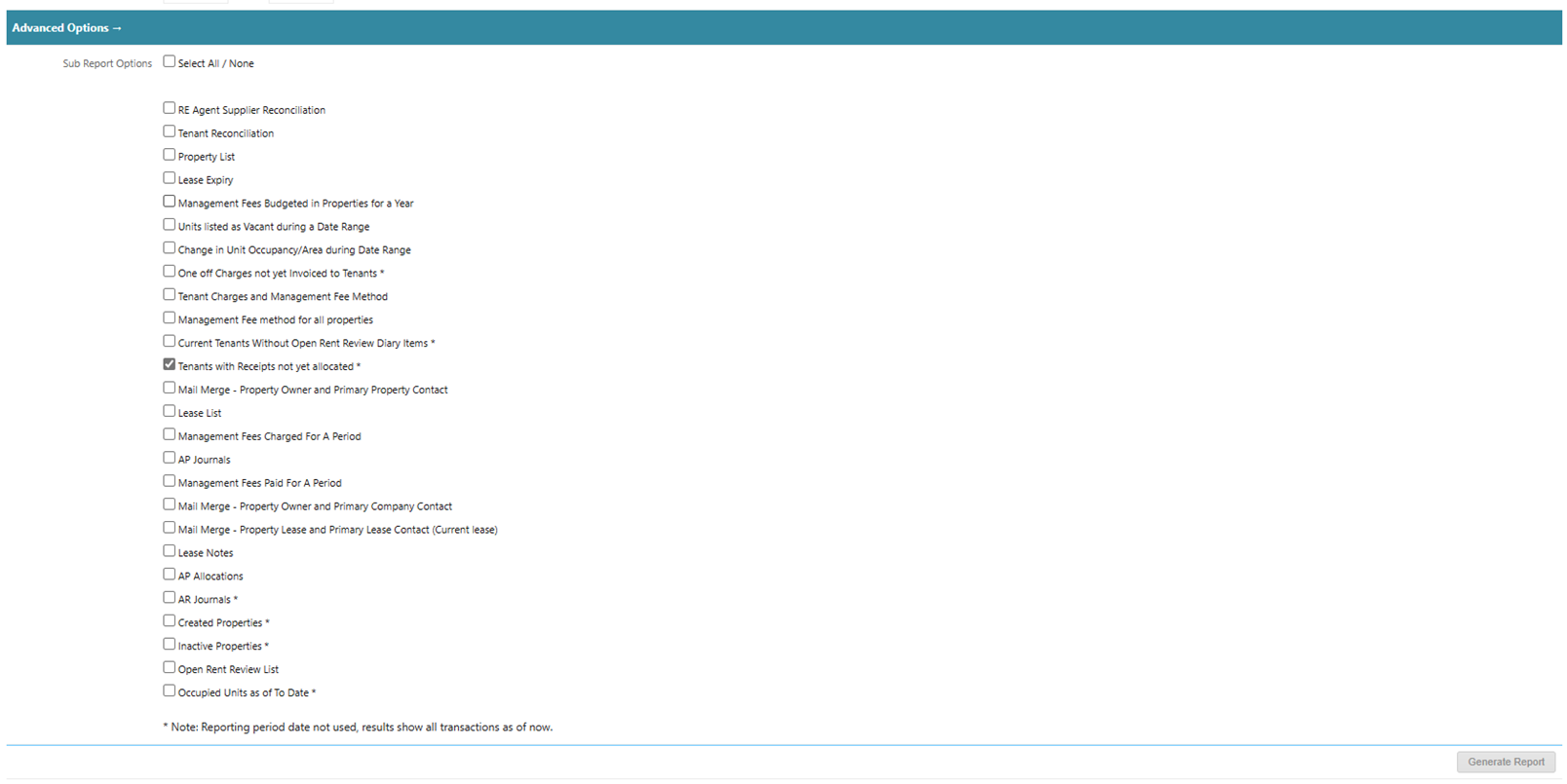
Go to Management Reports.
Select Excel Reports.
Run the report called
“Tenants with Receipts Not Yet Allocated.”
Result
The report will show all tenants currently holding unallocated credit.
How to Allocate an Amount in Credit
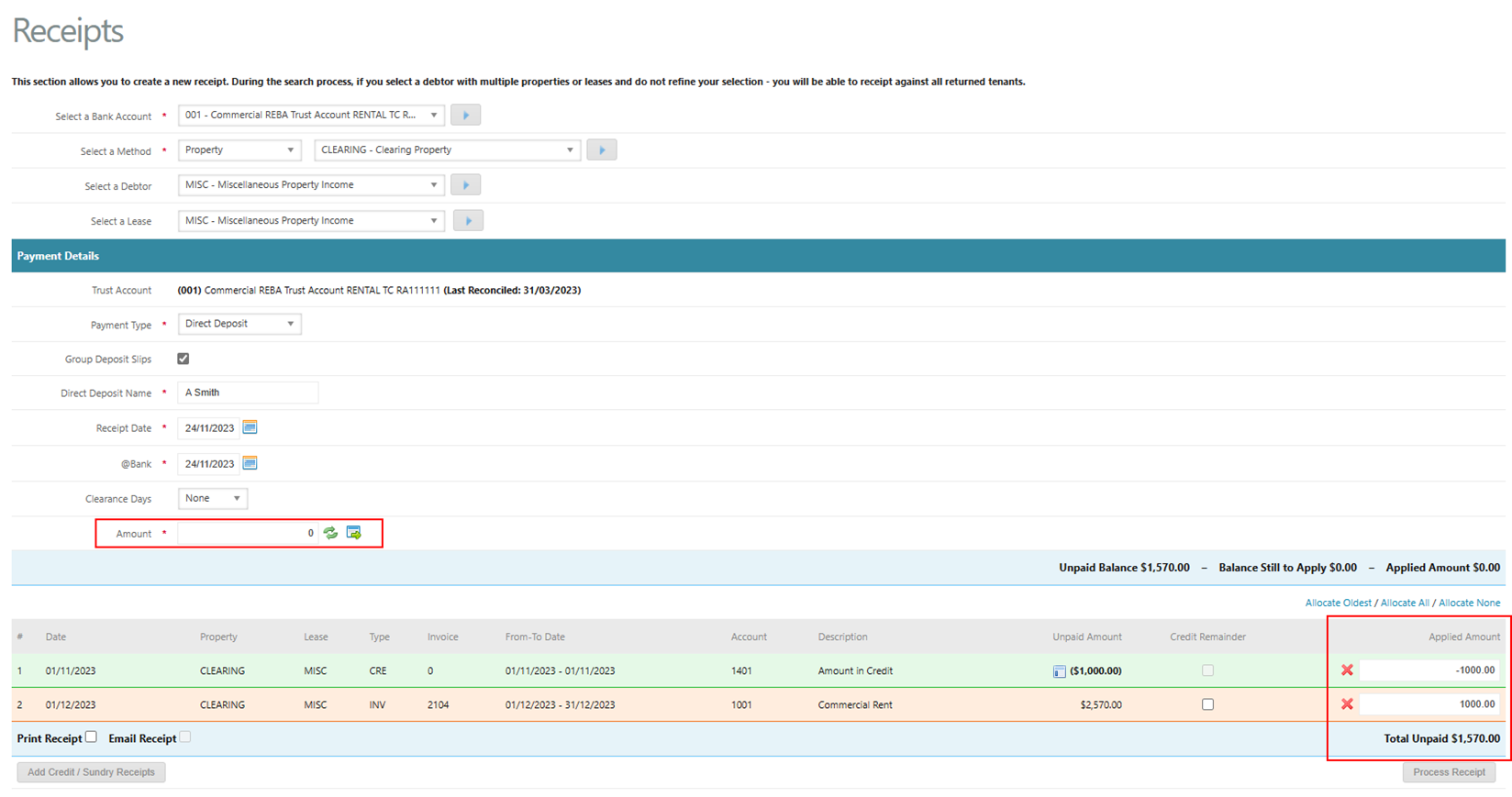
Credits are allocated using a Zero Receipt.
A Zero Receipt links the existing credit to a transaction without taking a new payment.
Steps to Allocate Credit
Go to Accounts Receivable.
Select Receipts.
Search for and open the relevant tenant account.
Create a new receipt.
The receipt amount will be $0.00.
Select:
The credit line item, and
The transaction you want to allocate the funds to.
Save the receipt.
Result
The credit is now allocated to the charge or invoice.
Fixing Common Errors
Error 1: Sundry Receipt Selected by Mistake
If you tick Sundry Receipt when you shouldn’t have, the funds are locked to an invoice and cannot be allocated elsewhere.
How to Fix
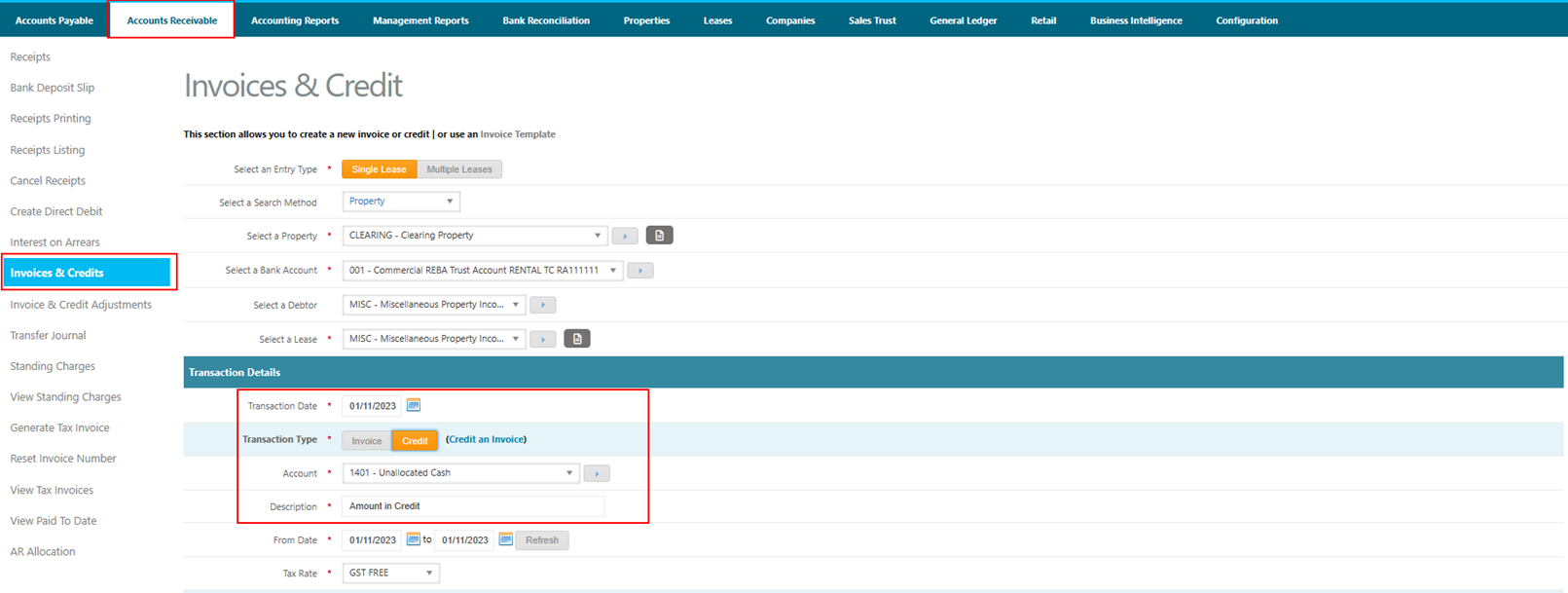
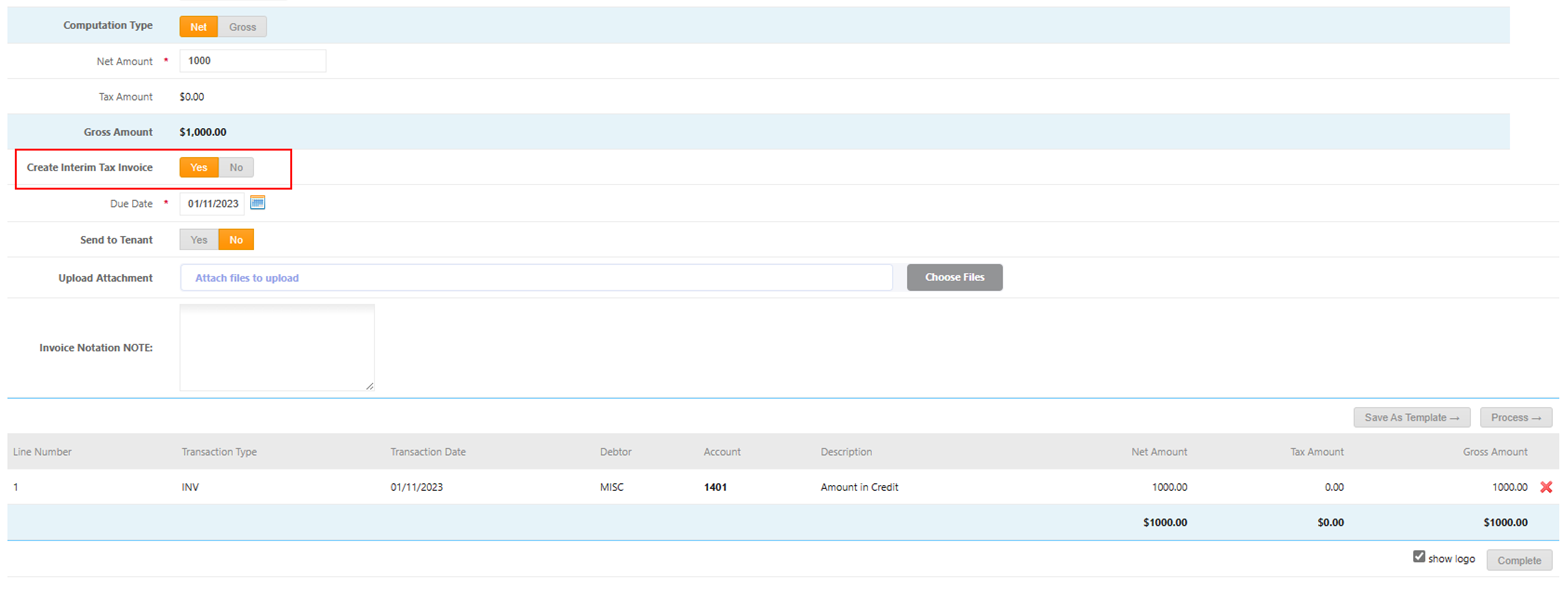
Raise an Accounts Receivable Credit.
Use:
The same amount
The same account code
The same description
Ensure “Create Interim Tax Invoice” is selected.
Save the AR Credit.
Create a Zero Receipt.
Allocate the credit to the correct charge.
Result
The original sundry invoice is offset and the funds can now be allocated correctly.
Error 2: Sundry Receipt Not Selected When It Should Be
If the receipt was processed as Amount in Credit but should have been Sundry:
How to Fix
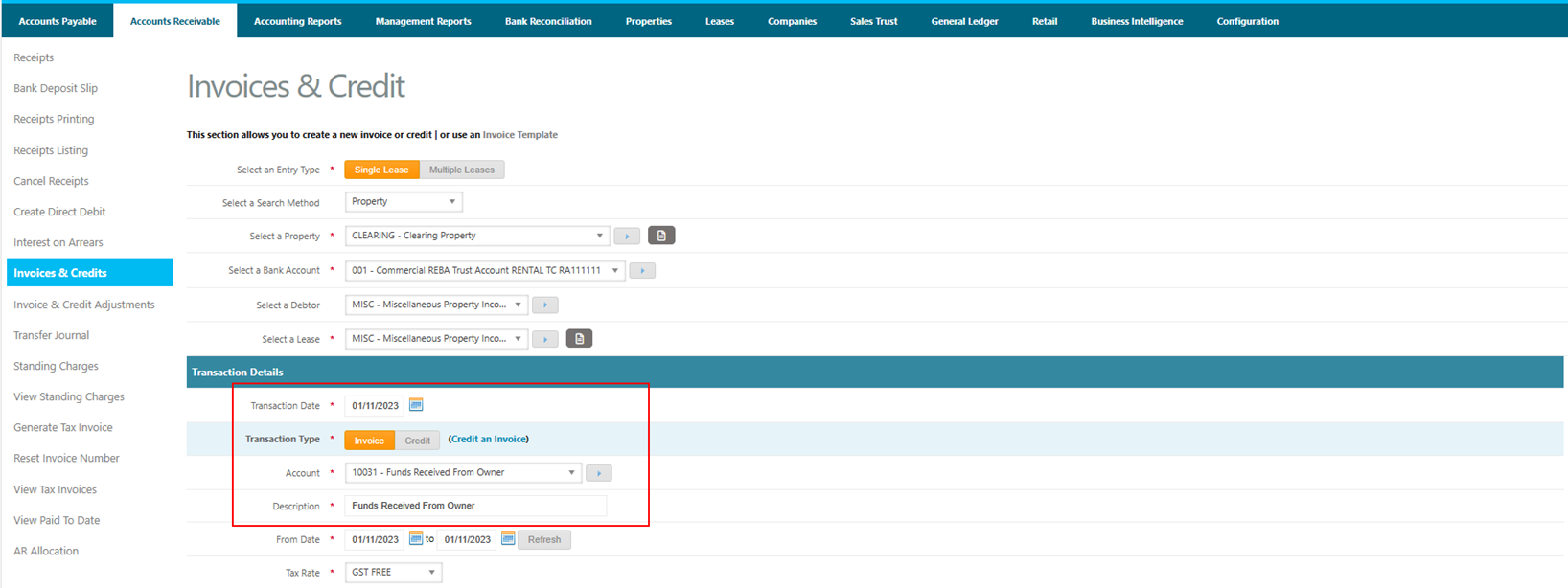
Raise an Accounts Receivable Invoice.
Enter:
The same amount
The same account code
The same description
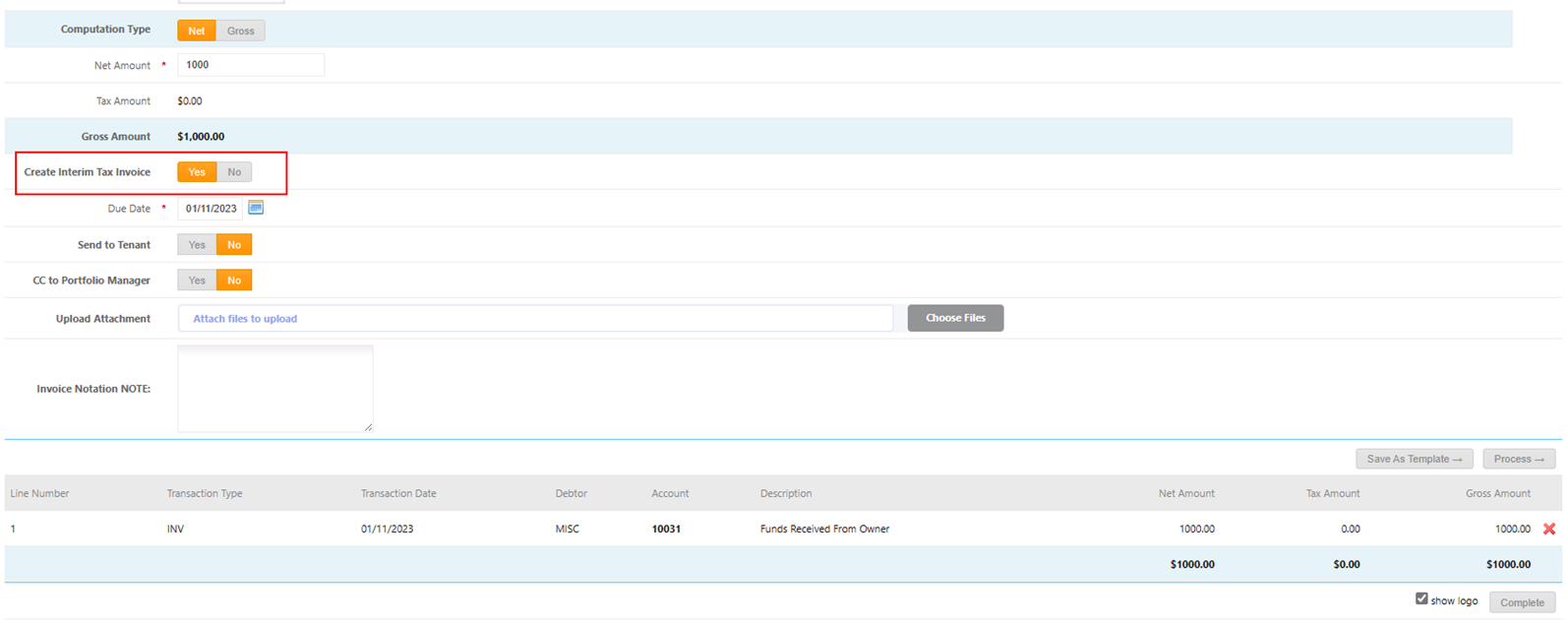
Ensure “Create Interim Tax Invoice” is selected.
Save the invoice.
Process a Zero Receipt.
Allocate the existing credit to the invoice.
Result
The credit is allocated and the transaction becomes recognised income.
Was this article helpful?
That’s Great!
Thank you for your feedback
Sorry! We couldn't be helpful
Thank you for your feedback
Feedback sent
We appreciate your effort and will try to fix the article