This article provides steps on how to receipt funds received from an Owner as an owner contribution to a property.
Firstly you will need to ensure there is a MISC lease set up under the property you wish to receipt the finds to. If there is no MISC lease set up in the Property, a Trust Accountant user will need to create this following the steps here: Create a MISC Lease
Once a MISC lease has been created, you will be able to receipt your Owner Contribution following the below steps:
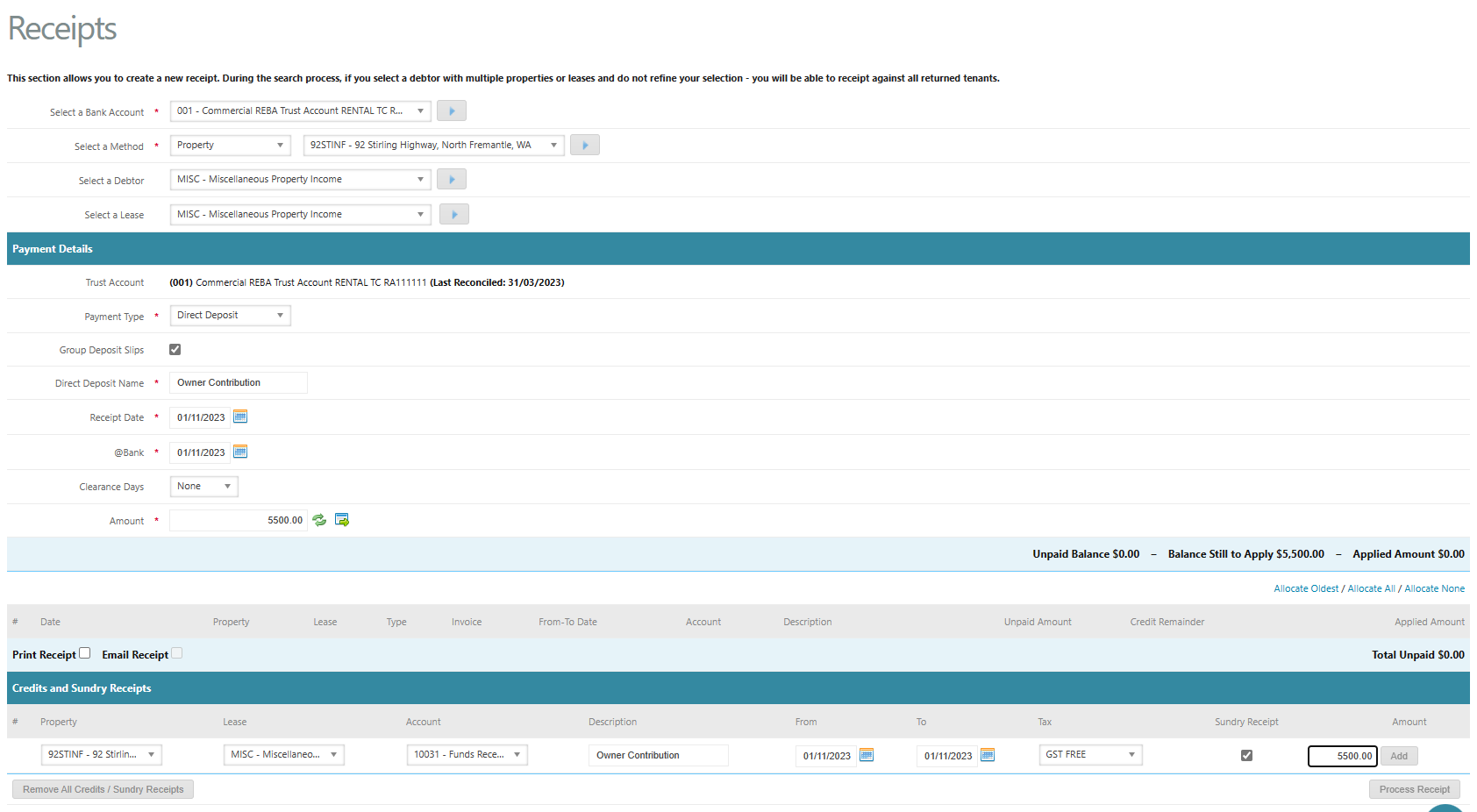
Go to Accounts Receivable > Receipts:
- Property - Select the property funds are to be receipted to
- Lease - Select the MISC Lease
- Direct Deposit Name - Name of who made payment (as per bank statement)
- Receipt Date & @Bank Date - Enter the date funds were received
- Amount - Enter the amount received from the owner
- Click on Add Credit / Sundry Receipt
- Account - Select the Balance Sheet account code - e.g. Owner Contribution
- Enter the Description as required e.g. Funds Received From Owner
- Leave the From and To dates as the @Bank date
- Tax - Should be left as GST Free
- Tick Sundry Receipt (IMPORTANT - if this step is missed, see how to correct this here: Amount In Credit/Sundry Receipts)
- Enter Amount
- Click Add
- Click Process Receipt
Was this article helpful?
That’s Great!
Thank you for your feedback
Sorry! We couldn't be helpful
Thank you for your feedback
Feedback sent
We appreciate your effort and will try to fix the article