The Properties tab allows users to view and manage information about a specific property.
To begin, open the Properties tab and select the property you want to work with.
Once a property is selected, several sections will appear where you can view or manage information.
1. Viewing Tenants
Step 1
Open the Tenants section under the selected property.
Step 2
Select or Review the tenant information displayed.
Please Note (If using subscribed to CirrusFM)
Tenant information is automatically pulled from Cirrus8.
This means you cannot edit tenant details directly in CirrusFM. Any updates must be made in Cirrus8, and they will sync to CirrusFM.
2. Viewing or Managing Property Contacts
Step 1
Navigate to the Contacts section for the property.
Step 2
View the list of contacts associated with the property.
Please Note (If using subscribed to CirrusFM)
Contacts are usually managed in Cirrus8.
If you need to add or change contacts, it is recommended that you update them in Cirrus8, and the changes will automatically appear in CirrusFM.
3. Setting Preferred Suppliers
Preferred suppliers are contractors or service providers that are recommended for work at a particular property.
Step 1
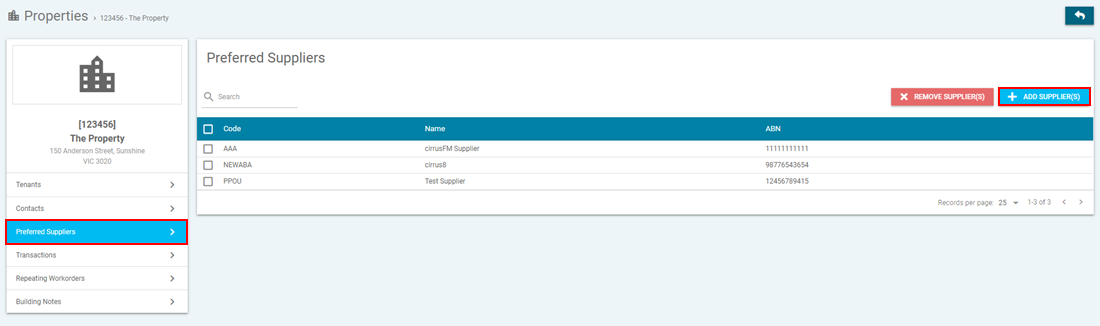
Go to the Preferred Suppliers section within the property.
Step 2
Click Select Preferred Suppliers.
Step 3
Click Add Suppliers.
Step 4
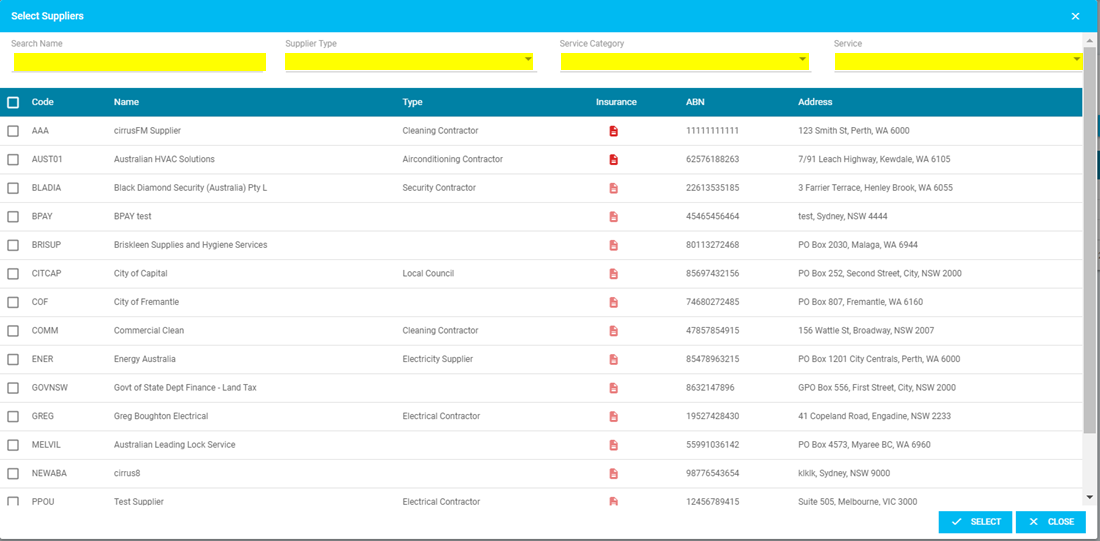
A pop-up window will appear.
In this window you can:
Use filters to search for suppliers, or
Scroll through the full supplier list.
Step 5
Tick the suppliers you want to assign as preferred suppliers for the property.
Step 6
Click Select to confirm.
Result
The selected suppliers will now appear in the Preferred Suppliers list.
Removing a Preferred Supplier
If a supplier should no longer be preferred:
Tick the box next to the supplier’s name.
Click Remove Supplier.
Please Note
When creating quotes or work orders, the system will automatically display preferred suppliers first.
However, you can untick the Preferred Supplier filter if you want to see all available suppliers.
4. Viewing Transactions
The Transactions section displays all work activity related to the property.
This includes:
Quotes
Work Orders
Step 1
Open the Transactions tab.
Step 2
Use the filters at the top of the page if needed:
Available filters include:
Keyword
Transaction Type
Priority
Step 3
Click on a Quote or Work Order to view more details.

5. Viewing Repeating Work Orders
Repeating work orders are jobs that occur on a regular schedule (for example servicing, inspections, or maintenance).
Step 1
Select the Repeating Workorders tab.
Step 2
View the list of repeating work orders assigned to the property.
Step 3
Use filters if needed:
Keyword
Priority
Step 4
Click a work order to see its details.
Explanation
Repeating work orders ensure routine maintenance is automatically scheduled and managed.

Reference Notes
Reference notes provide important information for suppliers.
Examples:
Location of the electrical switchboard
Access instructions
Safety information
Important
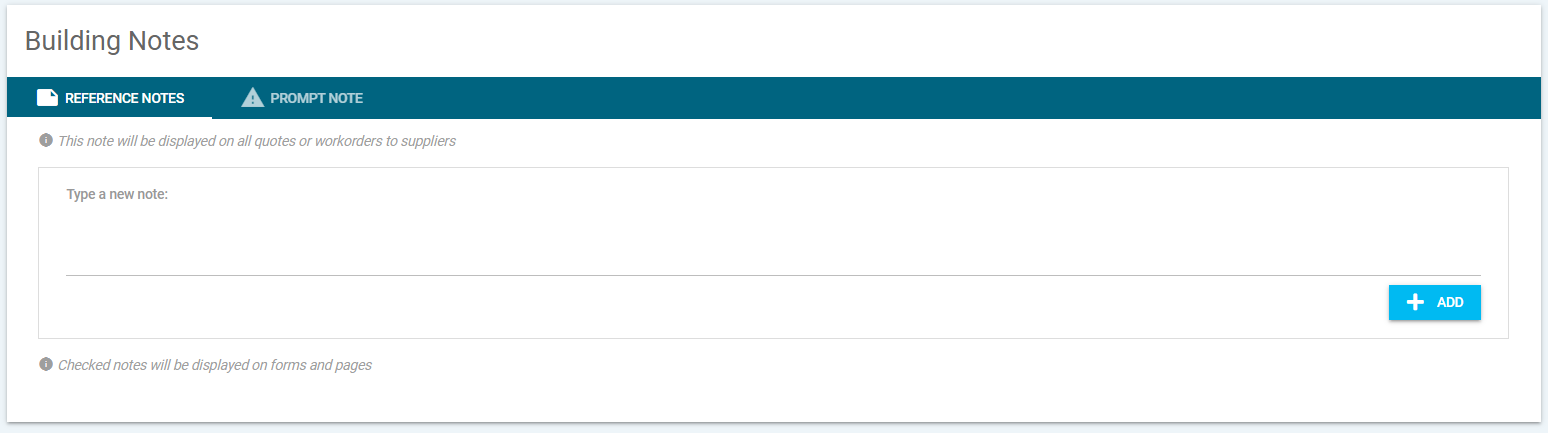
Reference notes appear on every quote and work order created for that property.
Step 1
Go to Building Notes.
Step 2
Enter the note in the text field.
Step 3
Click ADD to save the note.
Editing or Removing a Note
If a mistake was made:
Click the red X next to the note.
The note will be deleted.
Prompt Notes
Prompt notes act as reminders when creating a quote or work order.
Step 1
In Building Notes, select the PROMPT NOTE tab.
Step 2
Enter the reminder text.
Result
When a user creates a new quote or work order, the prompt note will appear as a pop-up notification.
Example Use
“Check building access with concierge before booking supplier.”
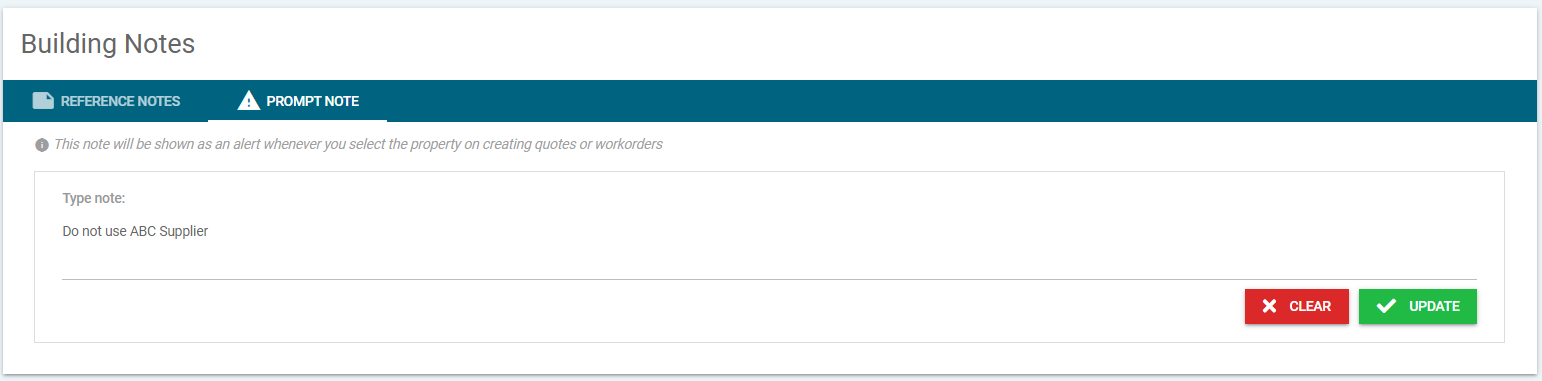
Then when you go to create a quote or workorder this will appear as a pop-up window.

7. Adding Property Documents
Documents related to the property can be uploaded and shared with suppliers.
Examples:
Building plans
Safety documents
Manuals
Compliance certificates
Step 1
Go to Property Documents.
Step 2
Click the + icon under Upload a new document.
Step 3
Select the document from your computer.
Step 4
Enter:
Document Title
Description
Step 5
Save the document.
Available Actions
Once uploaded, you can:
Download the document
Hide from suppliers
Delete the document
Please Note:
Documents uploaded here can automatically appear on quotes and work orders, allowing suppliers to download them if needed.

8. Managing Assets
Assets are items within the property that may require maintenance or tracking.
Examples:
Air conditioning units
Appliances
Furniture
Equipment
Creating a New Asset
Step 1
Go to the Assets section.
Step 2
Click Create New Asset.
Step 3
Fill in the asset details.

Then the below will appear.
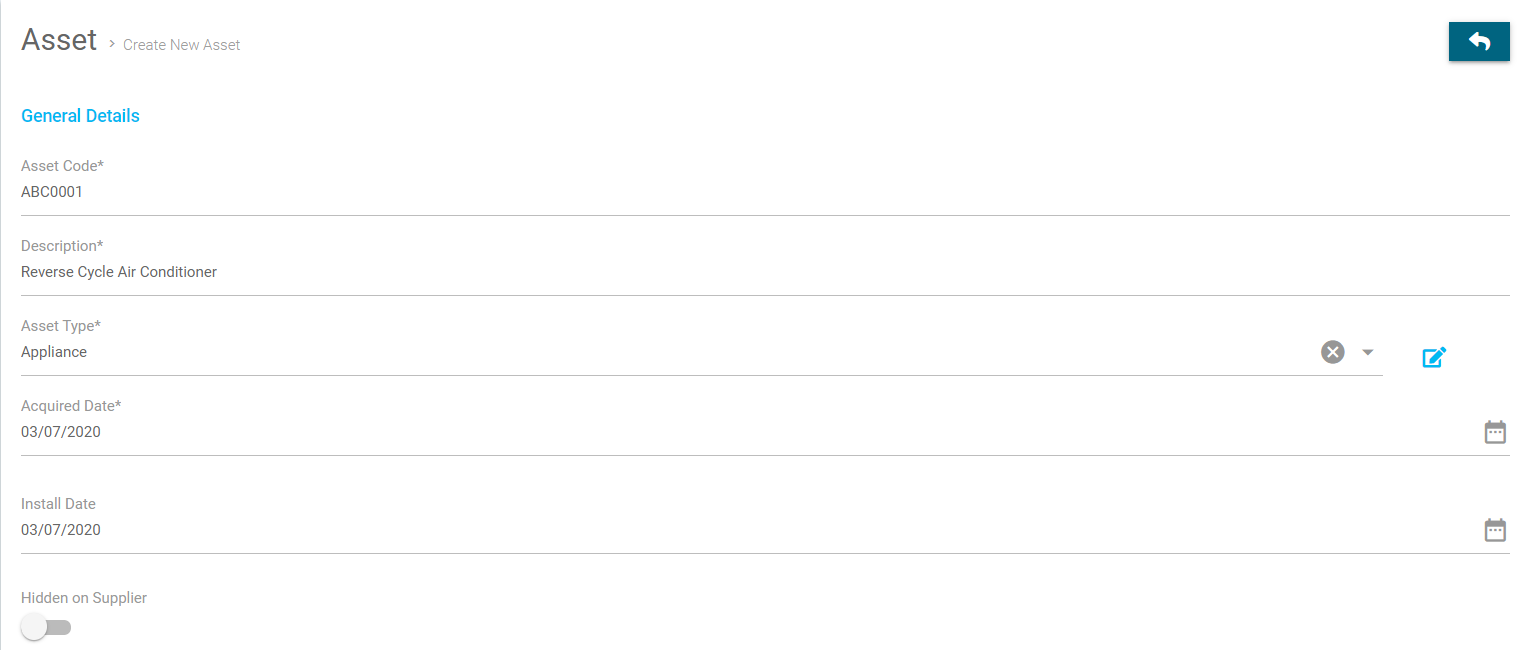
Asset Fields Explained
Asset Code
A unique identifier for the asset.
Maximum 10 characters.
Letters and numbers only (no special characters).
Description
A short explanation of what the asset is.
Asset Type
The category of asset (e.g., Furniture, Appliance).
If the asset type does not exist:
Click the + icon to create a new type.
Acquired Date
The date the asset was purchased or obtained.
Install Date
The date the asset was installed in the property.
Hidden from Supplier Toggle
If enabled, suppliers cannot see the asset, even if it is included in a work order.
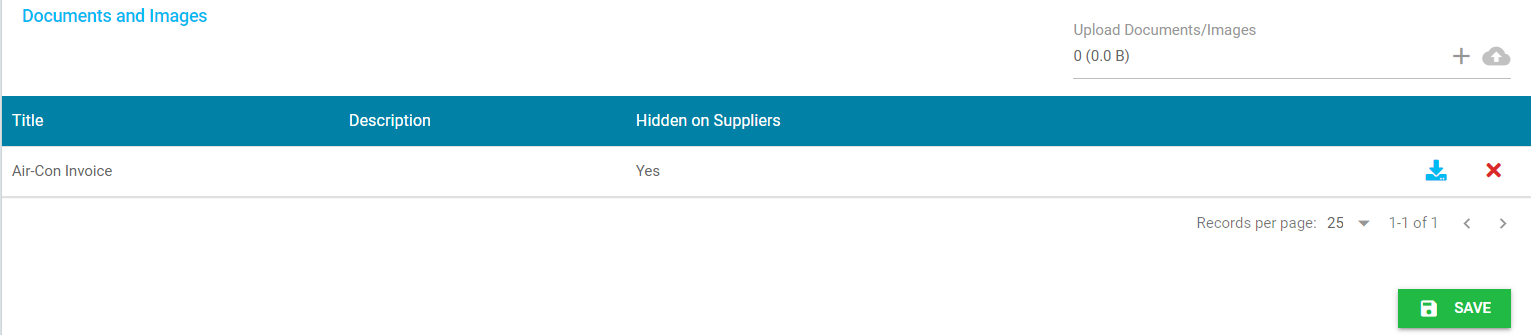
Uploading Asset Documents or Images
Step 1
Click the + icon in the asset section.
Step 2
Upload documents or images.
Examples include:
Installation invoices
Photos
Manuals
Warranty documents
Step 3
Choose whether the document should be hidden from suppliers.
- workorder.
Summary
The Properties tab allows users to manage key property information, including:
Tenant details
Contacts
Preferred suppliers
Maintenance transactions
Repeating work orders
Building notes
Property documents
Asset tracking
This centralised system ensures all property-related information is organised and accessible when creating quotes, managing suppliers, or scheduling maintenance.
Was this article helpful?
That’s Great!
Thank you for your feedback
Sorry! We couldn't be helpful
Thank you for your feedback
Feedback sent
We appreciate your effort and will try to fix the article