Customers who add this module will be able to SMS tenants directly from the Lease Summary screen and the Generate Arrears Statement screen. A record of each SMS will be retained within the Communication History section of the relevant lease.
How to Use SMS Module
The SMS functionality from the Lease Summary screen needs your contacts to have a mobile setup against them. This will not work with any other selection, for example phone, or owner mobile. For information on adding contacts to a lease please refer to the Contacts section in this link: Lease Summary
There are three ways to send an SMS to a contact as follows:
Send SMS via Lease Summary Contacts
Once this is done you can send a SMS from the Lease Summary > Contact Details section by clicking the green button here:

A screen will pop up that allows you to customize the message contents. Type the message in the message field. Mobile Number, Contact Name and Salutation will all populate from the contact:
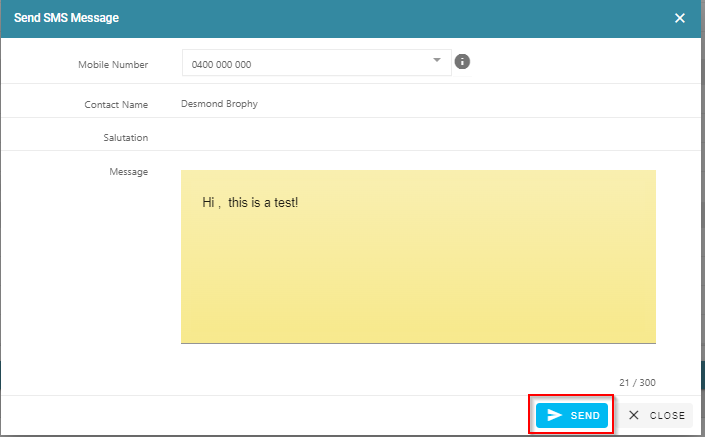
Press Send to send the SMS to the contact recipient.
Send SMS via Lease Summary Options
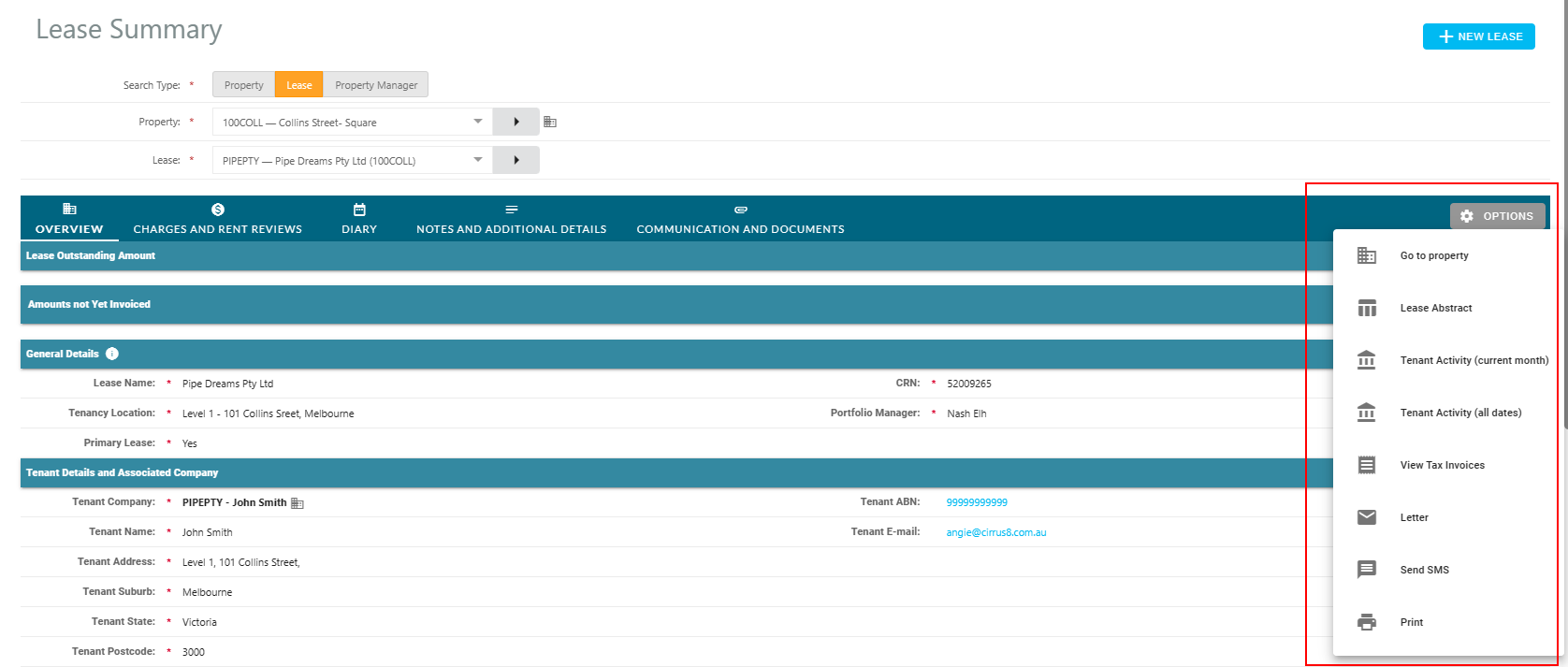
- Go to Leases > Lease Summary
- Select Lease
- Click Options
- Click Send SMS
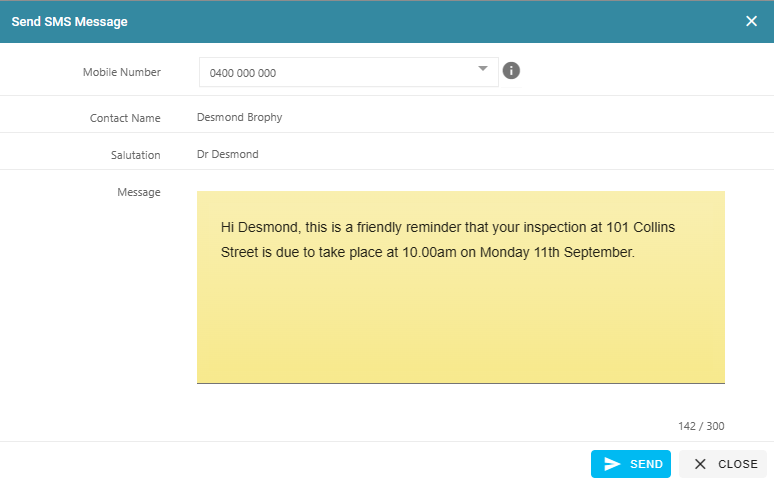
- The SMS Module will pop up. Type in the SMS message as required
- Click Send
Send SMS via Arrears Statement
You can also send an SMS from the Generate Arrears Statement screen as follows:
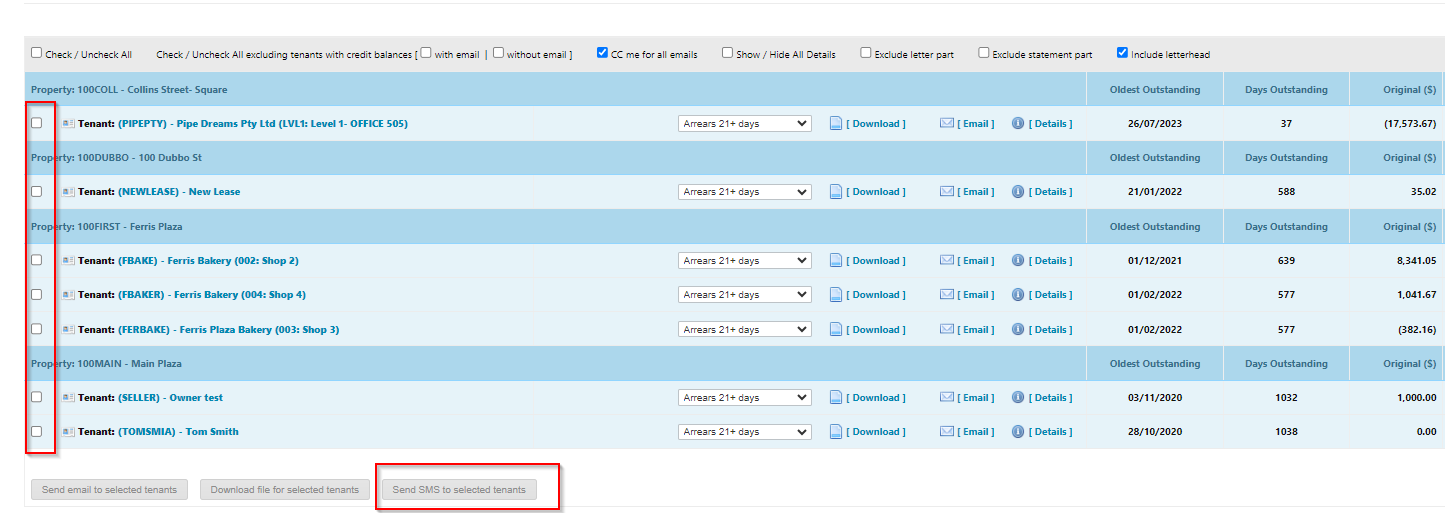
- Go to Accounting Reports > Generate Arrears Statement
- Select the Report Options as required
- Next to the report result entries, check the tick boxes next to the tenant you wish to send an SMS to
- Click Send SMS to selected tenants
Was this article helpful?
That’s Great!
Thank you for your feedback
Sorry! We couldn't be helpful
Thank you for your feedback
Feedback sent
We appreciate your effort and will try to fix the article