This article covers the functionality of external links within CirrusFM, how to create an external link for work requests, check in functions and documents & registers and additionally how to configure link templates.
This function can be accessed by an Administrator and Facility Manager user which allows the user to create a QR Code by creating an external link for a property or tenant.
Create External Links
- Click External Links under the Work Request tab

- Click Create Link

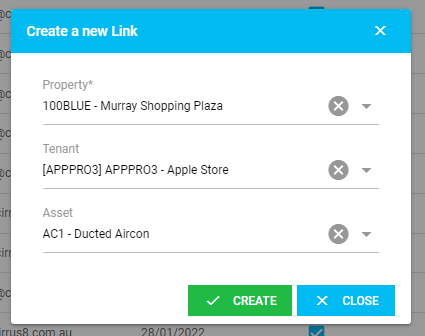
- Select the property, tenant (optional) and asset (optional) from the drop down menu and click Submit. The tenant and asset option will appear once the property has been selected
NOTE: You will not need to select a tenant or asset if a separate link for each one is not required.
Configure Templates

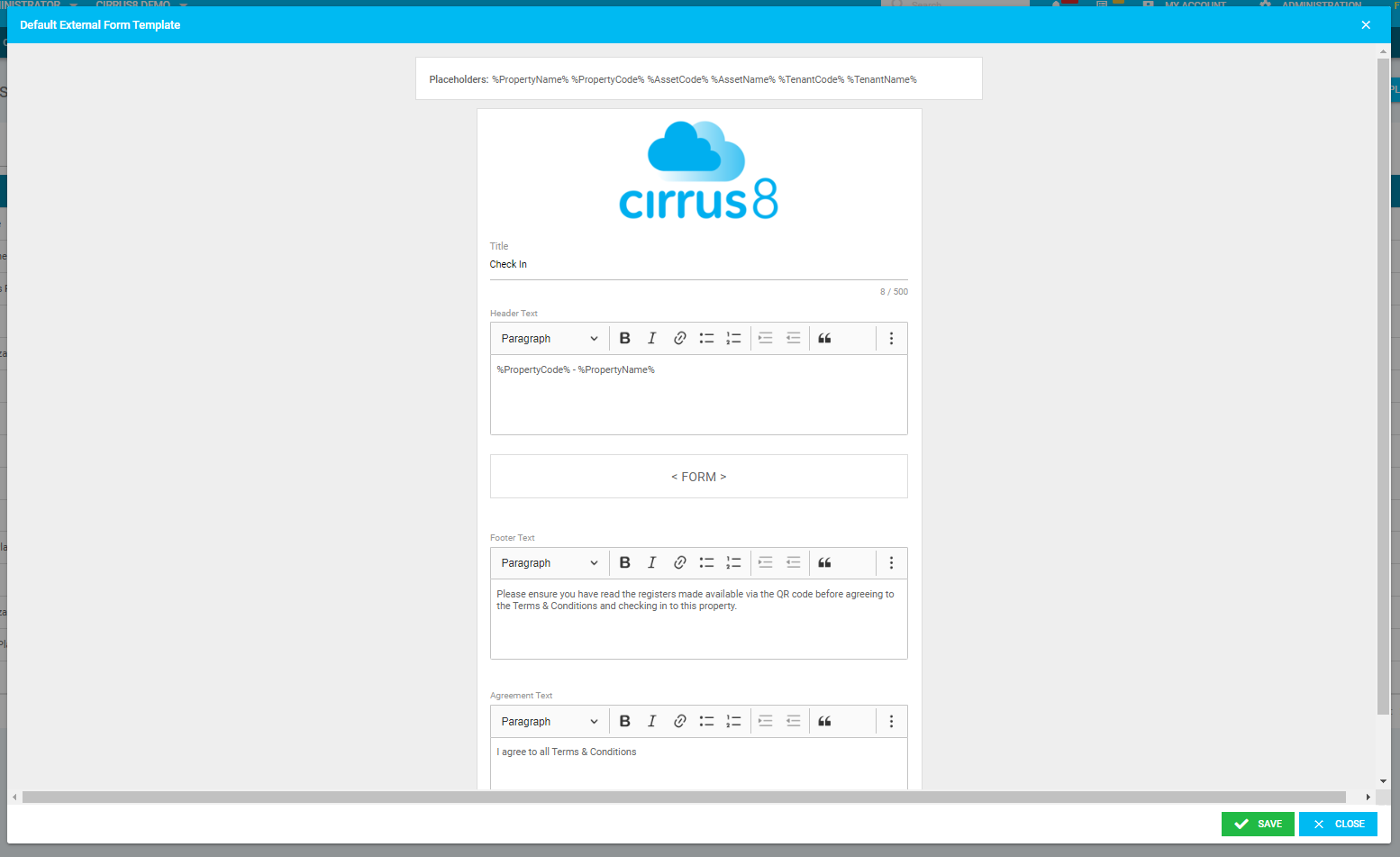
- Select the template you wish to configure by clicking the relevant button (Check-In Template / Form Template / Print Template)
- Using the placeholders available, enter the preferred Title, Header, Footer & Agreement Text. This text will be used as a default for all QR codes with check-in functionality enabled, however, you can amend this via the customise icons for the relevant links
Link Functions
Check In Enabled & Check In Agreement
This function will allow you to use the QR code for site check-ins for an external link

- Select ‘Check In Enabled’ and ‘Check In Agreement’ check box for the relevant link
- Click the check-in icon to customise the check-in template
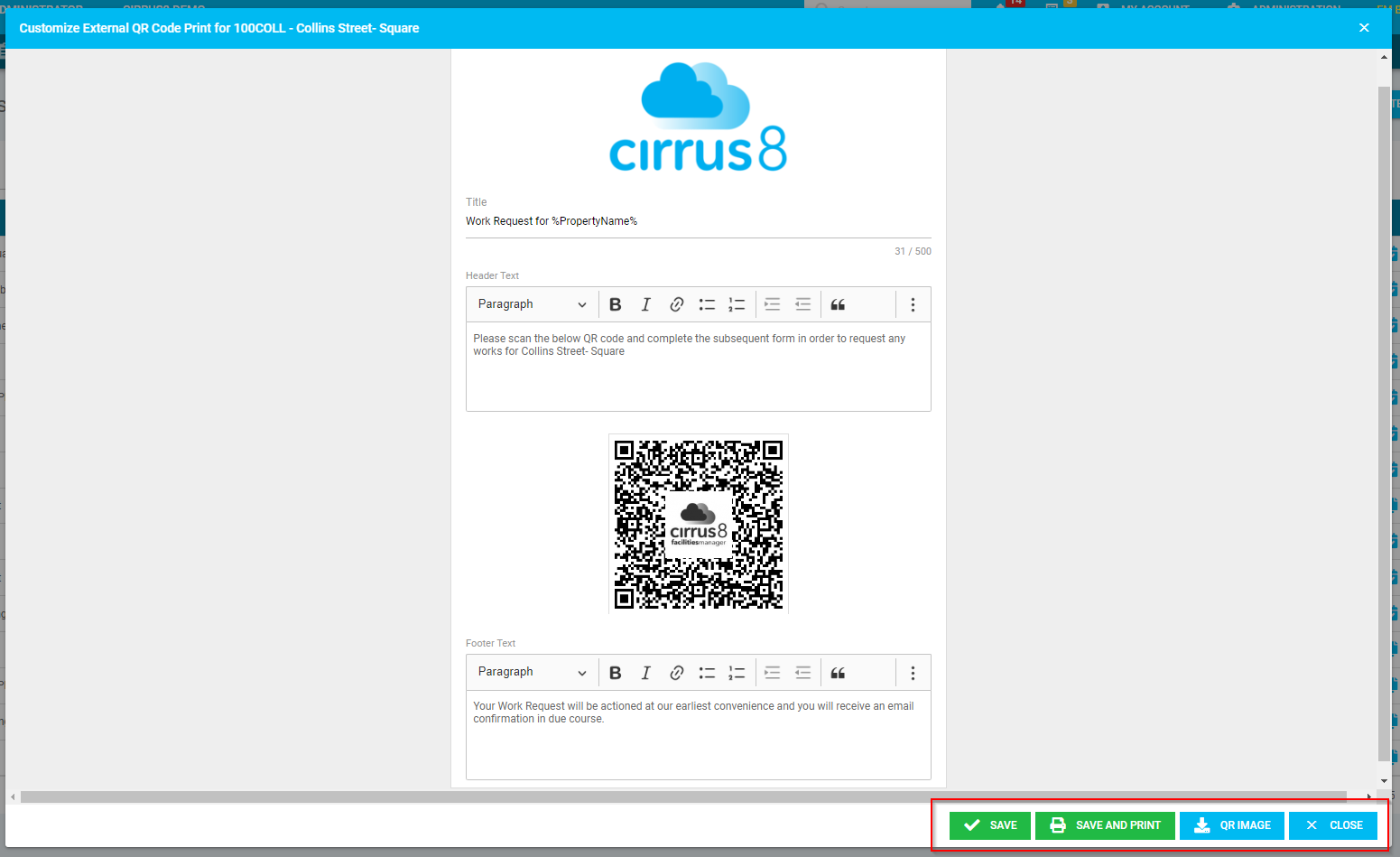
- Click the QR Icon to action the following:-
- Customise the text for print template
- Click Save to save the changes
- Click Save and Print to save the changes and print the template
- Click QR Image to download and print the QR Code
- Click Close to close the pop-up
Documents & Registers
This function will allow you to link a document or register by using the QR code for inductions and acknowledgement of a registered document by a contractor to an external link.

- Upload relevant documents via the Properties tab.
- Select ‘Documents’ and/or ‘Registers’ check box
- Click the form icon to customise the form template
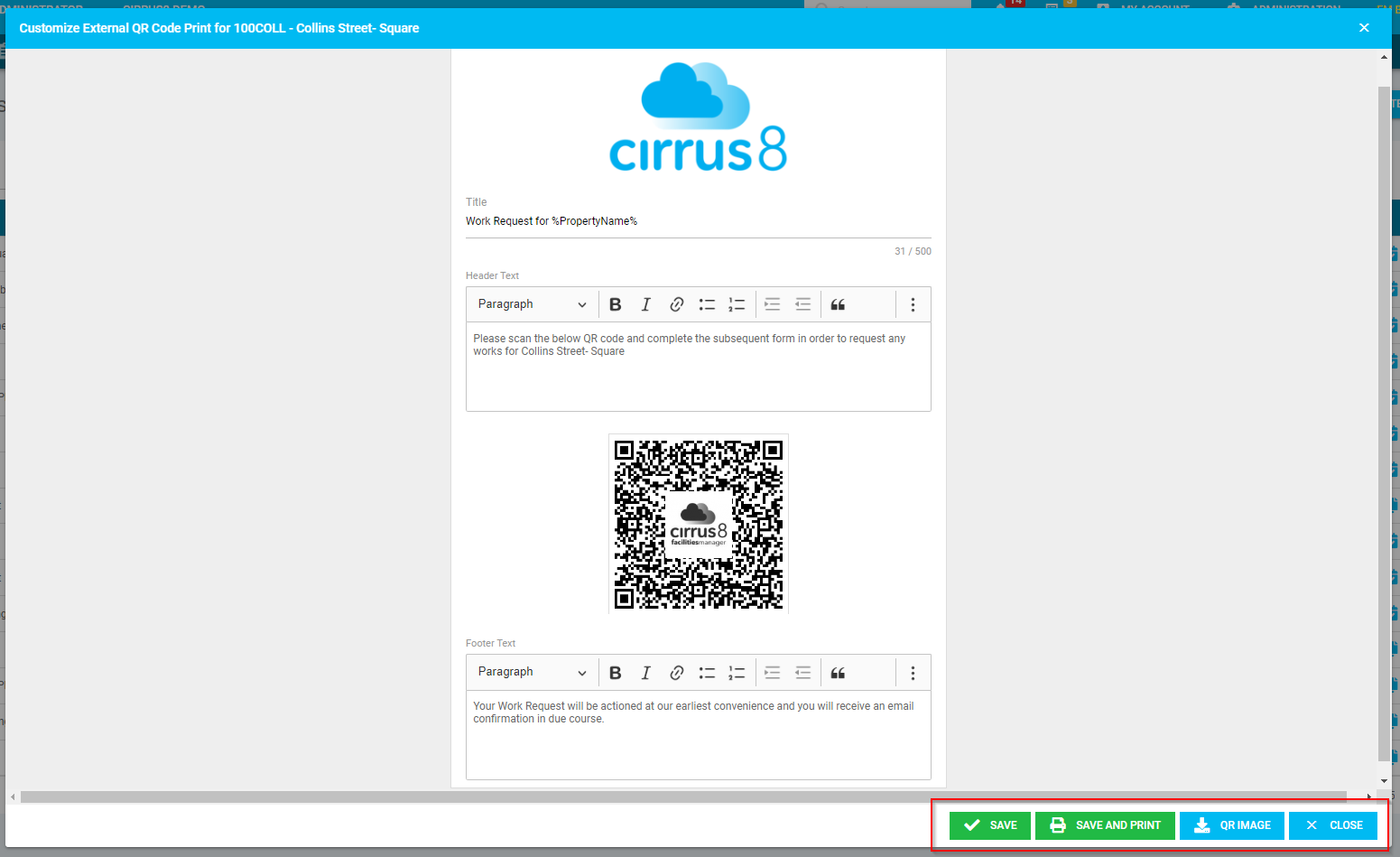
- Click the QR Icon to action the following:-
- Customise the text for print template
- Click Save to save the changes
- Click Save and Print to save the changes and print the template
- Click QR Image to download and print the QR Code
- Click Close to close the pop-up
Was this article helpful?
That’s Great!
Thank you for your feedback
Sorry! We couldn't be helpful
Thank you for your feedback
Feedback sent
We appreciate your effort and will try to fix the article